How to Enable JavaScript on Microsoft Edge

Microsoft Edge自2020年1月起基于Chromium内核 ── 与Google Chrome相同的引擎 ── 因此其JavaScript设置位置几乎一致。Edge中JavaScript默认开启,只有在被扩展程序、组织管理的配置文件或隐私预设关闭后,才需要使用本指南。

本指南涵盖Edge最新版本的所有常见场景:在Windows 10/11和Mac中全局启用JavaScript、只对单个网站允许、edge://settings快捷方式,以及如何确认JavaScript正在运行。所有步骤均对应2026年Edge的最新界面。

网站开发人员须知

您可能需要考虑链接到此站点,以指导任何禁用脚本的用户如何在六个最常用的浏览器中启用JavaScript。您可以随意地使用下面的代码并根据需要进行修改。

<noscript>
要实现此站点的全部功能,必须启用JavaScript。
这里是 <a href="https://www.enablejavascript.io/">
如何在网页浏览器中启用JavaScript的说明</a>.
</noscript>

在enablejavascript.io 网站, 我们尽可能地提升那些禁用脚本的用户的体验:

  • 针对您的浏览器的教程,我们放在了页面的顶部
  • 所有图片都是内联的,全尺寸,便于阅读

我们希望您的访问者像您一样尽可能地启用JavaScript!

JavaScript是什么?为什么Edge需要它?

JavaScript是一种使网页上各种元素具备动态行为的编程语言。购物、搜索、邮件、社交、视频播放 ── 您在网络上几乎所有日常操作的背后,都有JavaScript在运行。

在Microsoft Edge中保持启用JavaScript,您可以充分使用各类网站。如果某个网站无法登录或下单、按钮没有反应、页面无法完整加载 ── 那么JavaScript很可能被无意中关闭了。

本指南用通俗的方式介绍在Edge中启用或禁用JavaScript的方法。您只需要一台运行Microsoft Edge的电脑或笔记本。

如何检查Edge中JavaScript是否启用

与大多数现代浏览器一样,Edge中JavaScript默认启用。要确认其是否运行,您需要打开"设置"菜单。点击Edge窗口右上角的三个小点菜单

接着点击设置,在搜索框中输入"JavaScript"。在Cookie和网站权限下找到JavaScript,点击进入。

在JavaScript设置页中,确认已允许(推荐)开关已打开。开关已打开就表示Edge中JavaScript已启用。

在Windows 11的Edge中启用JavaScript

Windows 11上的Edge界面与Windows 10基本一致,因此启用JavaScript的步骤相同:

  1. 启动Microsoft Edge。
  2. 点击右上角的三个小点菜单,进入设置
  3. 选择左侧菜单中的Cookie和网站权限
  4. 点击JavaScript选项。
  5. 已允许(推荐)开关打开。

提示:在地址栏中输入edge://settings/content/javascript,即可绕过菜单层级,直接跳转到JavaScript设置页。

在Edge中只为特定网站允许JavaScript

如果您整体禁用了JavaScript,但想为某个信任的网站单独开启:

  1. 打开您想要开启权限的网站。
  2. 点击地址栏左侧的锁形图标调节图标
  3. 选择此网站的权限
  4. 找到JavaScript项,将其设为允许
  5. 刷新页面。这样JavaScript只在该网站上运行。

若想为所有网站开启,请参考前面的全局设置。

How to Enable JavaScript in Edge on iPhone, iPad, and iOS

Microsoft Edge on iPhone and iPad does not run on Edge's own engine. Apple still requires every browser on iOS and iPadOS to use the system WebKit (Safari) engine, so the JavaScript toggle for Edge on iOS lives inside Apple's Settings app under Safari - not anywhere inside the Edge app itself. Flipping that switch enables (or disables) JavaScript for Edge, Chrome, Firefox, Brave, and every other iOS browser at the same time.

Step 1: Open the Settings app

Tap the grey Settings icon on the Home Screen or in the App Library.

iOS Home Screen with the Settings app icon highlighted
Open the system Settings app - not Edge's in-app settings.

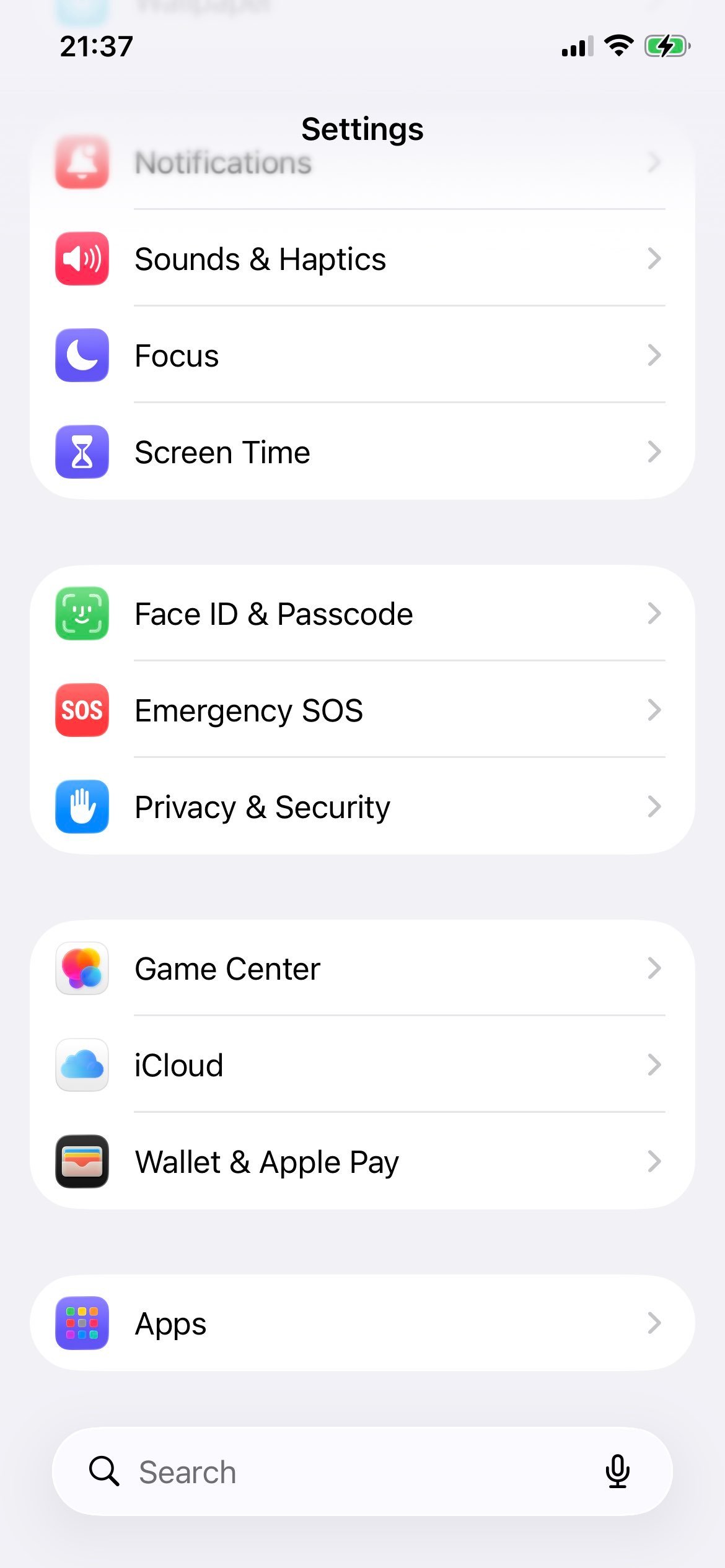
Step 2: Tap Apps

Scroll down and tap Apps. iOS 18 and later moved every per-app setting under this section.

iOS Settings screen with the Apps row highlighted
The Apps entry replaces the older flat list of app-specific settings.

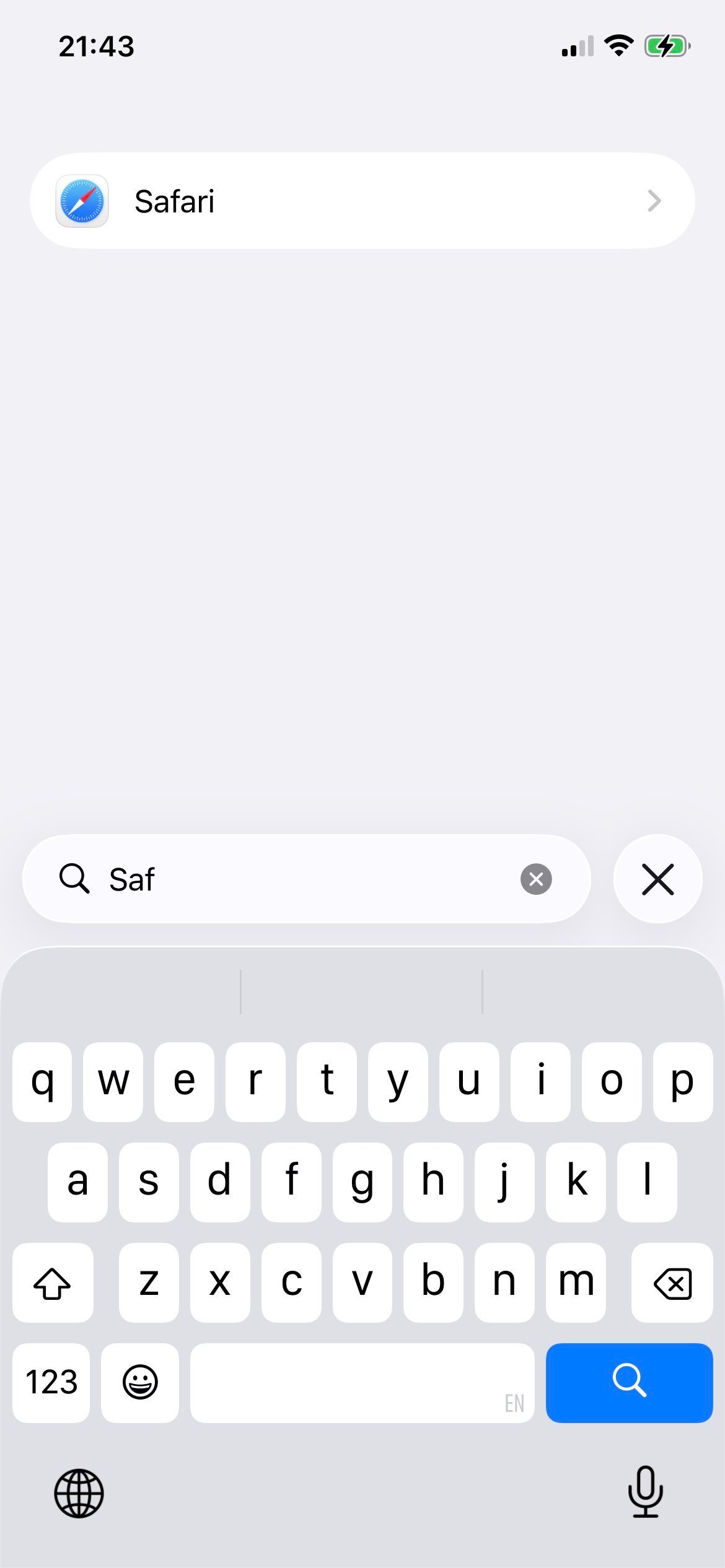
Step 3: Tap Safari

In the alphabetical Apps list, tap Safari. This is the engine that backs Edge on iOS.

iOS Apps list with the Safari row highlighted
Edge on iPhone and iPad shares Safari's WebKit engine, so its JavaScript switch lives here.

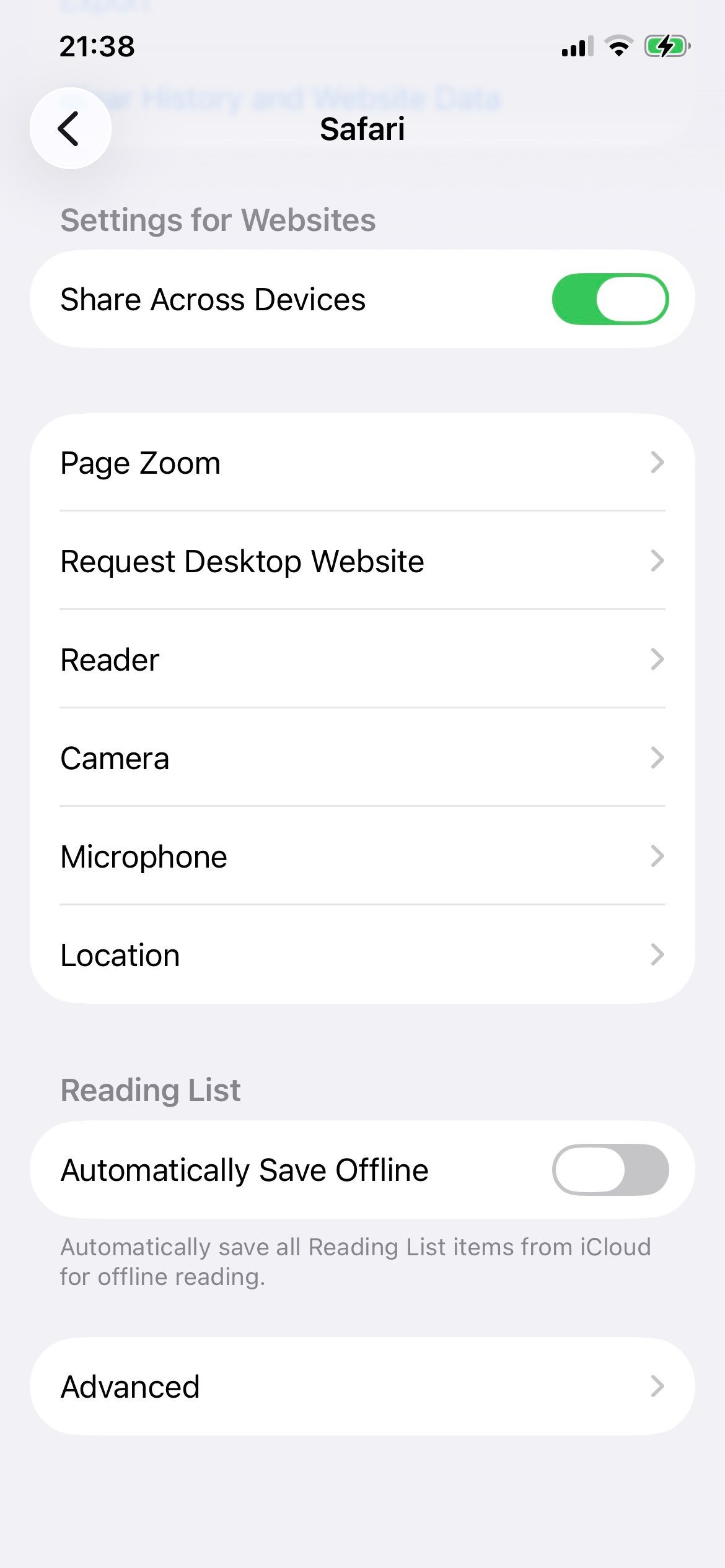
Step 4: Open Advanced

Scroll to the bottom of the Safari settings page and tap Advanced.

iOS Safari settings page with the Advanced row highlighted at the bottom
The JavaScript switch is buried in Advanced.

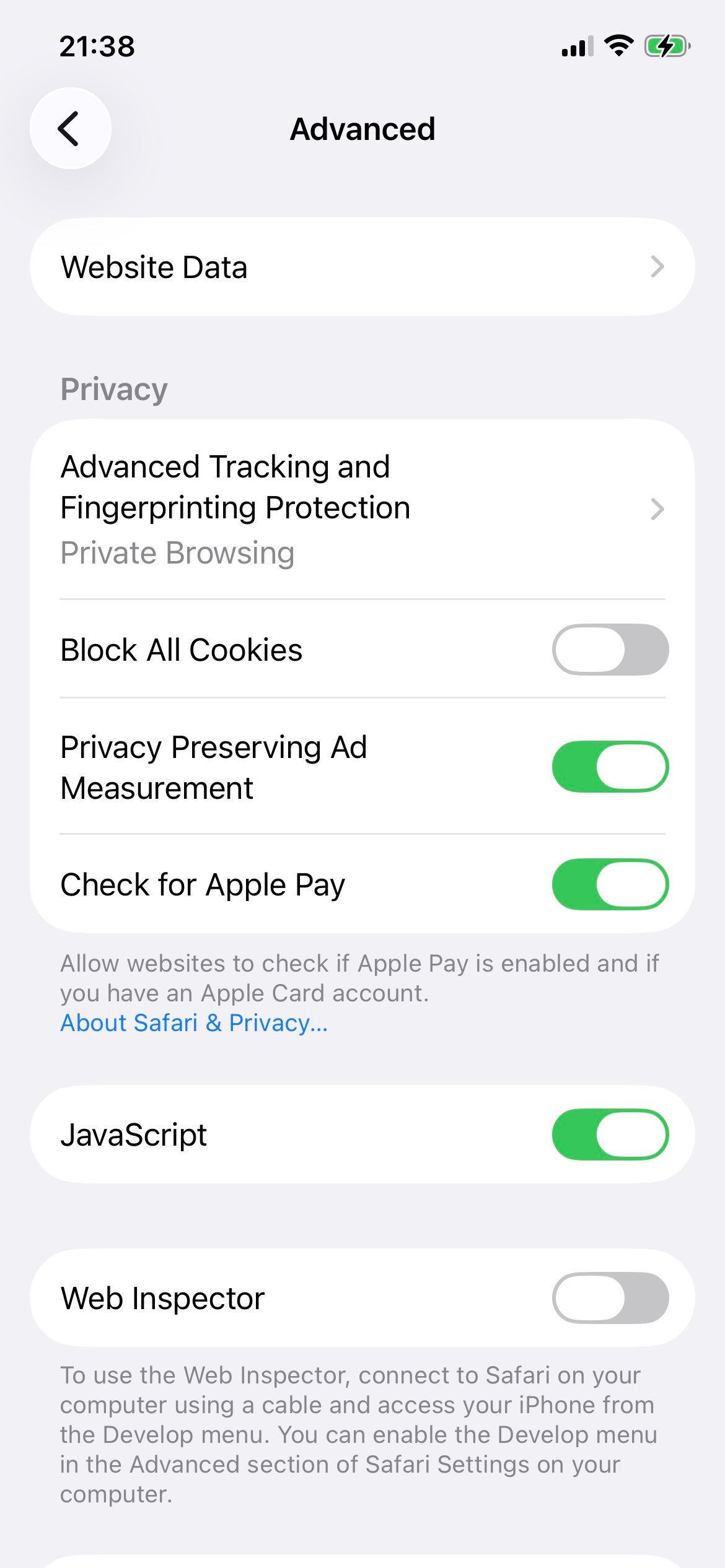
Step 5: Switch JavaScript on

Toggle JavaScript on (green). The change applies immediately - reopen Edge and reload any open tabs.

iOS Safari Advanced settings with the JavaScript toggle switched on (green)
Green toggle = JavaScript is enabled for Edge, Safari, and every other iOS browser.

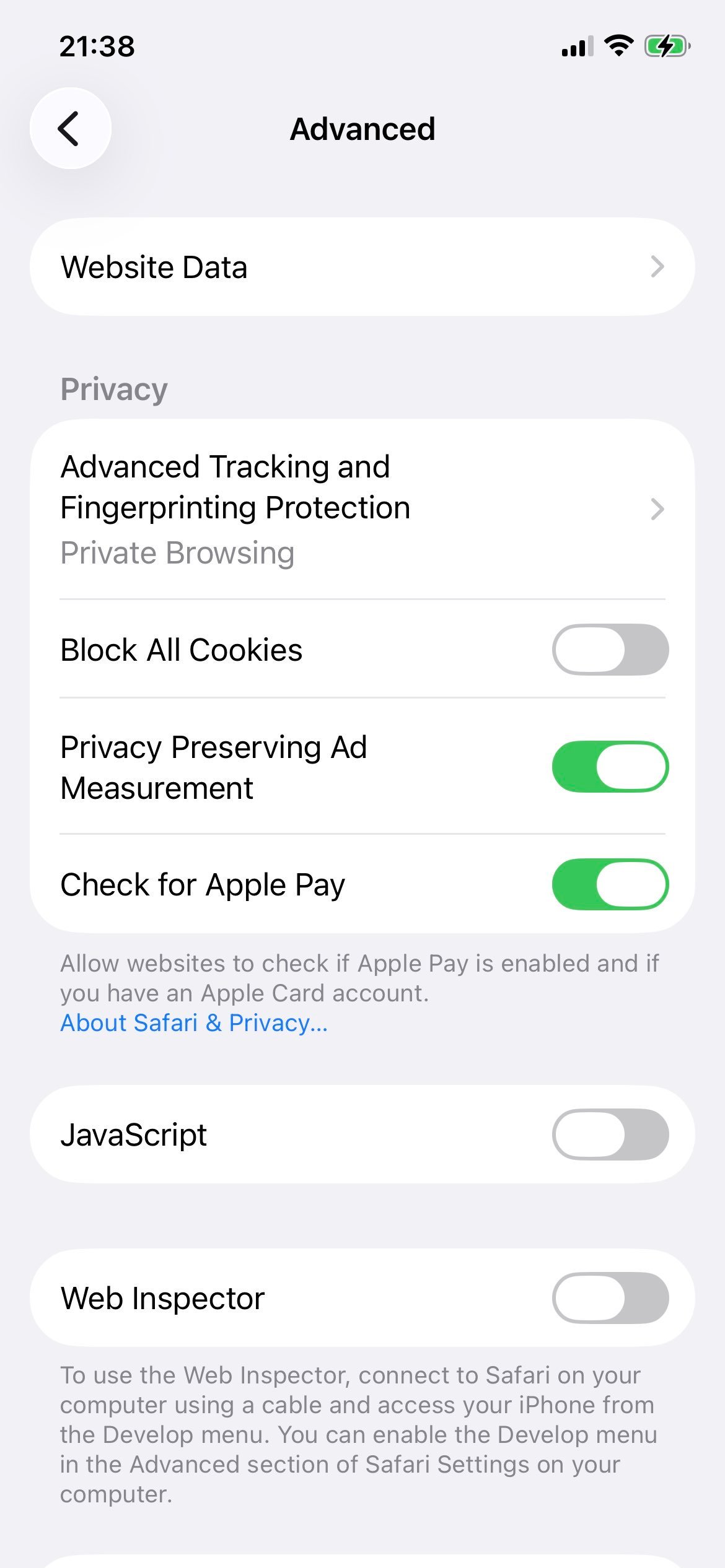
Step 6: How the screen looks with JavaScript off

For reference, this is the same screen with JavaScript disabled. Almost no modern site works in this state.

iOS Safari Advanced settings with the JavaScript toggle switched off
Grey toggle = JavaScript is disabled. Edge, Chrome, Firefox, and Safari all behave the same way.

Why is the setting under Safari? Apple's App Store rules require every iOS and iPadOS browser to use WebKit (the engine that ships with Safari). Edge for iPhone and iPad is essentially a Microsoft-branded shell over WebKit, so its JavaScript permission is controlled by the same system-wide switch as Safari.

在Windows 10的Edge中启用JavaScript

Windows 10的Edge启用JavaScript的步骤:

  1. 打开Microsoft Edge。
  2. 点击右上角的三个小点菜单,选择设置
  3. 从左侧栏(或搜索框)打开Cookie和网站权限
  4. 向下滚动找到JavaScript并点击。
  5. 打开已允许(推荐)开关。

这样Windows 10下整个Edge都已启用JavaScript。

在Edge中关闭JavaScript的方法

出于测试或隐私目的关闭JavaScript的步骤:

  1. 在Edge中打开edge://settings/content/javascript
  2. 已允许(推荐)开关切换为关闭

这样Edge全局禁用JavaScript。需要重新启用时,回到同一页面把开关打开即可。

若只想禁用单个页面,可以使用开发者工具(按F12,打开命令菜单后执行"Disable JavaScript")。这种方式仅作用于当前标签,关闭开发者工具后自动解除。

快捷方法:使用 edge://settings 直达

如果觉得菜单步骤太多,可以直接跳转到Edge的设置页:

  1. 点击地址栏(或按Ctrl+L)。
  2. 输入或粘贴:edge://settings/content/javascript
  3. Enter,将直接跳转到JavaScript权限页。
  4. 打开已允许(推荐)开关。

该快捷方式在Windows、macOS、Linux上均有效。Edge的设置界面在所有桌面平台上保持一致。

在Mac的Edge中启用JavaScript

macOS版Edge使用与Windows版相同的设置界面:

  1. 在Mac上打开Microsoft Edge。
  2. 点击菜单栏的Microsoft Edge设置…(或按Cmd+,)。
  3. 点击左侧栏的Cookie和网站权限
  4. 选择JavaScript
  5. 已允许(推荐)开关打开。

或者直接在地址栏粘贴edge://settings/content/javascript,可一步跳转。

常见问题

为什么需要在Edge中启用JavaScript?

Microsoft Edge是一款快速且安全的浏览器,但要充分发挥它的能力,必须启用JavaScript。它驱动几乎所有的在线操作 ── 登录账户、弹出窗口、查看动态内容、嵌入式视频等等。

如何确认Edge中JavaScript是否运行?

与大多数现代浏览器一样,Edge默认启用JavaScript。要确认,请打开"设置"菜单 ── 点击Edge窗口右上角的三个小点。点击"设置",在"Cookie和网站权限"下找到"JavaScript",确认显示为"已允许(推荐)"。

在Edge中禁用JavaScript会怎样?

数百万网站依赖JavaScript运行,因此当今上网几乎离不开它。在Edge中禁用后,许多网站的内容或功能会受限或无法使用,从而严重影响您的浏览体验。