How to Disable JavaScript on Microsoft Edge

Microsoft Edge has been Chromium-based since January 2020, which means its JavaScript controls work almost exactly like Chrome's. What is different is the audience. People disable JavaScript in Edge for the same legitimate reasons they disable it in Chrome - privacy and tracking defence, web-development testing, performance on older hardware, accessibility with screen readers that prefer static HTML, and the occasional desire to read a long article on a site that fights you with twelve overlay scripts. Edge adds one more privacy lever on top of that: Tracking prevention, which blocks many third-party scripts even with JavaScript itself fully on.
This guide covers Edge's current UI as of 2026 (Edge 120 and later). You will find the global off switch, the edge://settings shortcut, the per-site allow-list, a note on Tracking prevention's Strict mode, the DevTools per-tab toggle for developers, and a quick way to verify JavaScript is actually off.
Before you disable: what breaks and what does not
Edge runs the same Chromium engine as Chrome, so the breakage profile is identical:
- Single-page apps (Outlook web, Microsoft Teams web, OneDrive web, Slack, Notion, Gmail, X/Twitter, Instagram) will mostly fail to load past a blank screen.
- Sign-in flows that rely on JavaScript-driven submit buttons may not work, even when the underlying form looks fine.
- News sites, blogs, docs, and most reference content render normally because the article body is plain HTML.
- Embedded videos, captchas, autocomplete search boxes, and infinite-scroll feeds will frequently break.
The healthy default for most readers is to disable JavaScript globally and then put the four or five sites you genuinely use every day on the allow-list. Instructions for both halves of that setup are below.
Disable JavaScript globally in Microsoft Edge
The path is virtually identical on every desktop platform Edge runs on, but the surrounding chrome (window decorations, menu placement, screenshot look) does change. Pick the platform that matches your machine. The mobile path is at the end of this section, since iOS routes through Safari's engine and Android has its own UI.
Windows 11 (most common)
Edge ships pre-installed on Windows 11 and is the default browser unless you change it. The walkthrough below uses a stock Edge 120+ install on Windows 11.
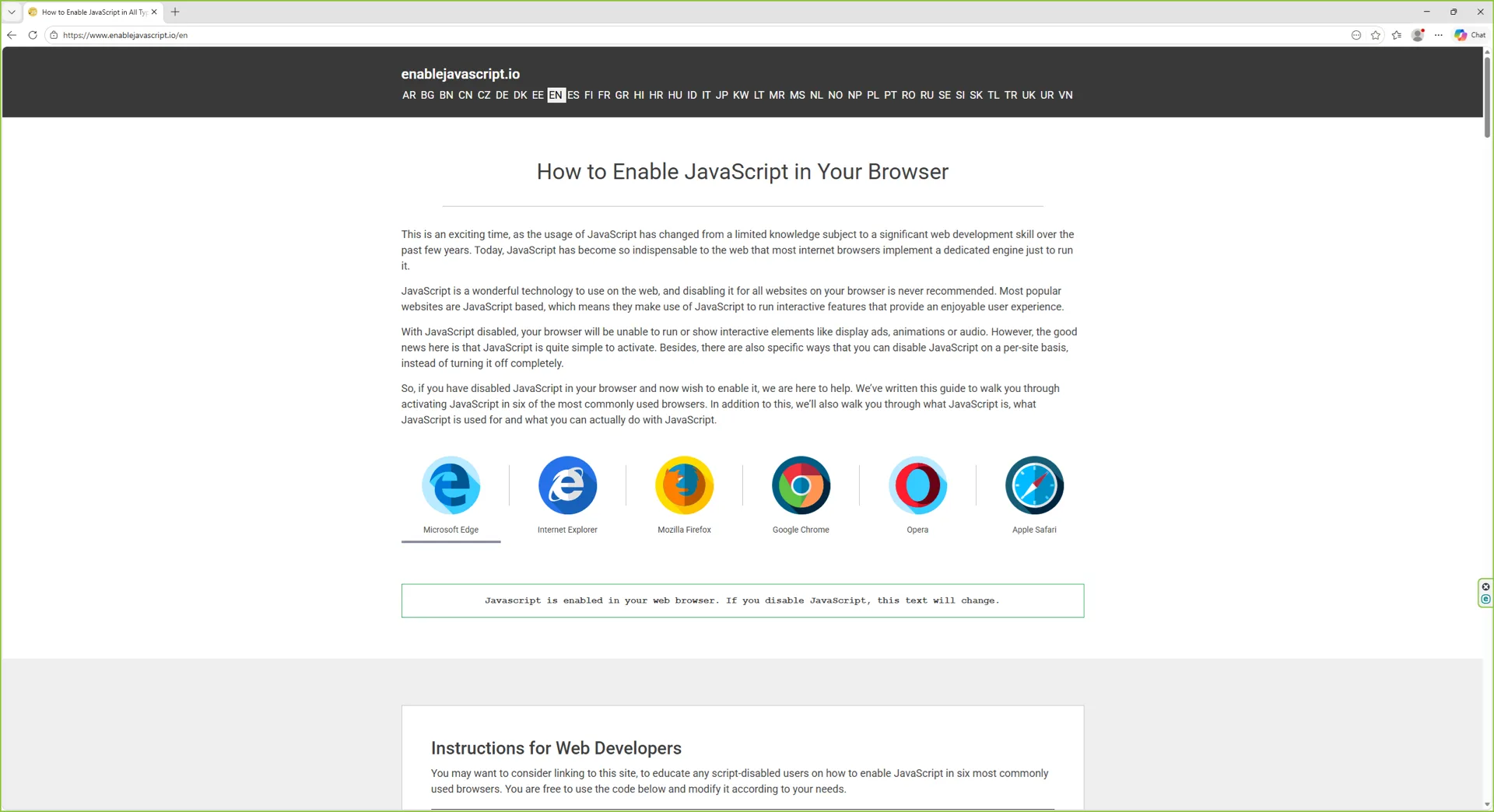
Step 1: Open Microsoft Edge
Launch Edge from the taskbar, the Start menu, or by pressing the Windows key and typing "Edge".
Step 2: Open the three-dot menu
Click the three-dot icon in the top-right corner of the Edge window to open the main menu.
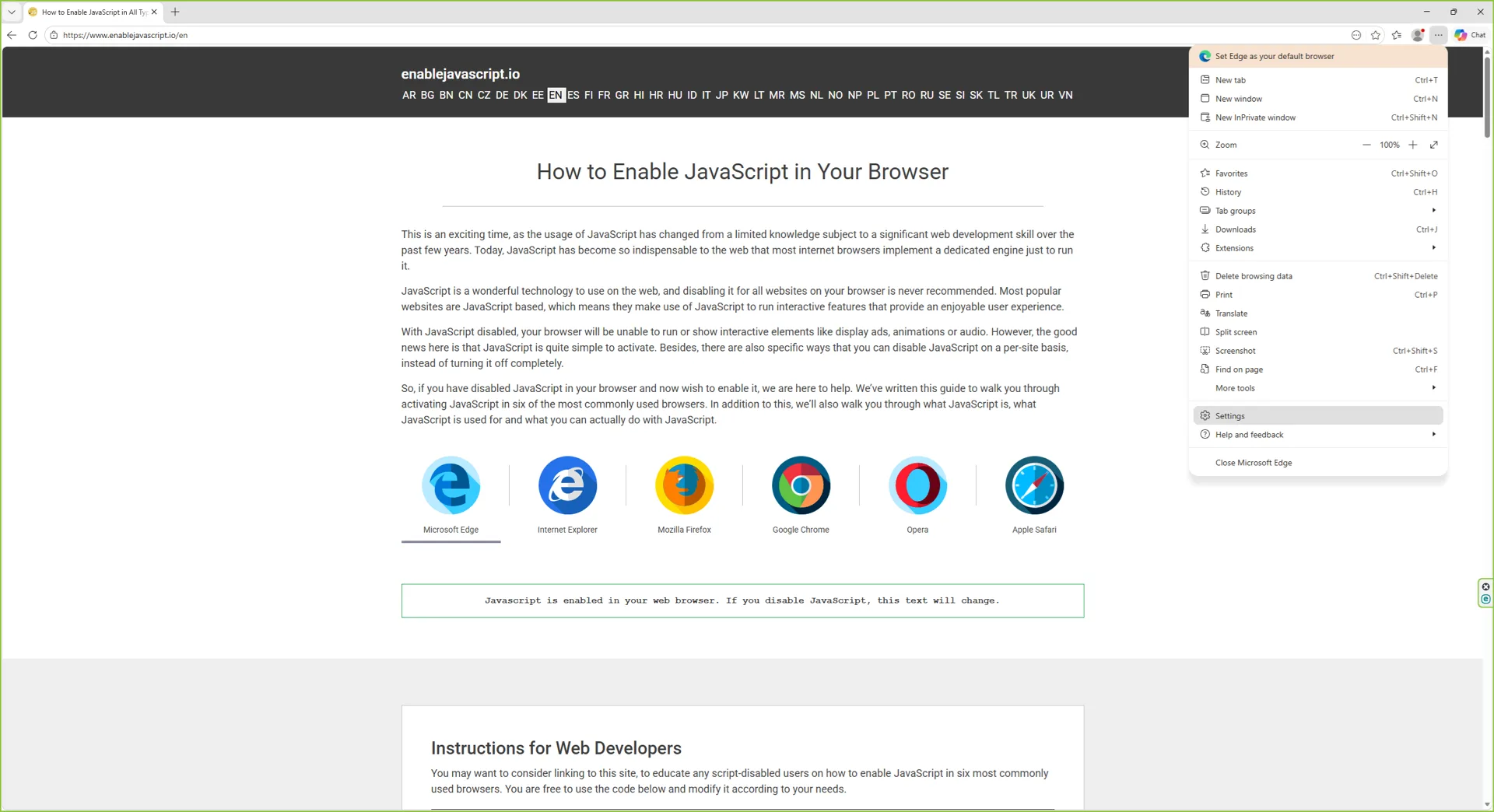
Step 3: Open Settings and pick Cookies and site permissions
Choose Settings from the menu, then click Cookies and site permissions in the left sidebar. This is the section that holds JavaScript and most other per-site controls.
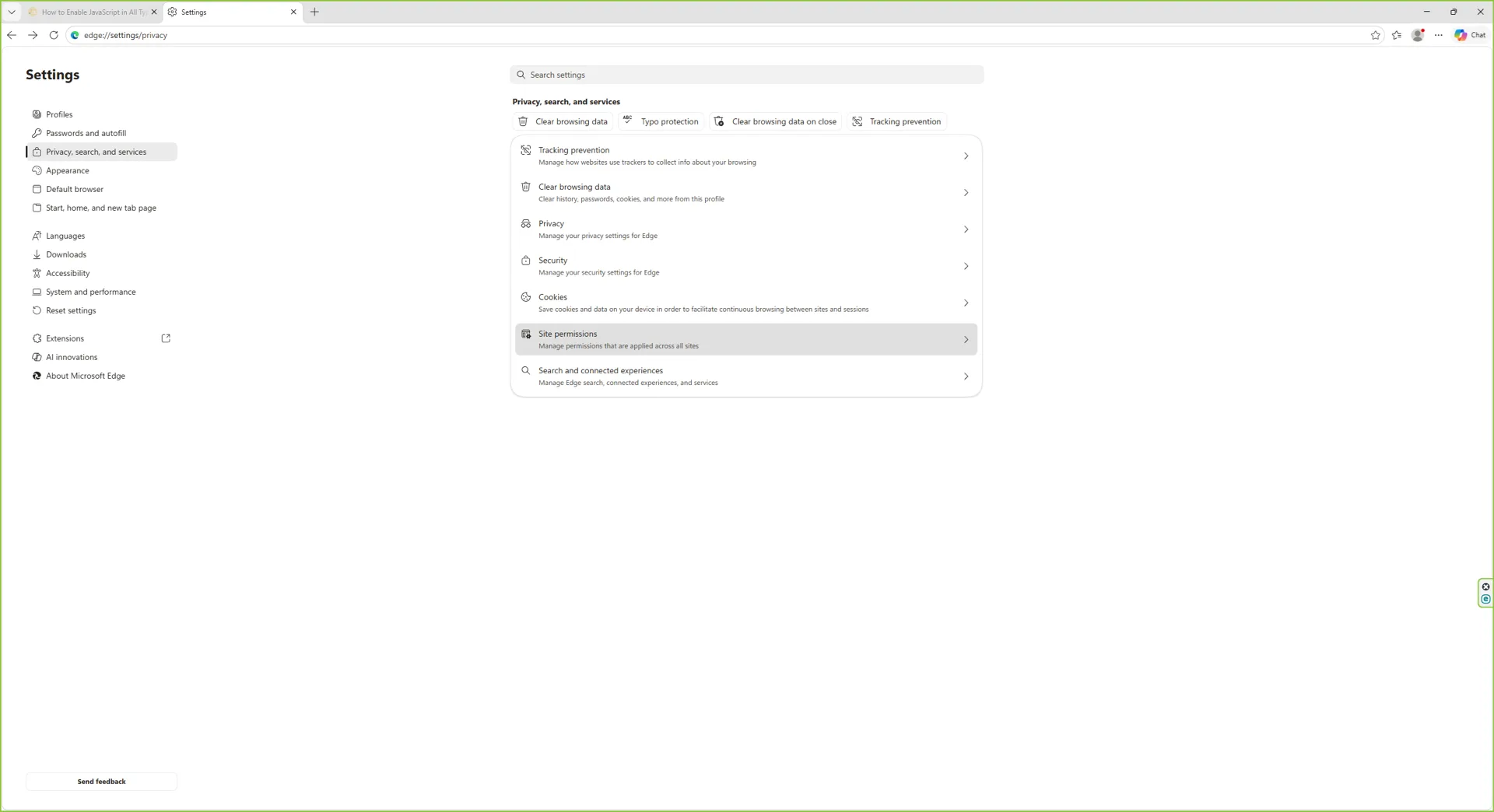
Step 4: Open All permissions
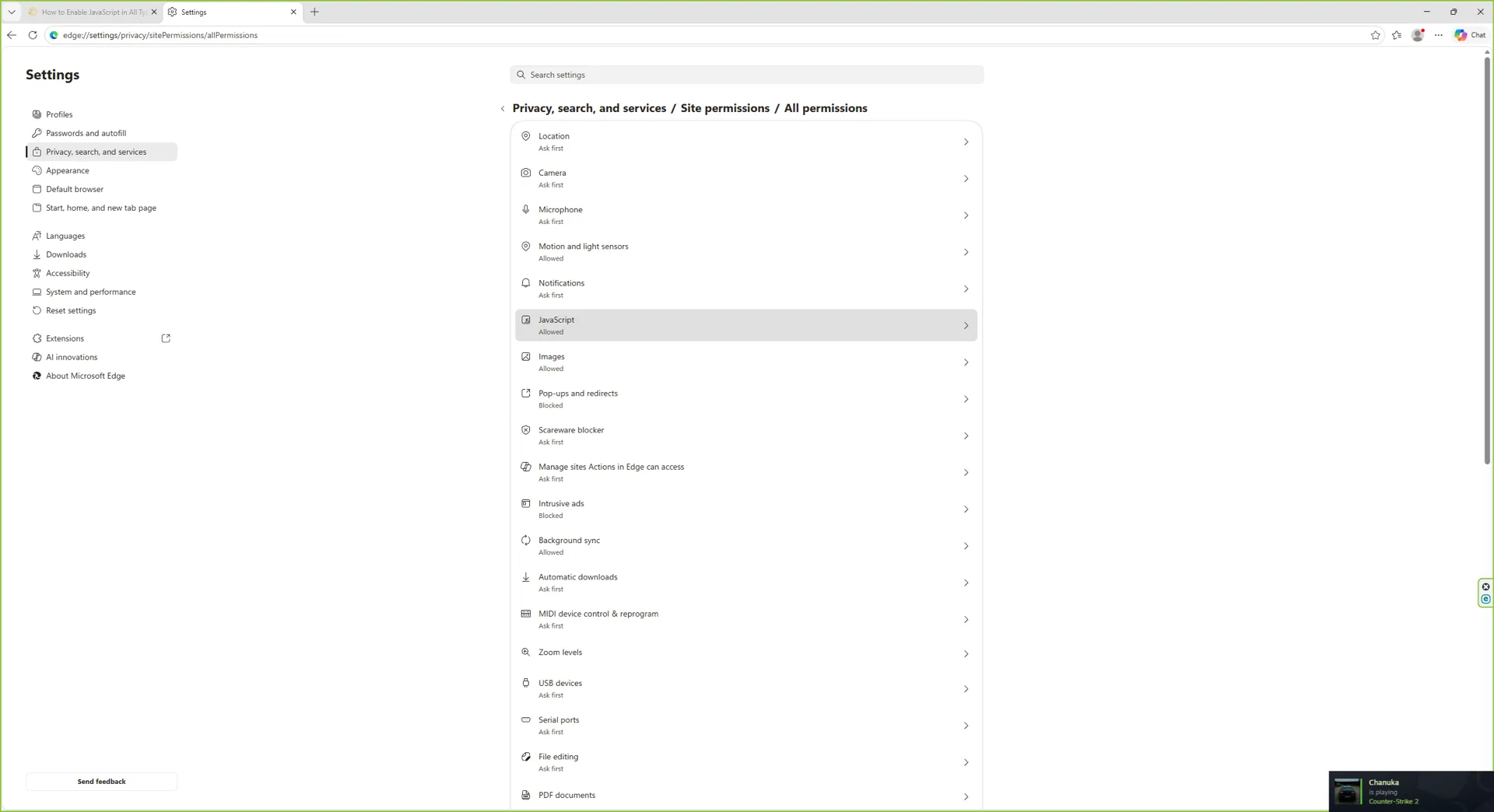
Scroll down the page until you reach the All permissions list. JavaScript sits in this group along with cookies, location, camera, and the rest of the per-site toggles.
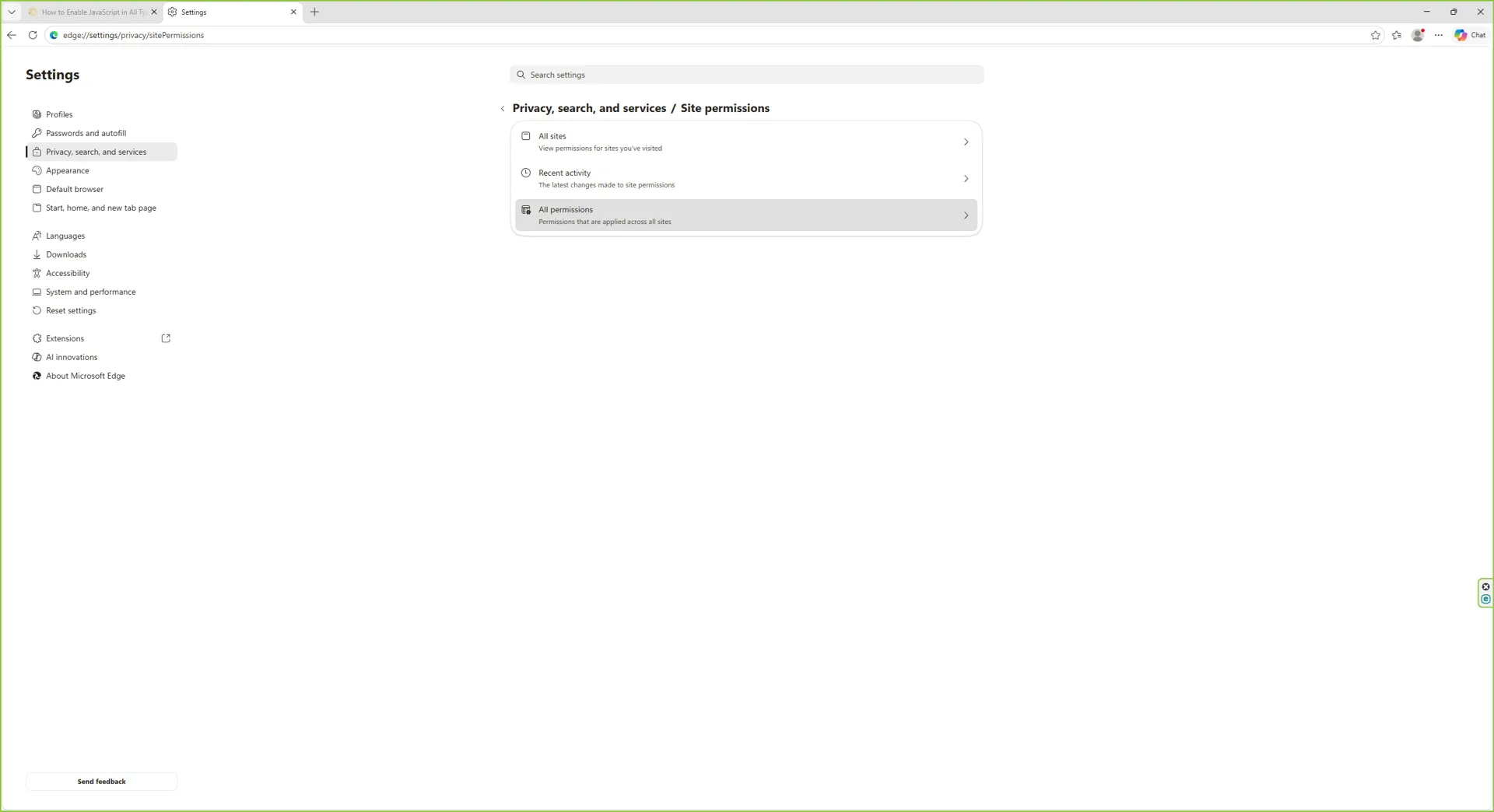
Step 5: Click into JavaScript
Click the JavaScript row to open its detail page, where the global toggle and the per-site Allow and Block lists live.
Step 6: Confirm the current state
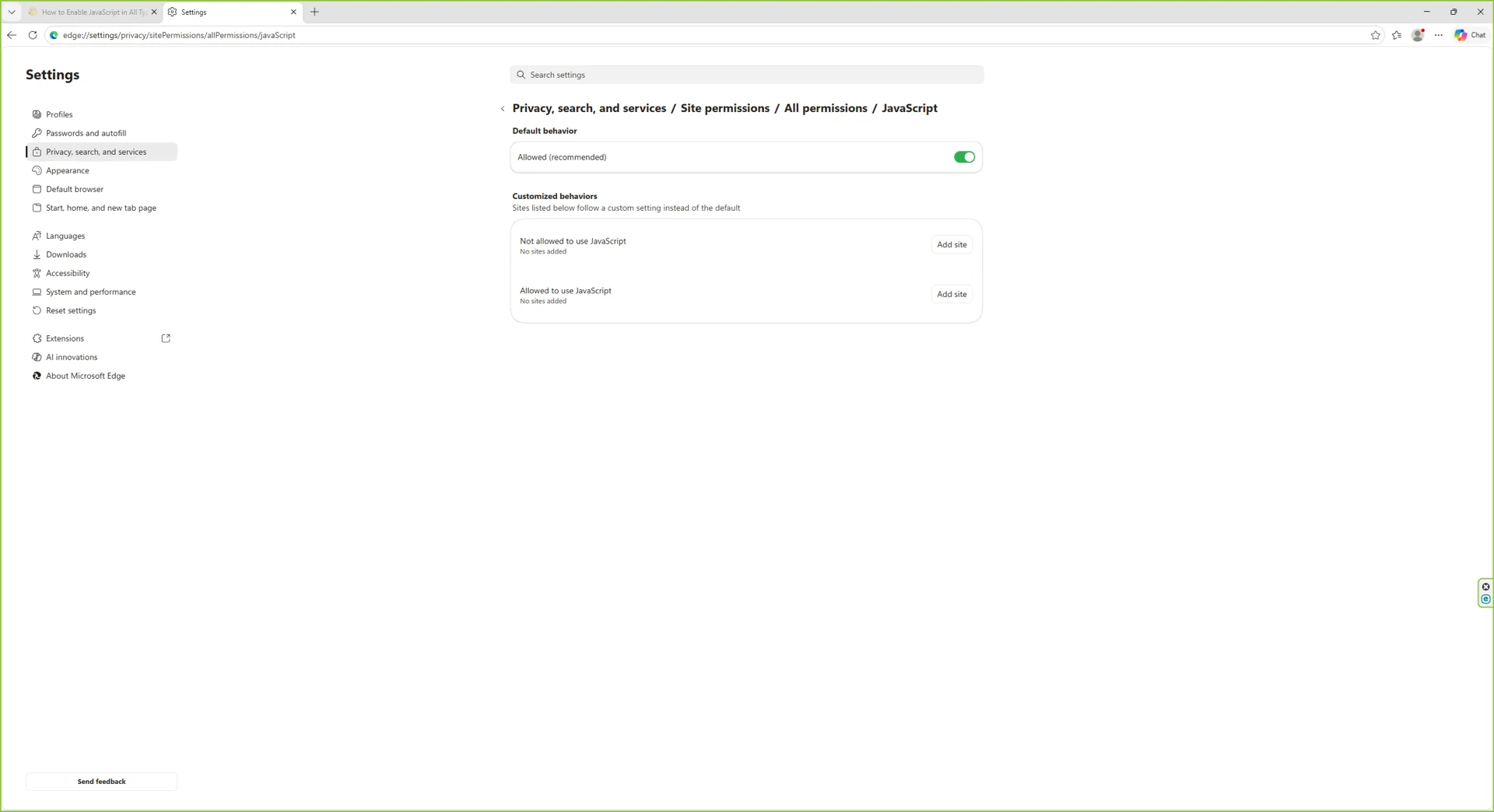
Out of the box the toggle reads Allowed (recommended) and is switched on. This is what a default Edge install looks like before any change.
Step 7: Switch the toggle off
Click the toggle. The label flips to Don't allow sites to use JavaScript and the change is saved instantly.
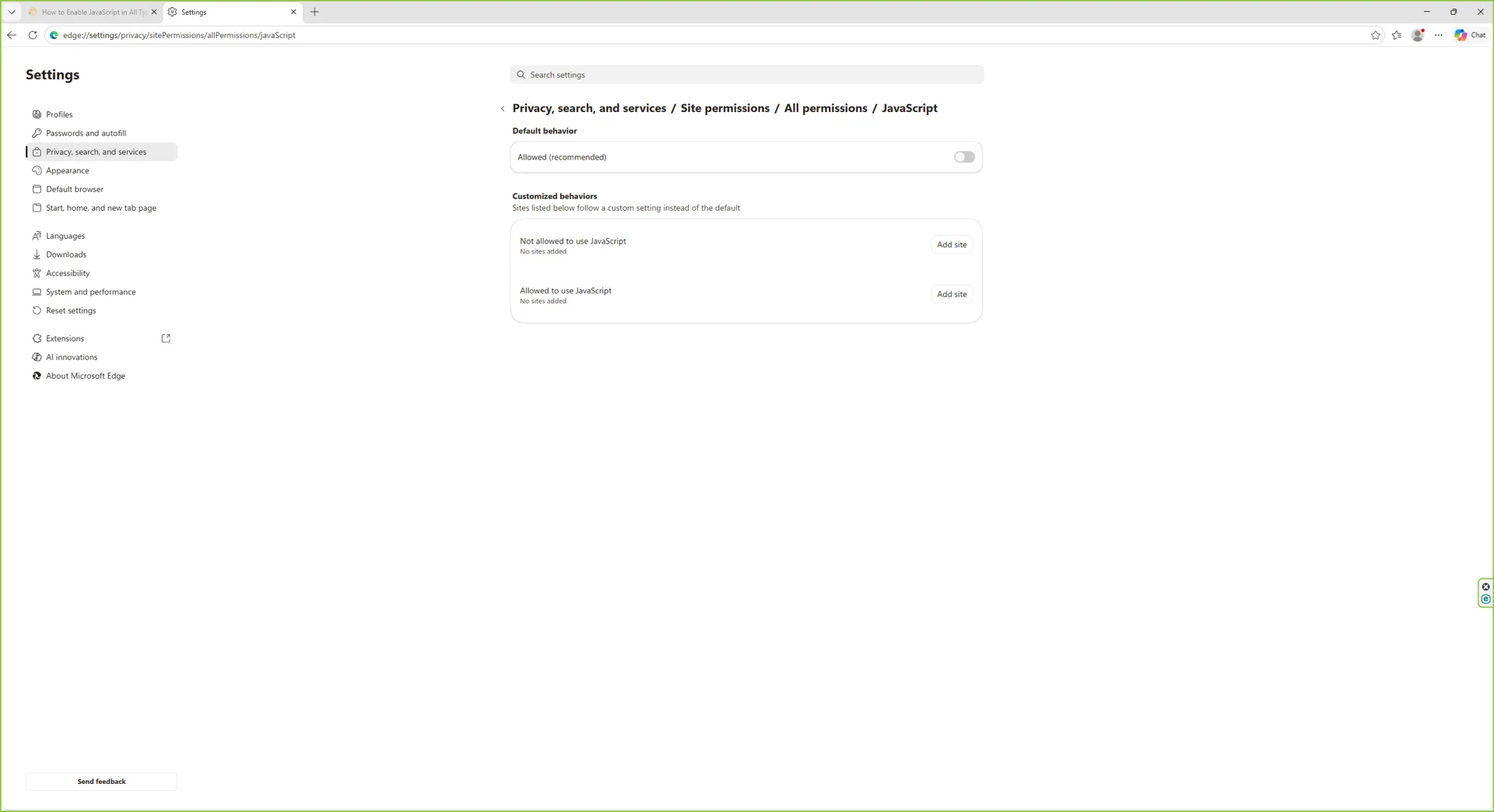
From this point on, every new page Edge loads runs with JavaScript switched off. Tabs that were already open will keep their pre-disable state until you refresh them.
macOS Sequoia
Edge on macOS uses the same Chromium-based settings UI as the Windows version, so the page structure is identical. The window chrome (traffic-light controls, system fonts, accent colour) follows macOS rather than Windows. You can also press Cmd + , from any Edge window to jump straight to Settings, which skips steps 1 and 2 below.
Step 1: Launch Edge. Open Edge from the Dock, Launchpad, or Spotlight (Cmd + Space, then type "Edge"). The app opens to your usual new-tab page.
Step 2: Open the menu. Click the three-dot icon in the top-right of the Edge window, exactly as on Windows. Or, faster, press Cmd + , and skip to step 3.
Step 3: Open Settings
From the menu choose Settings. Edge opens its settings page in a new tab.

Step 4: Pick Cookies and site permissions
Click Cookies and site permissions in the left sidebar.
Step 5: Open All permissions
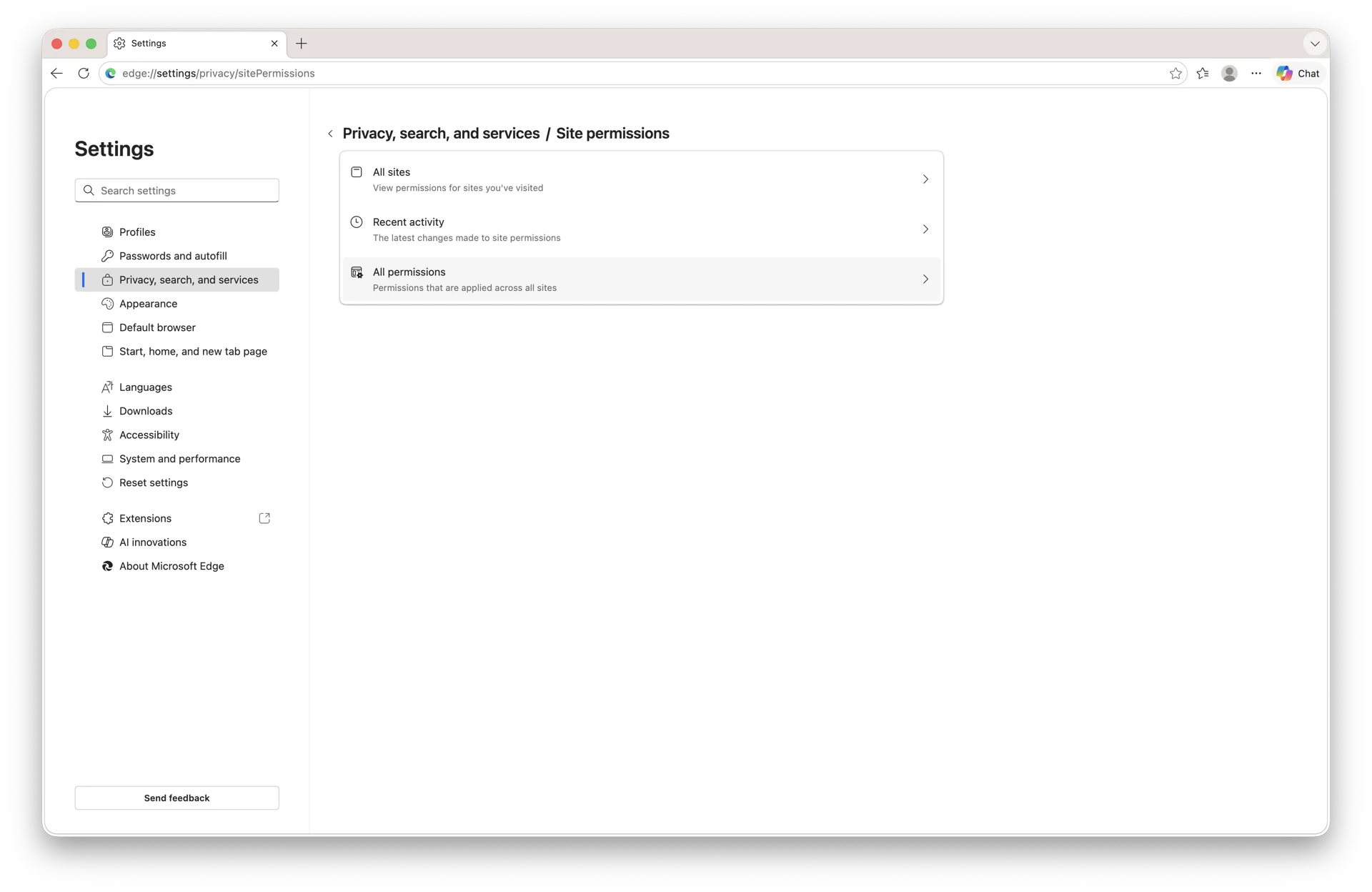
Scroll to the All permissions list, the same group of per-site toggles as on Windows.
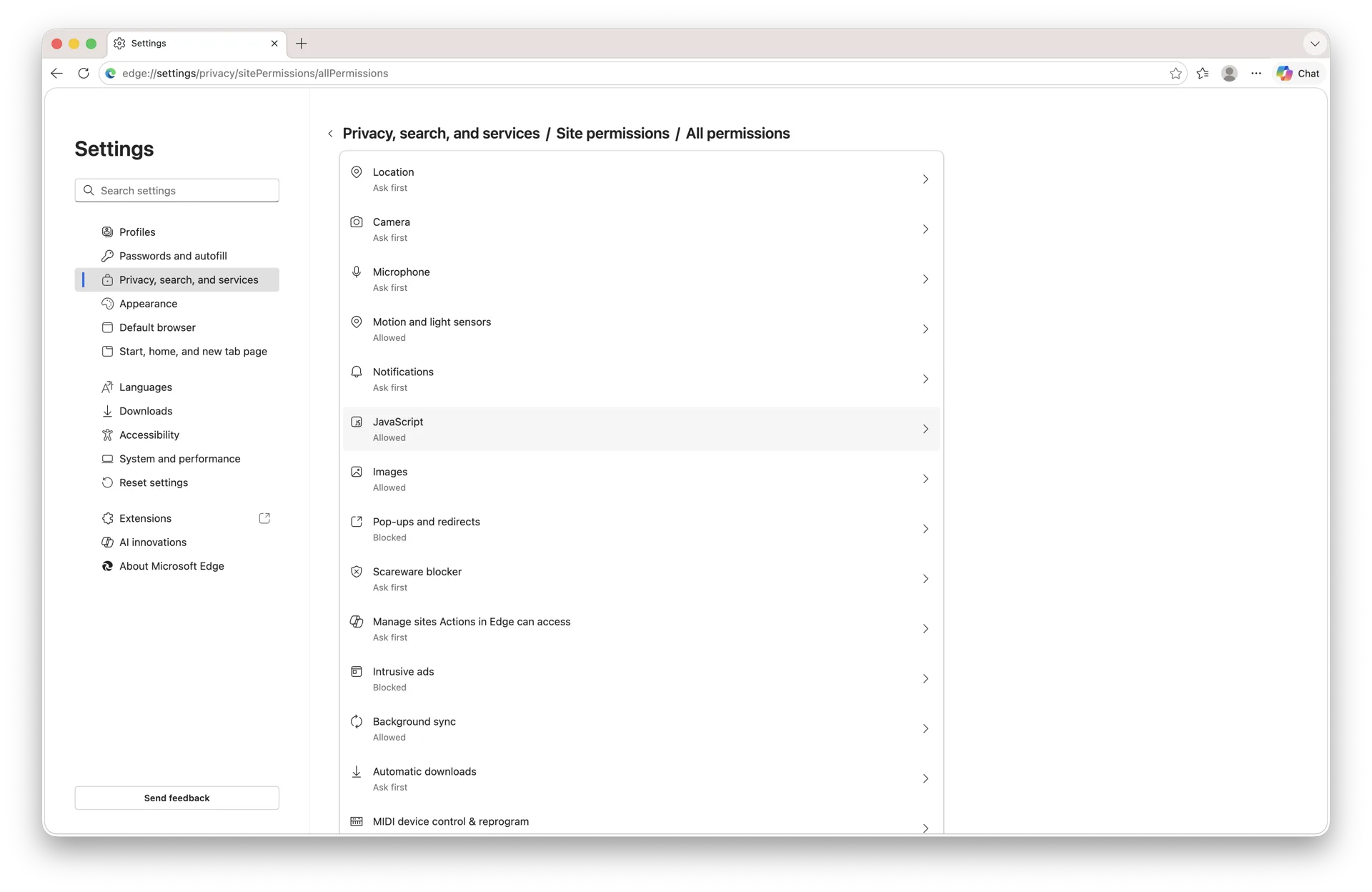
Step 6: Confirm the current state
Click JavaScript. The detail page opens with the toggle set to Allowed (recommended) by default.
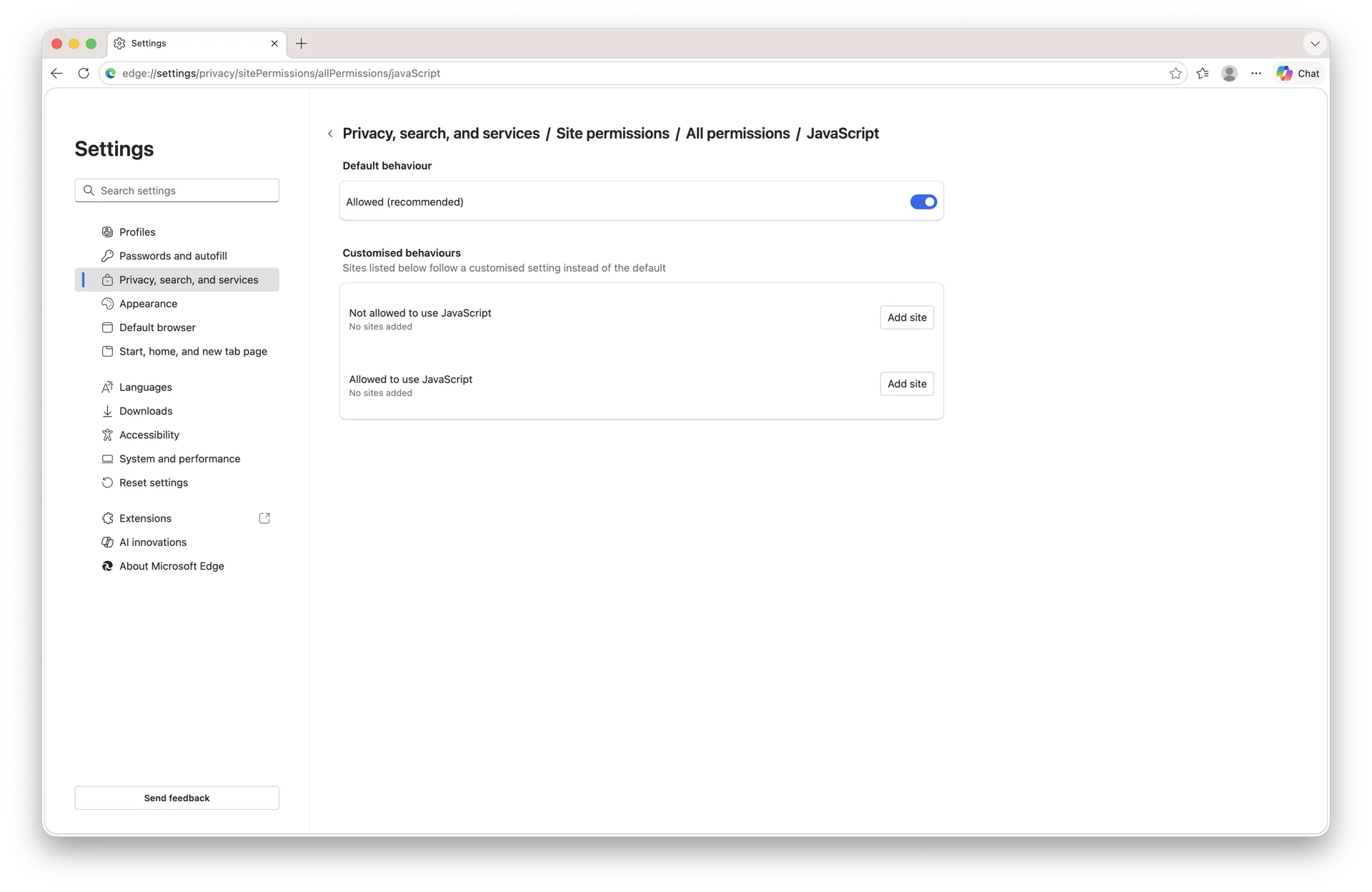
Step 7: Switch the toggle off
Click the toggle. The label switches to Don't allow sites to use JavaScript and Edge saves the change immediately.
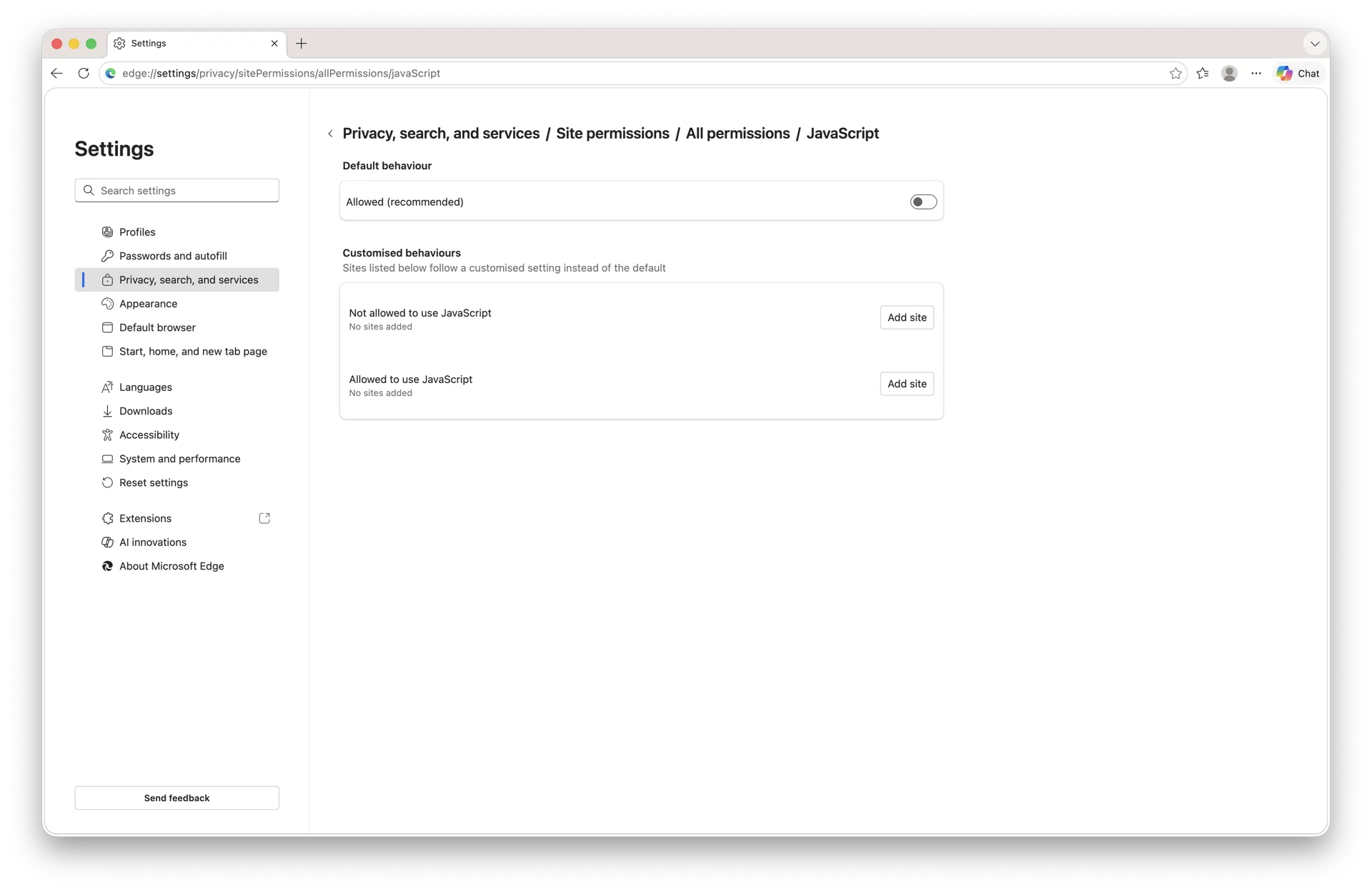
The Linux build of Edge ships with the same Settings UI, so the procedure is identical there - the pages look like the macOS screenshots above with GTK/KDE window chrome instead of Aqua.
iOS and iPadOS
Edge on iOS and iPadOS is a WebKit shell. Apple does not allow third-party browser engines on those platforms, so JavaScript for Edge, Chrome, Firefox, Brave, and every other iOS browser is governed by the system Safari setting. Disabling it once turns it off for all of them.
Step 1: Open the iOS Settings app
Tap the grey gear icon on your Home Screen or App Library to open Settings.

Step 2: Open Apps
Scroll down to the Apps section. On modern iOS, system browser settings live inside this list.
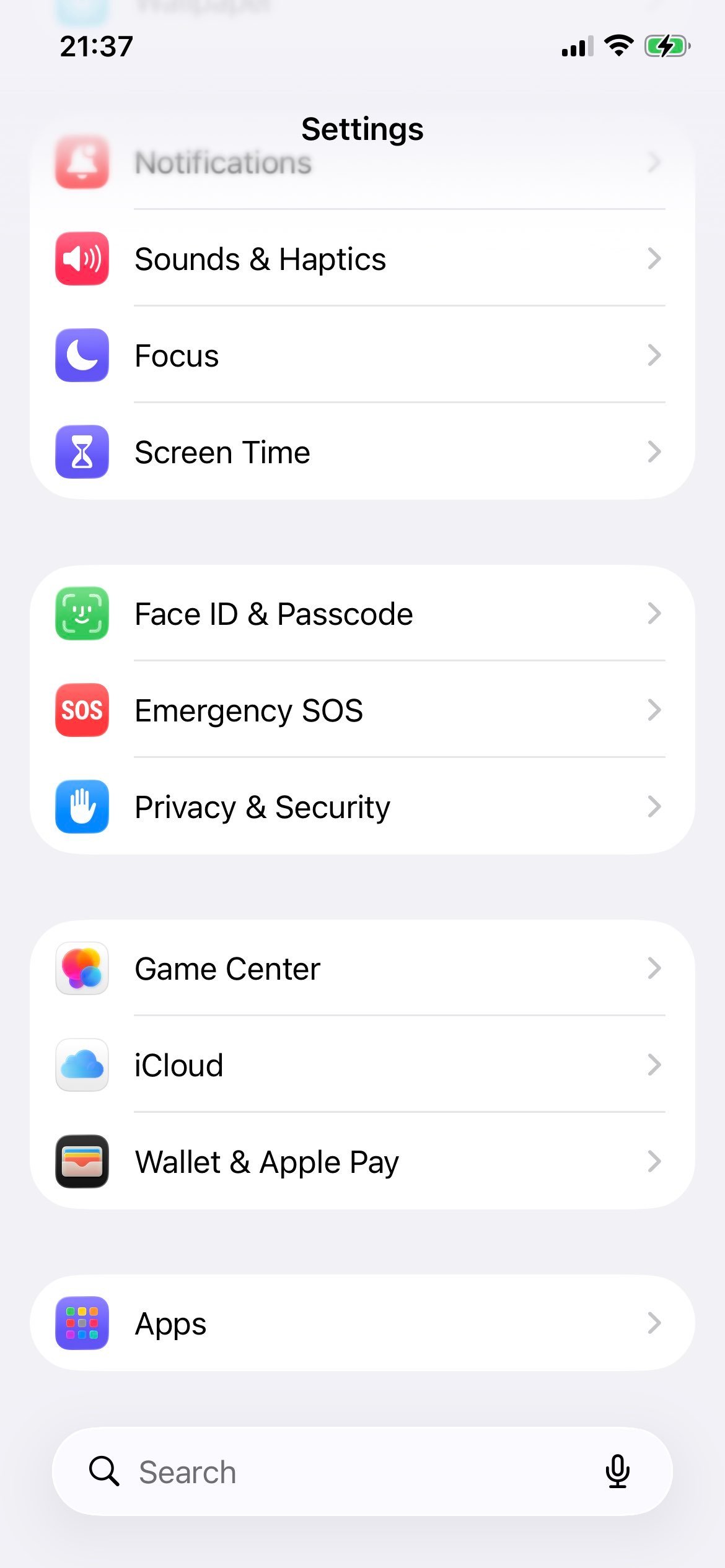
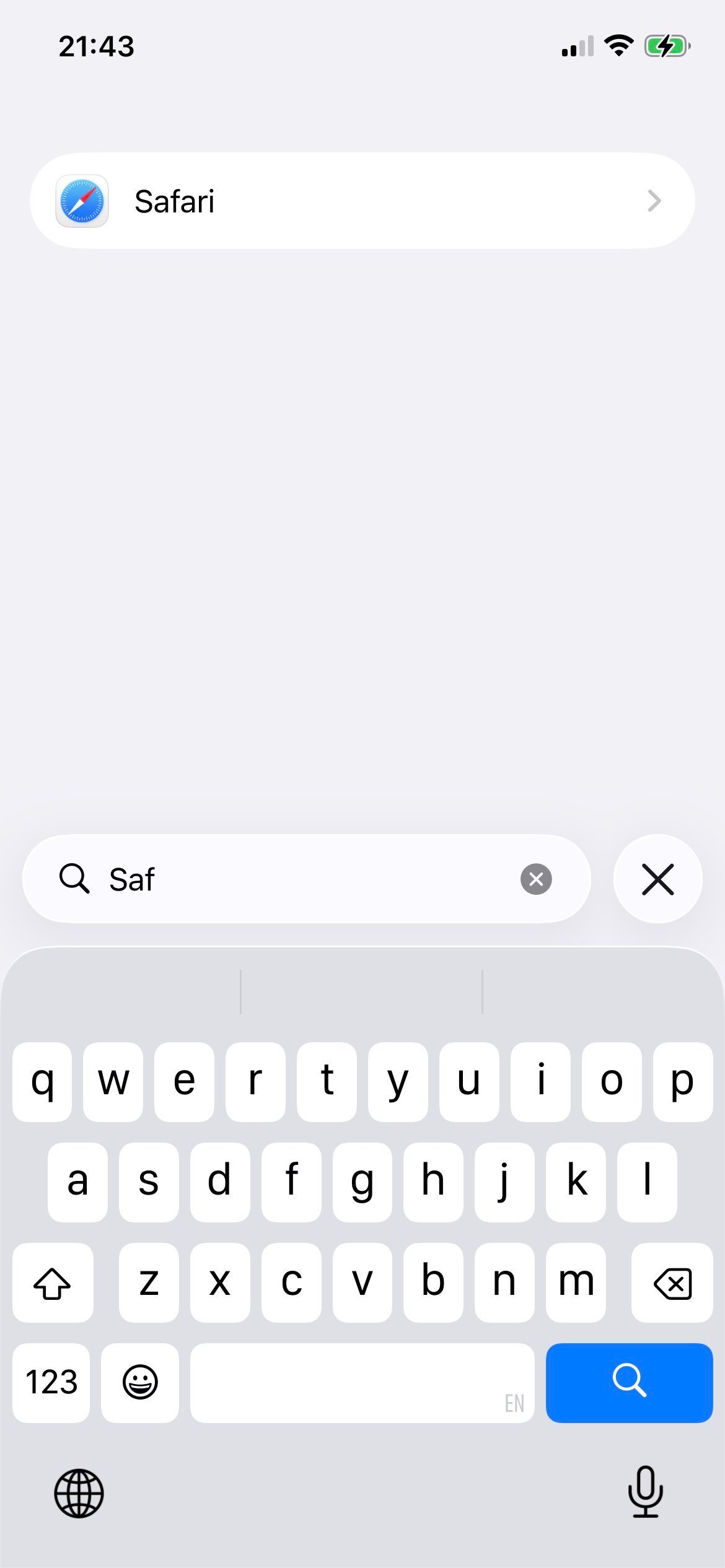
Step 3: Tap Safari
Find and tap Safari in the apps list. This panel controls JavaScript for every browser on the device, Edge included.
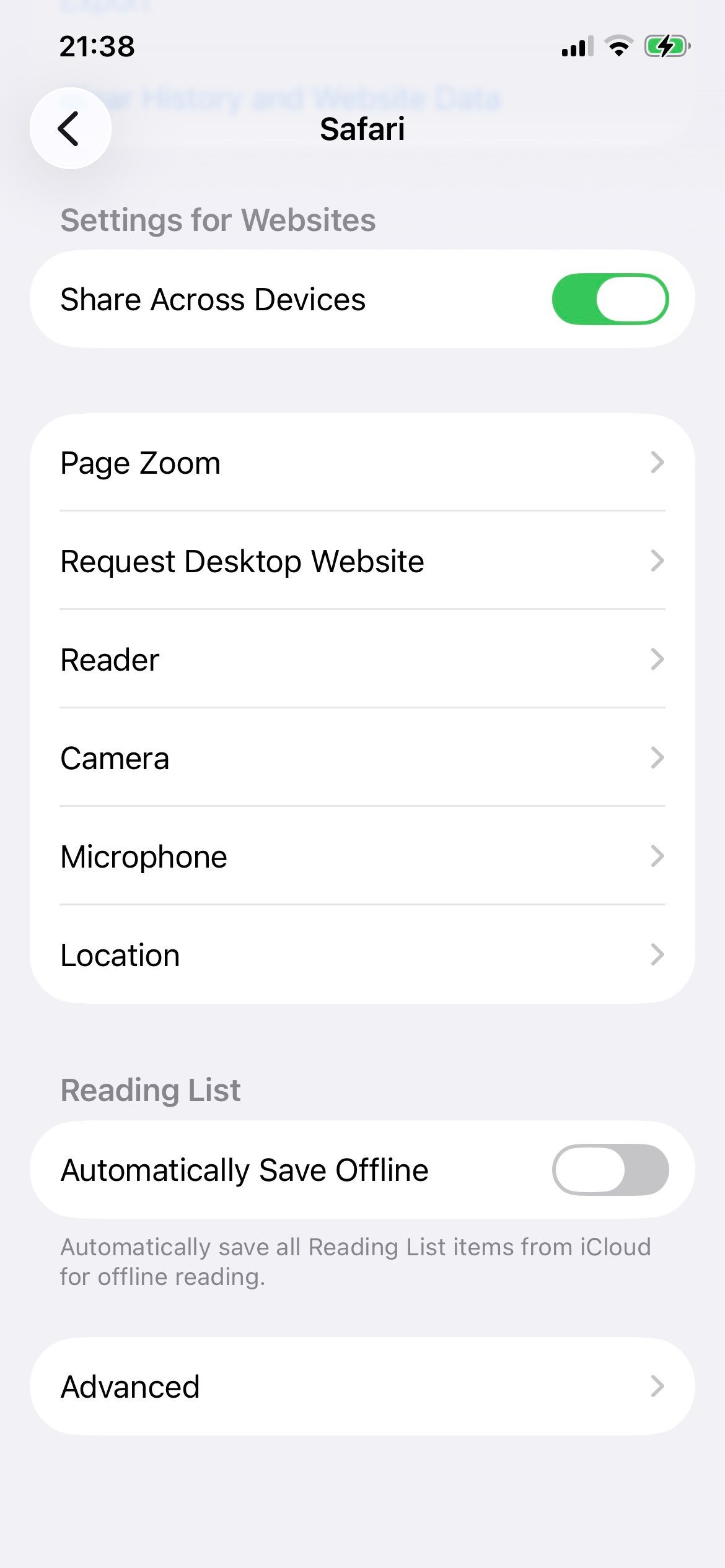
Step 4: Open Advanced
Scroll to the bottom of the Safari panel and tap Advanced.
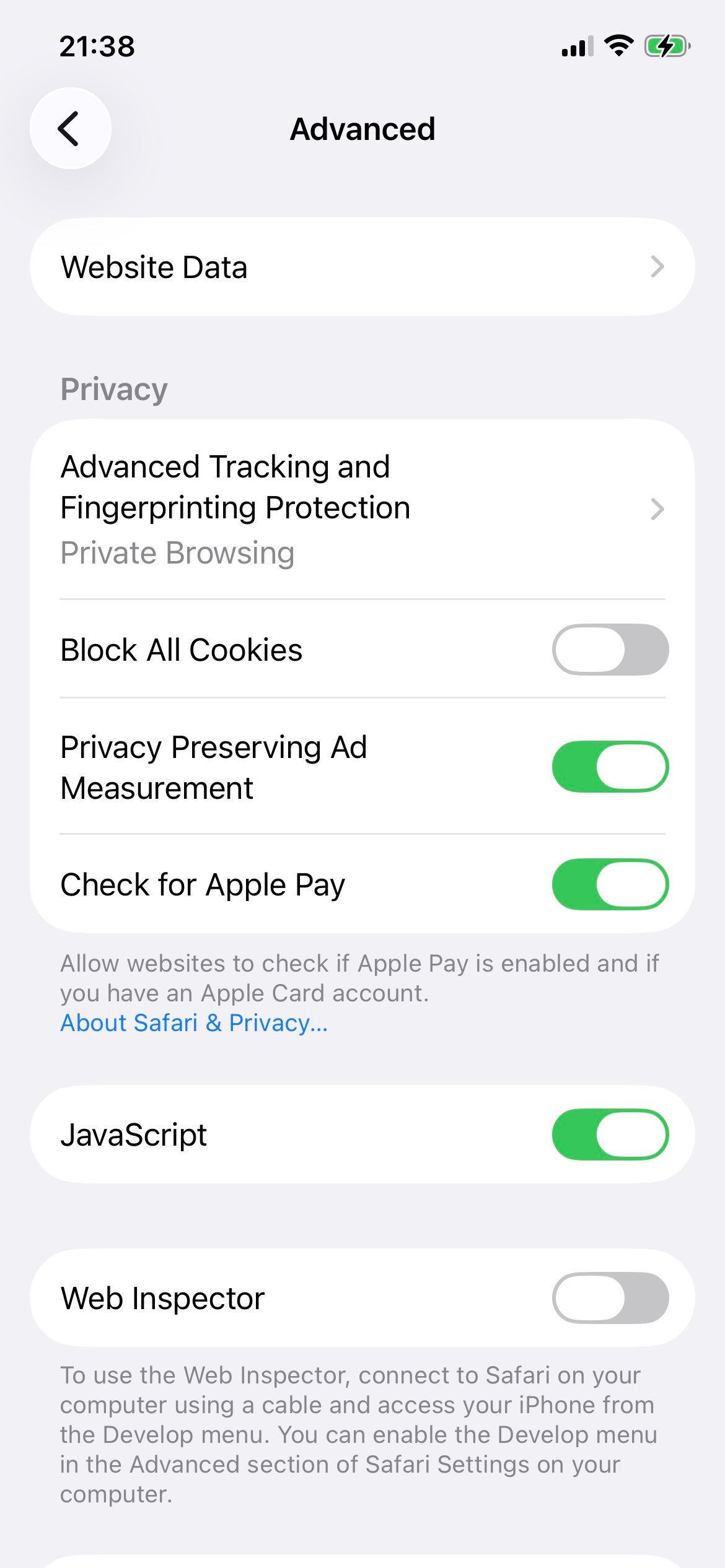
Step 5: Confirm JavaScript is currently on
The JavaScript toggle is the first row in Advanced and ships switched on.
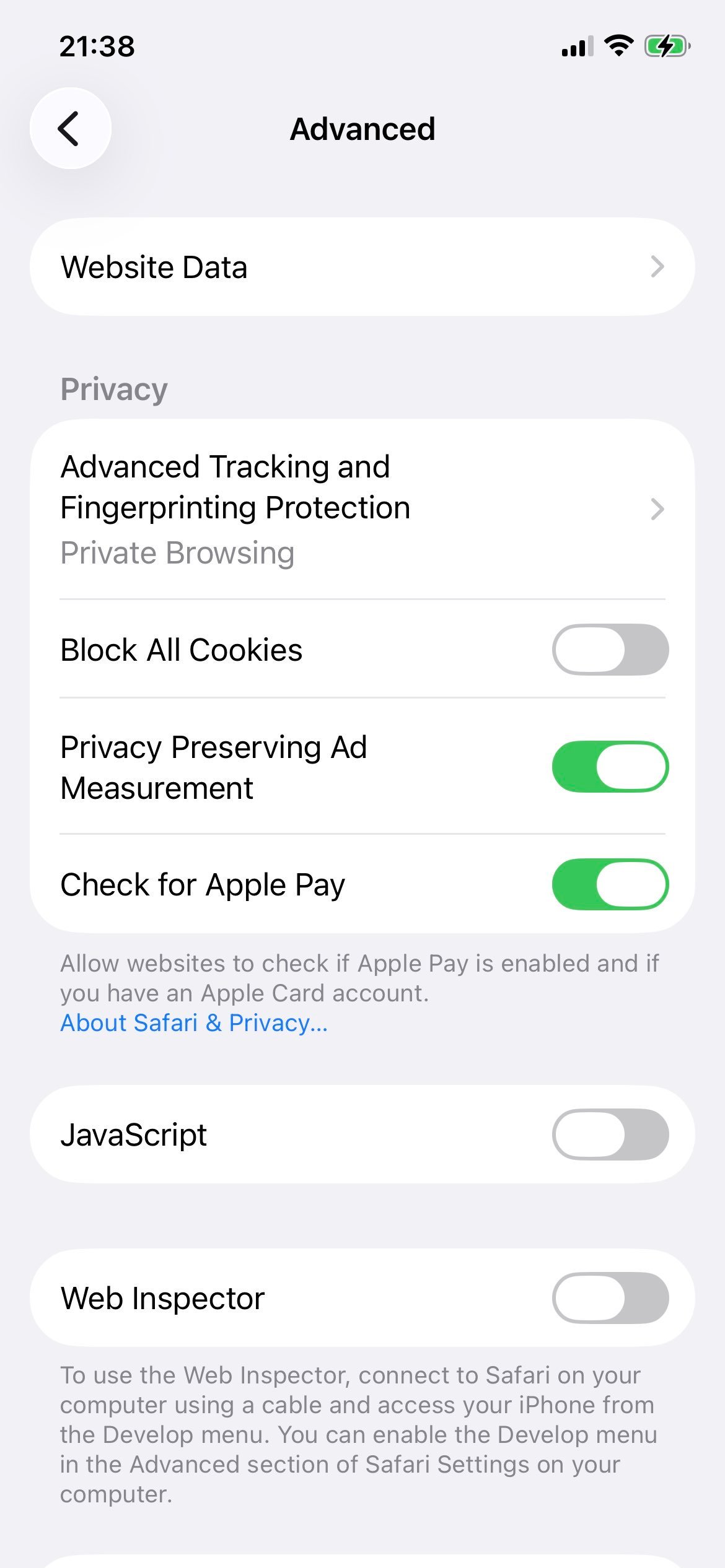
Step 6: Switch JavaScript off
Tap the toggle. The change applies instantly across Safari, Edge, Chrome, and any other browser on the device.
Edge on Android: tap the three-dot menu in the bottom bar, choose Settings, then Site permissions, then JavaScript, and switch the toggle off. The Allow and Block lists work the same way as on desktop.
The fast path: edge://settings/content/javascript
Skip the menu by typing this into the Edge address bar:
edge://settings/content/javascript
Press Enter and Edge jumps straight to the JavaScript permission page - the same destination shown in step 5 of the Windows walkthrough.
The current Edge build also accepts the longer modern path edge://settings/privacy/sitePermissions/allPermissions/javaScript, which is the same destination through the new Privacy, search, and services tree. Either works; the short form is easier to type.
Other useful Edge shortcuts in the same family:
edge://settings/contentopens the full Site permissions page.edge://settings/privacyopens Privacy, search, and services - useful for changing Tracking prevention at the same time.
Allow JavaScript on a single site (allow-list workflow)
The two-tier setup most privacy-conscious Edge users want: JavaScript blocked everywhere, switched on only for trusted sites.
- Confirm the global toggle on
edge://settings/content/javascriptis set to Don't allow sites to use JavaScript. - Scroll to the Allow section.
- Click Add.
- Enter the site, for example
[*.]github.comto cover all of GitHub including subdomains, orhttps://outlook.office.comfor an exact host. - Click Add. The site appears in the Allow list and JavaScript runs there as normal.
The [*.] wildcard means "any subdomain". [*.]example.com matches www.example.com, app.example.com, and so on. Without it, the rule is exact-host only.
You can also do this from the page itself: click the small lock or tune icon to the left of the URL bar, choose Permissions for this site, find JavaScript, and switch it from Block to Allow. Edge writes the site to your allow-list automatically.
Block JavaScript on a single site (block-list workflow)
The reverse setup - JavaScript on everywhere except for a few sites you specifically want to silence:
- Leave the global toggle on Allowed (recommended).
- Under the Block section, click Add.
- Enter the site or pattern and click Add.
That domain now loads with JavaScript switched off while the rest of the web works normally.
Edge's other privacy lever: Tracking prevention
If your reason for disabling JavaScript is privacy specifically, do not skip Edge's built-in Tracking prevention setting. It blocks third-party trackers, fingerprinters, and many ad-related scripts even when JavaScript stays on. For a lot of users this is a better trade-off than turning JavaScript off entirely, because first-party site features keep working.
- Go to
edge://settings/privacy. - Under Tracking prevention, choose Strict.
Strict mode blocks the largest set of trackers Edge knows about, and Microsoft maintains and updates that list. You can stack the two settings: JavaScript globally off plus Tracking prevention on Strict gives the strongest privacy posture, with the trade-off that more sites will break. JavaScript globally on plus Tracking prevention on Strict is the more practical default for most readers.
How to verify JavaScript is now off
Two ways to confirm the change actually took effect:
- Open a new tab and load any JavaScript-detection page. A page that explicitly tests for JS support will show a "JavaScript is disabled" message when the engine is off.
- Open Edge DevTools with F12, or with Cmd + Option + I on Mac and Ctrl + Shift + I on Windows. Click the Console tab and type
1+1followed by Enter. DevTools may still respond with2even when JavaScript is off for the page itself, so the JS-detection page is the more reliable signal.
If you want a quick visual check, return to edge://settings/content/javascript and confirm the toggle still reads Don't allow sites to use JavaScript:
Disable JavaScript only inside Edge DevTools (per-tab testing)
This is what most front-end developers actually want: JavaScript off for one tab during testing, while the global setting stays at its everyday value.
- Open the page you want to test.
- Press F12 (Windows) or Cmd + Option + I (Mac) to open DevTools.
- Open the Command Menu with Ctrl + Shift + P (Windows) or Cmd + Shift + P (Mac).
- Type
Disable JavaScriptand press Enter. - Reload the page. JavaScript is now off for this tab only.
Re-enable it by running the same command (which now reads Enable JavaScript) or by closing DevTools.
If a site you need stops working
Pick the least disruptive option:
- Add the site to the Allow list via
edge://settings/content/javascript. Most surgical fix. - Use a second Edge profile with JavaScript fully on. Click the profile icon in the top-right, choose Add profile, and keep that profile for JS-heavy work. Switch profiles when needed.
- Re-enable JavaScript globally and rely on Tracking prevention plus a per-site Block list for the worst offenders. This is the lighter-touch privacy posture and the one most users settle on long-term.
For most readers the allow-list pattern - global block plus a small set of trusted exceptions - hits the sweet spot. It cuts most fingerprinting and ad-tech scripts on the long tail of the web while keeping your daily-driver sites usable.