Google Chrome is the world's most-used web browser, with JavaScript enabled by default. If a site shows a blank page or a "Please enable JavaScript" message in Chrome, the toggle is somewhere in your settings - often after a privacy reset, a profile sync, or an extension that disabled it.
This guide covers every common scenario: enabling JavaScript globally on Windows 10/11 and Mac, allowing it for a single site, the chrome://settings shortcut, the Chromebook flow, how to verify JavaScript is running, and how to turn it off (for testing or privacy). All instructions reflect Chrome's current UI as of 2026.
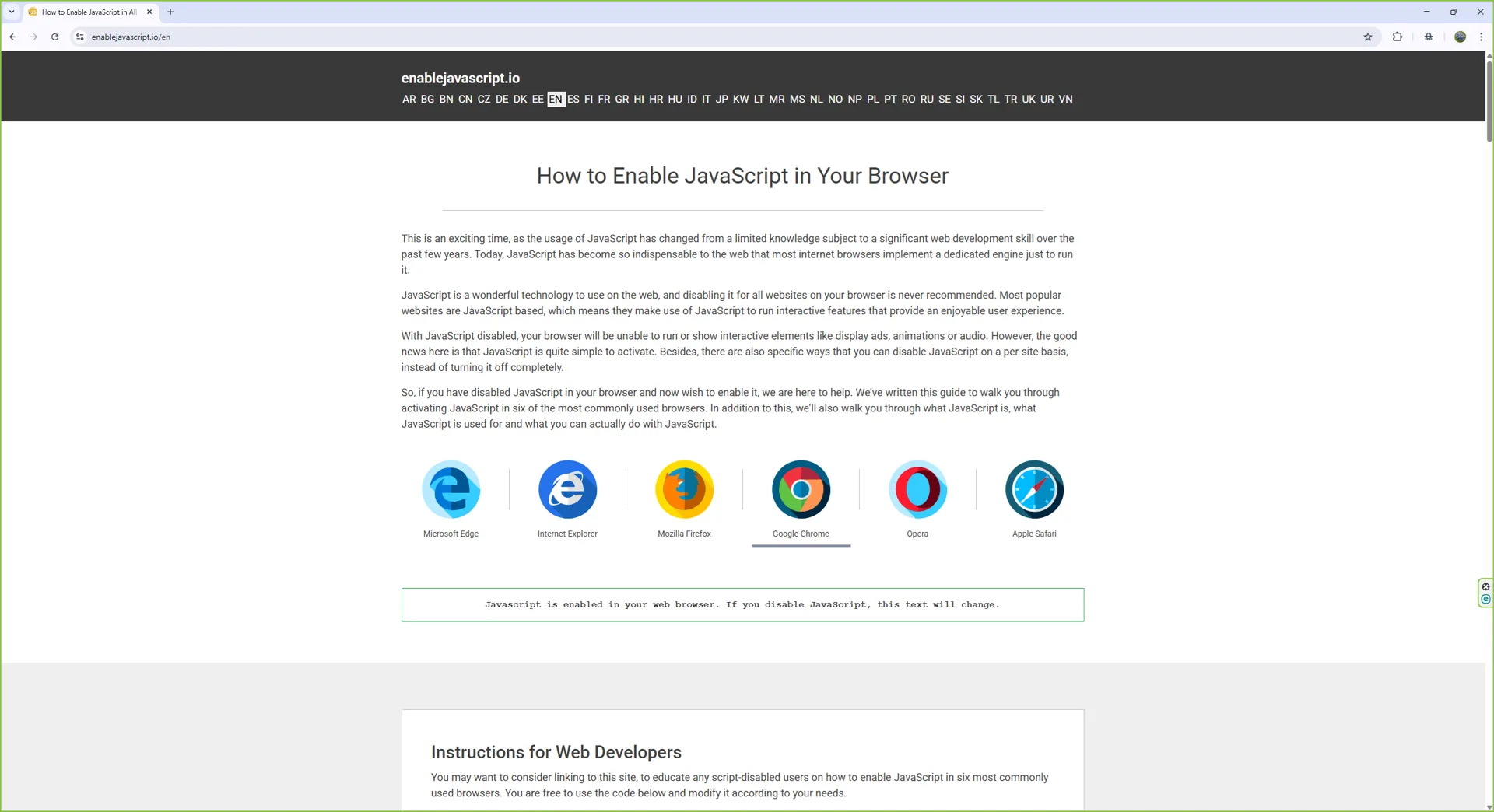
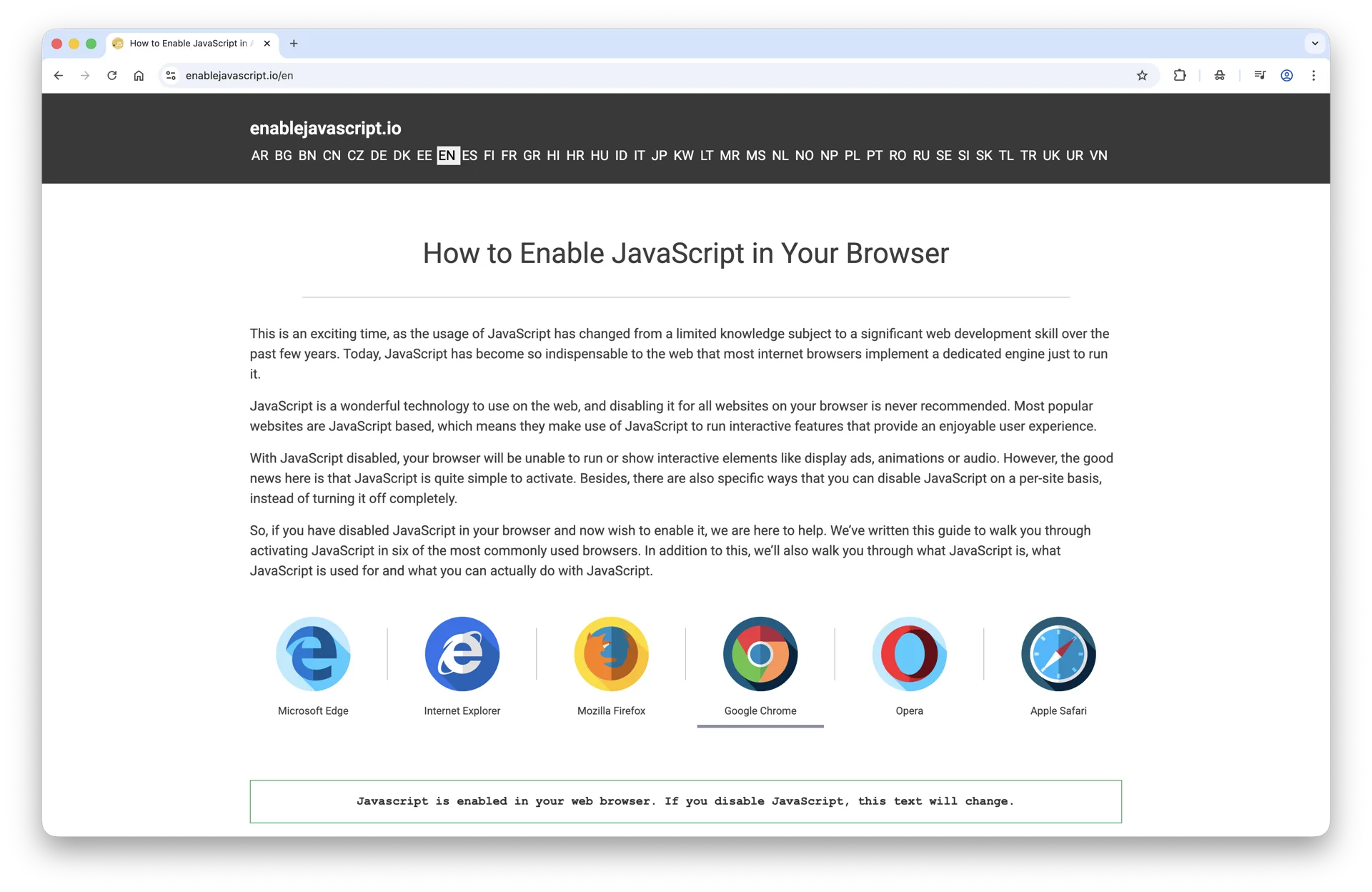
Javascript is enabled in your web browser. If you disable JavaScript, this text will change.
Instructions for Web Developers
You may want to consider linking to this site, to educate any script-disabled users on how to enable JavaScript in six most commonly used browsers. You are free to use the code below and modify it according to your needs.
<noscript>
For full functionality of this site it is necessary to enable JavaScript.
Here are the <a href="https://www.enablejavascript.io/">
instructions how to enable JavaScript in your web browser</a>.
</noscript>
On enablejavascript.io we optimize the script-disabled user experience as much as we can:
The instructions for your browser are put at the top of the page
All the images are inlined, full-size, for easy perusing
We want your visitors to have JavaScript enabled just as much as you do!
What Is JavaScript and Why Do I Need It?
JavaScript is a scripting language that web developers use to add dynamic interactions and functionality to websites. Modern browsers - including Google Chrome - ship with JavaScript enabled by default, so the rich, interactive web you experience every day works out of the box.
With JavaScript disabled, those interactions break. Sites like YouTube, Gmail, Google Docs, X (formerly Twitter), Facebook, and most online banking dashboards rely on JavaScript to load content, validate forms, and update in real time. Turn the toggle off and you'll see plain text, missing buttons, blank panels, or error messages instead of the experience you expect.
This guide covers every modern path to enable or disable JavaScript in Chrome - on Windows 10 and 11, on macOS Sonoma, Sequoia and macOS 26, on iPhone and iPad, and on Chromebooks. All you need is a recent copy of Google Chrome (version 120 or later) and a couple of minutes.
How to Check if JavaScript is Enabled in Chrome
Three quick ways to confirm JavaScript is on in Chrome:
Method 1 - Visit a JavaScript-enabled page
If interactive sites work normally (Gmail, YouTube, Google Maps), JavaScript is enabled. If you only see plain text and broken layouts, it's off.
Method 2 - Use Chrome's DevTools console
Press F12 (Windows/Linux) or Cmd+Option+I (Mac) to open DevTools.
Click the Console tab.
Type 1+1 and press Enter. If 2 is returned, JavaScript is running.
Method 3 - Check the Site settings panel
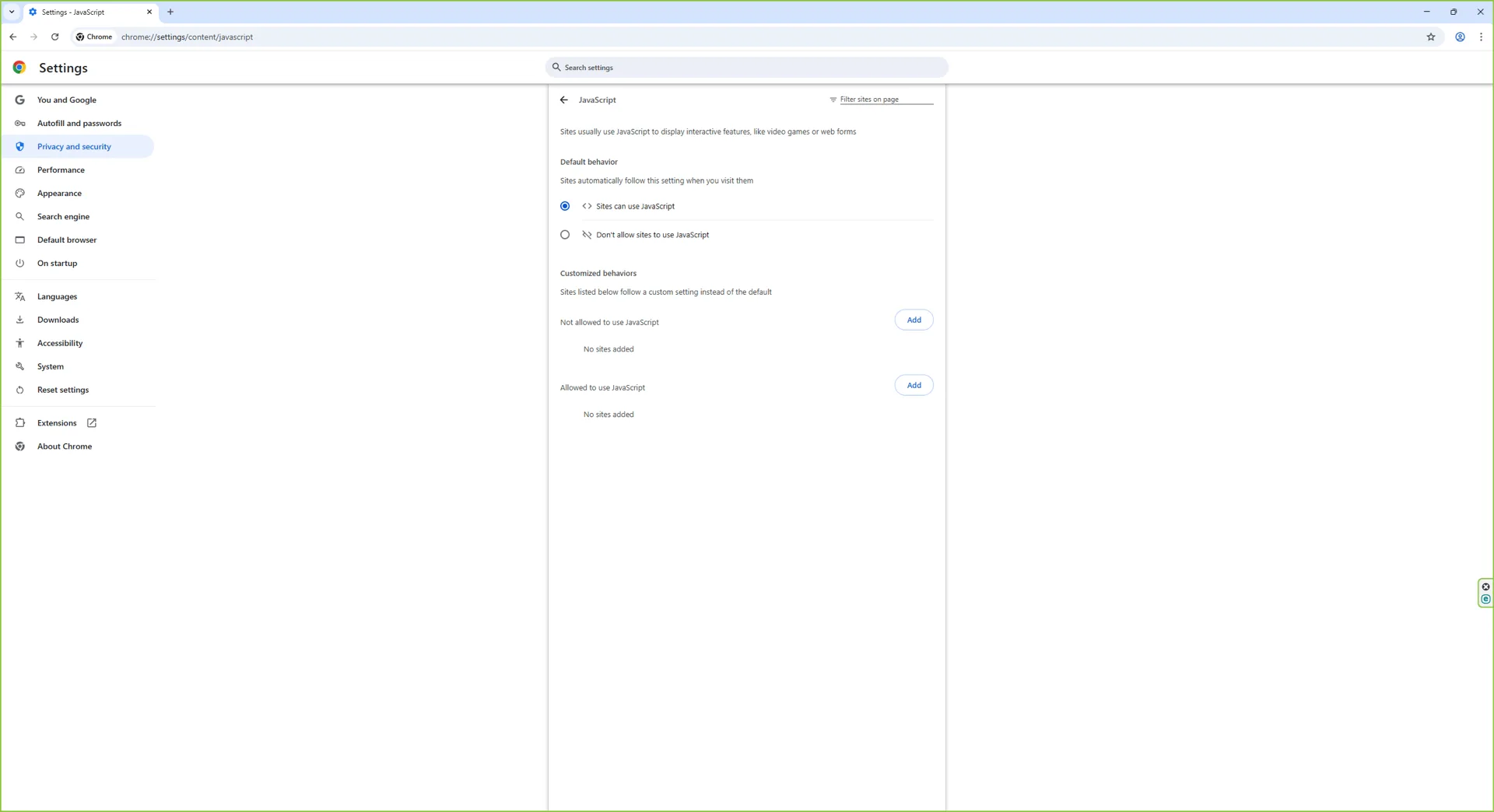
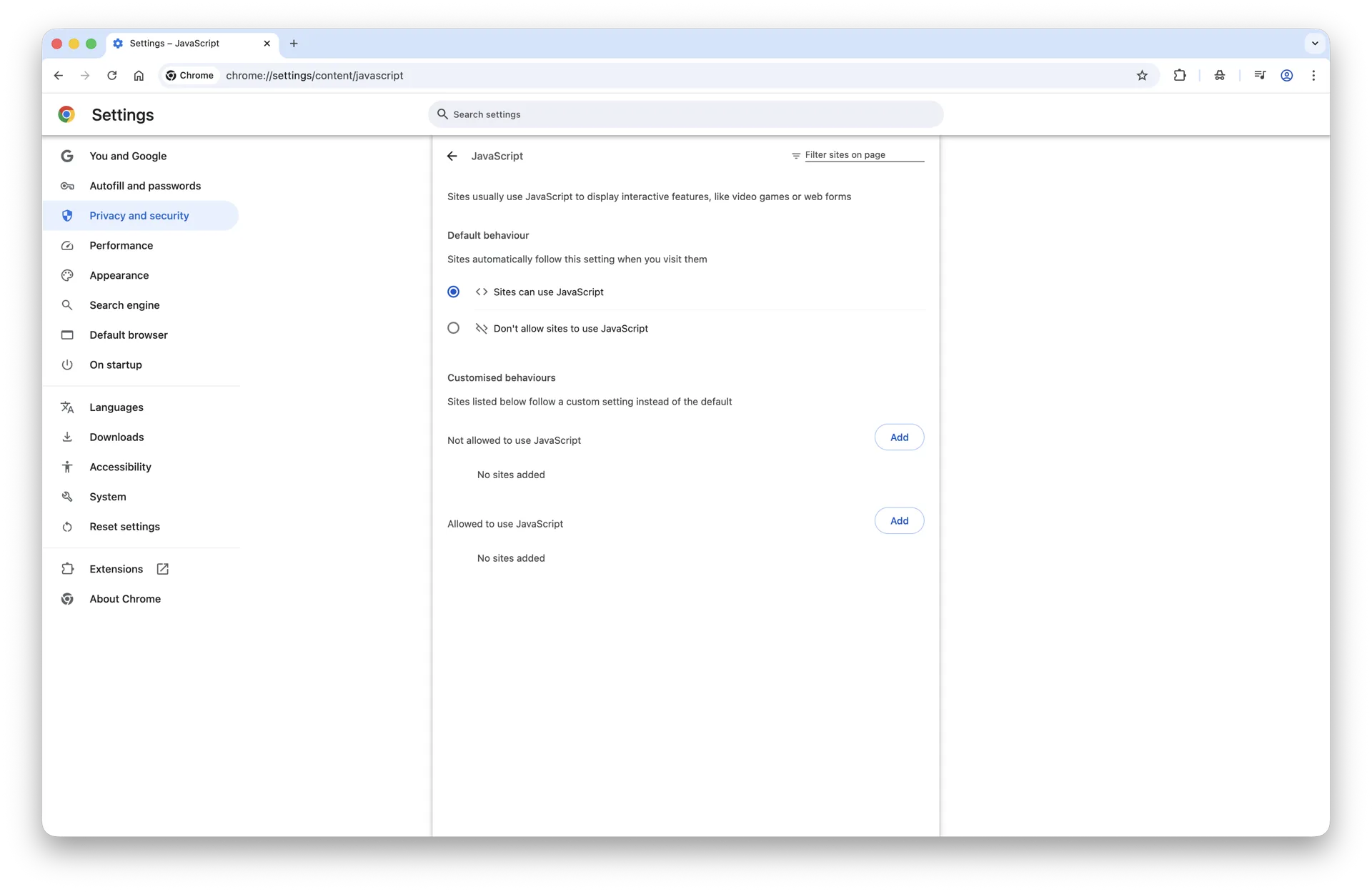
Open chrome://settings/content/javascript in the address bar. If the default is set to Sites can use JavaScript, the toggle is on globally. The screenshot below shows the modern Chrome UI with JavaScript allowed:
Chrome's JavaScript permission set to Allowed (default behavior).
Status check: the easiest test is to load this page itself. If you can see this paragraph rendered with formatting and the screenshot above, JavaScript loaded fine.
How to Enable JavaScript in Chrome on Windows 10 and Windows 11
The Chrome JavaScript toggle is in the same place on Windows 10 and Windows 11 - the browser ships an identical Settings UI on both. Follow these six steps:
Step 1: Open Google Chrome
Launch Chrome from your Start menu or taskbar.
Chrome running on Windows 11.
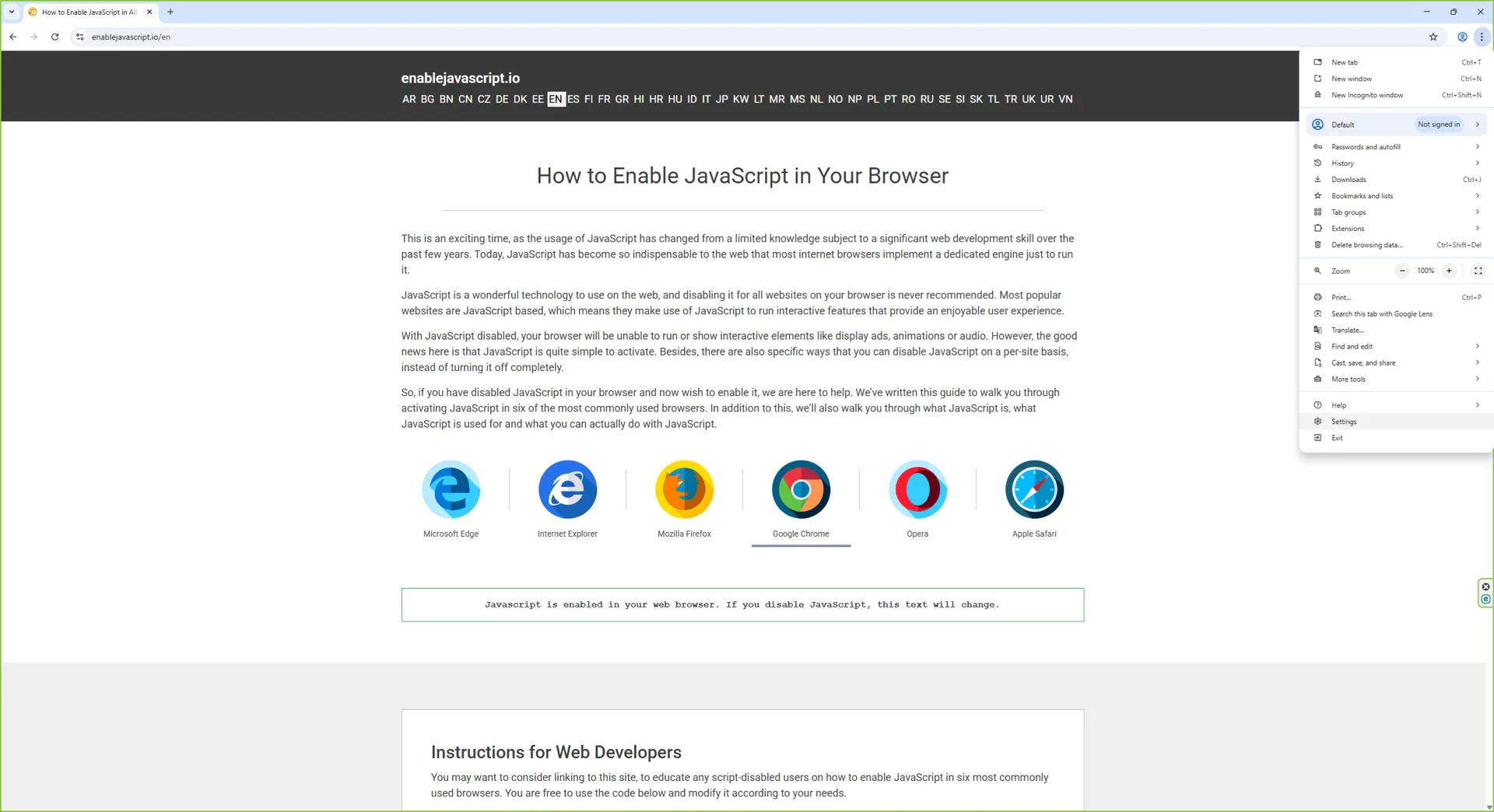
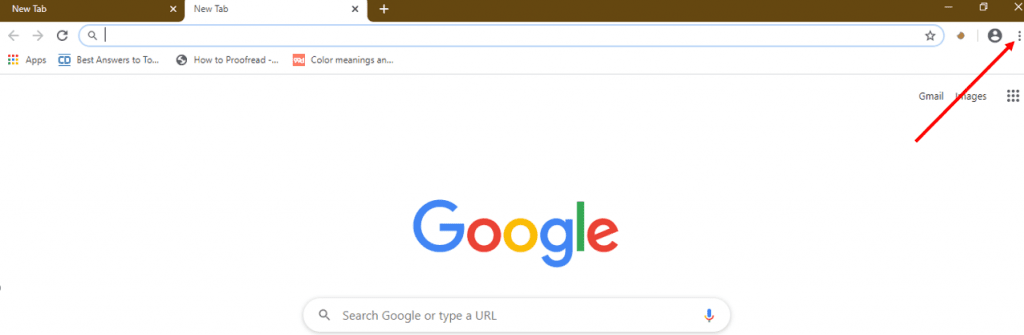
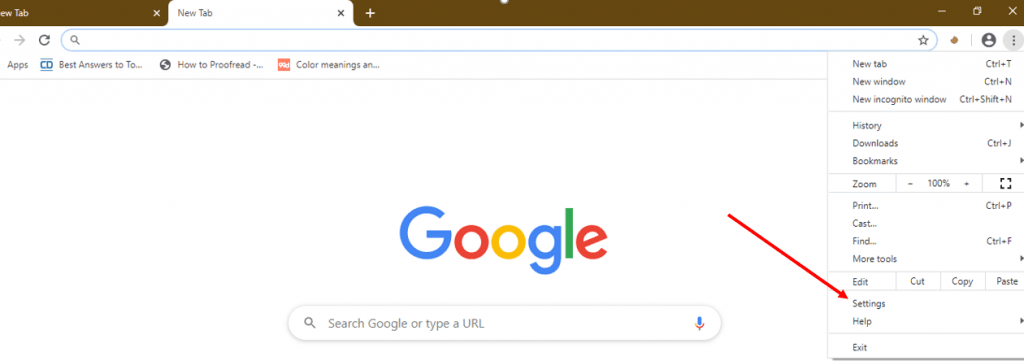
Step 2: Open the Chrome menu
Click the three-dot menu in the top-right corner of the browser window.
The Chrome menu lives behind the three vertical dots.
Step 3: Open Settings
Click Settings in the dropdown to open the Chrome settings page in a new tab.
Settings opens the full Chrome configuration page.
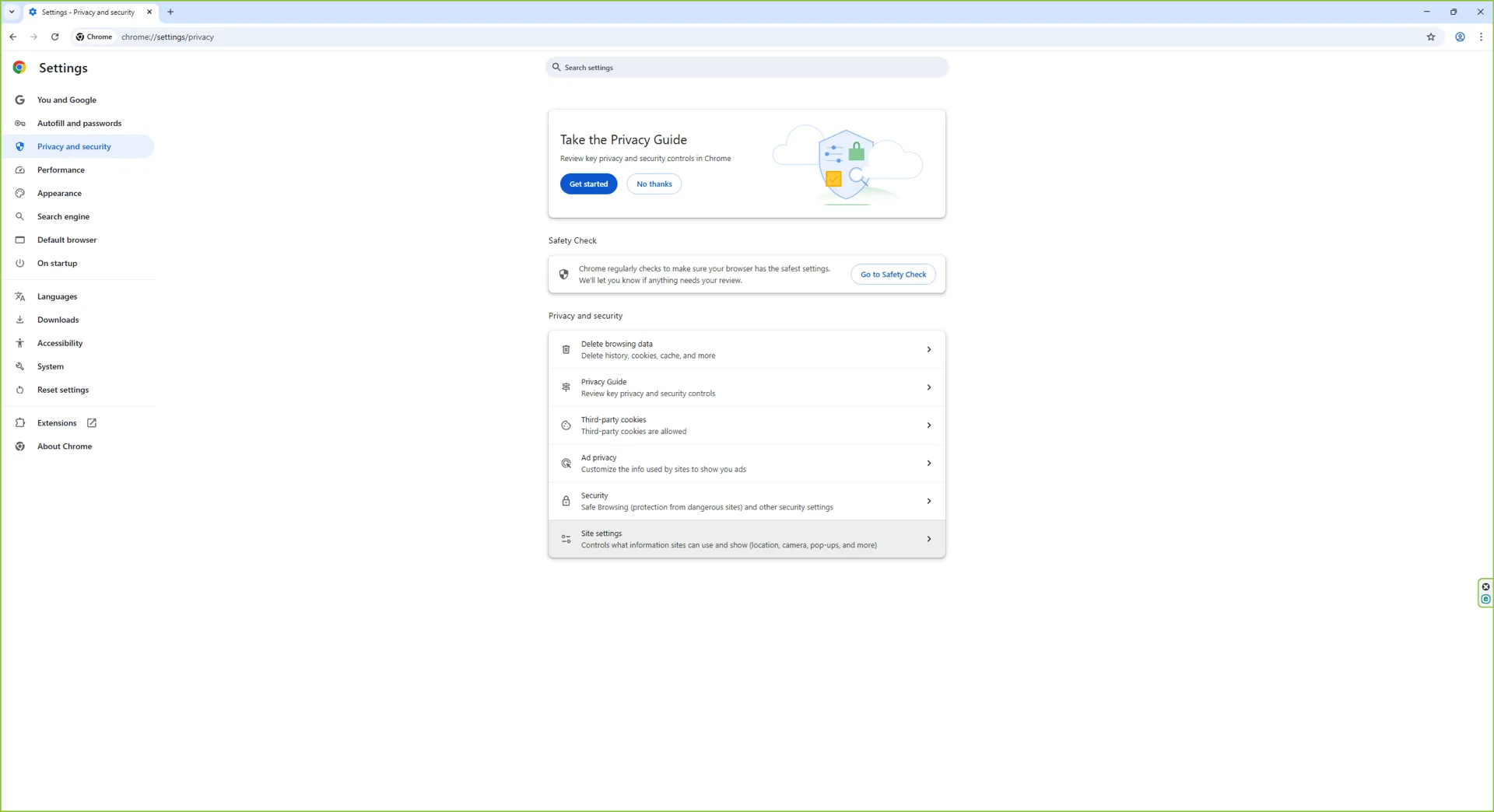
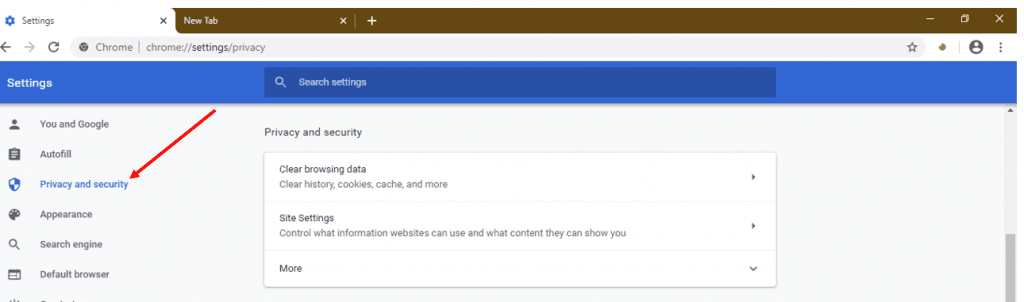
Step 4: Navigate to Privacy and security, then Site settings, then JavaScript
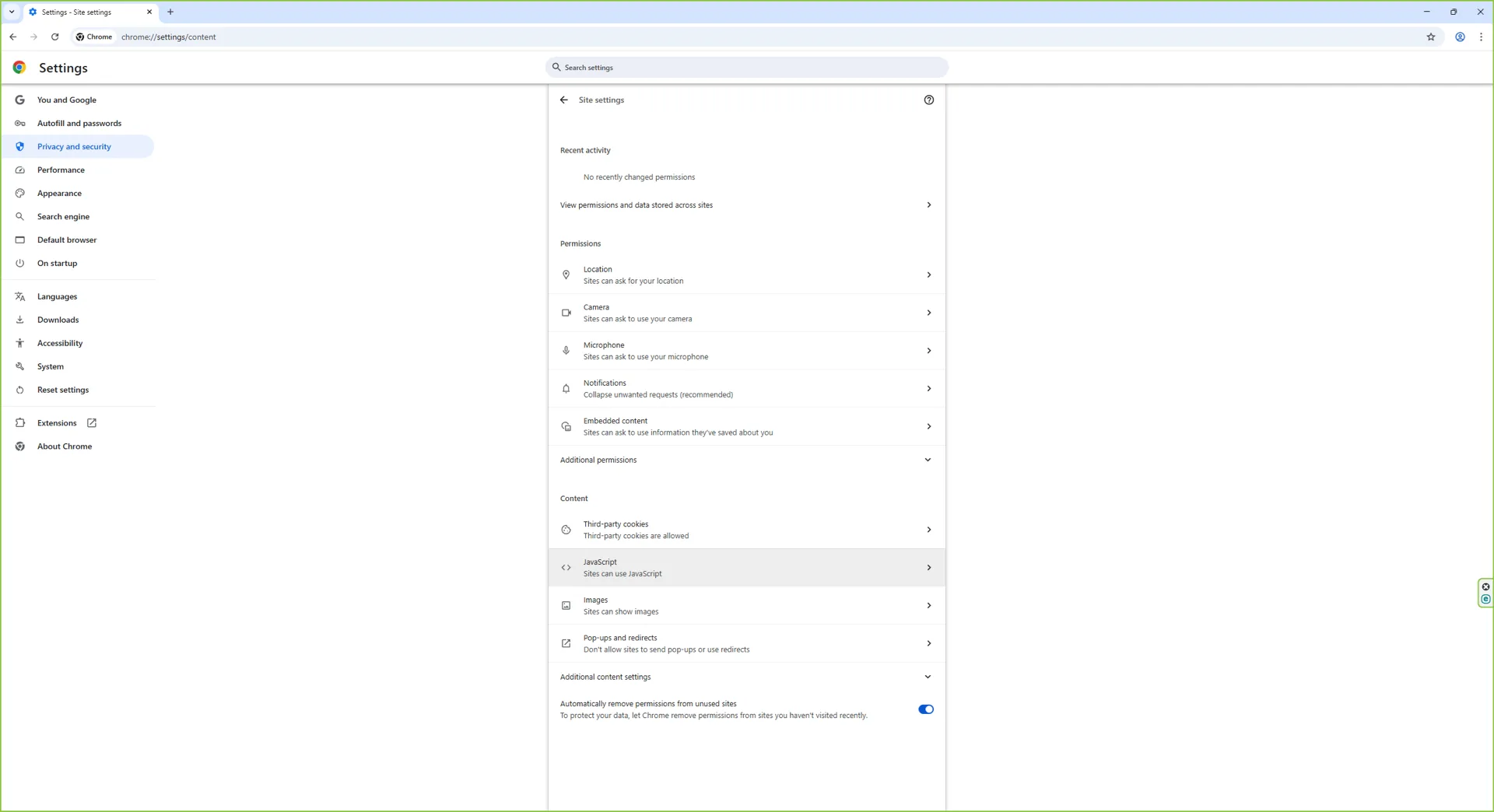
In the left sidebar, click Privacy and security, then click Site settings, then scroll to Content and click JavaScript. Or paste chrome://settings/content/javascript into the address bar to jump straight there.
The JavaScript permission page inside Chrome Site settings.
Step 5: Select Sites can use JavaScript
Under Default behavior, choose Sites can use JavaScript. Chrome saves the change instantly.
JavaScript is now allowed on every site by default.
Step 6: Verify (optional) - and how to turn it off
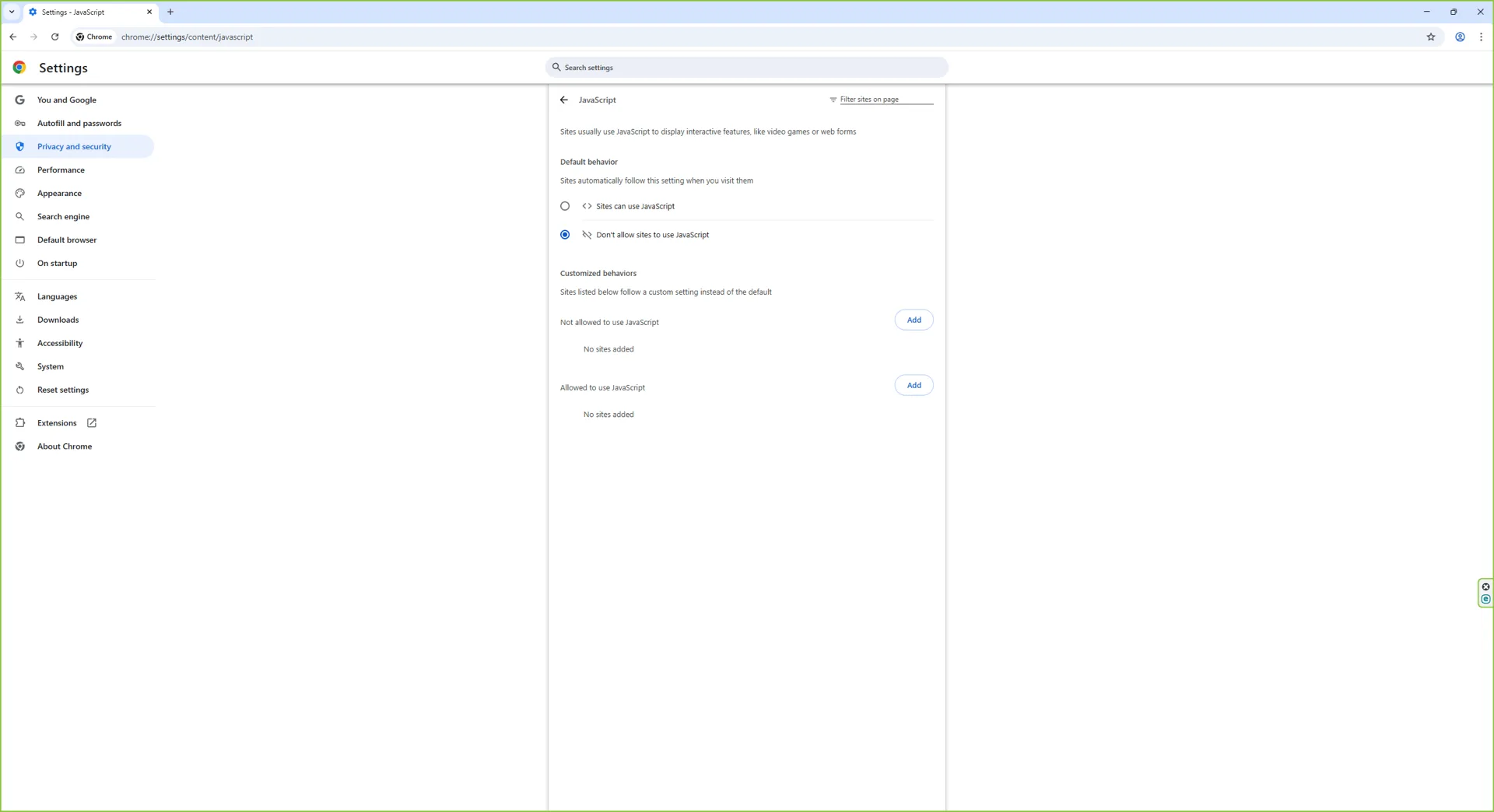
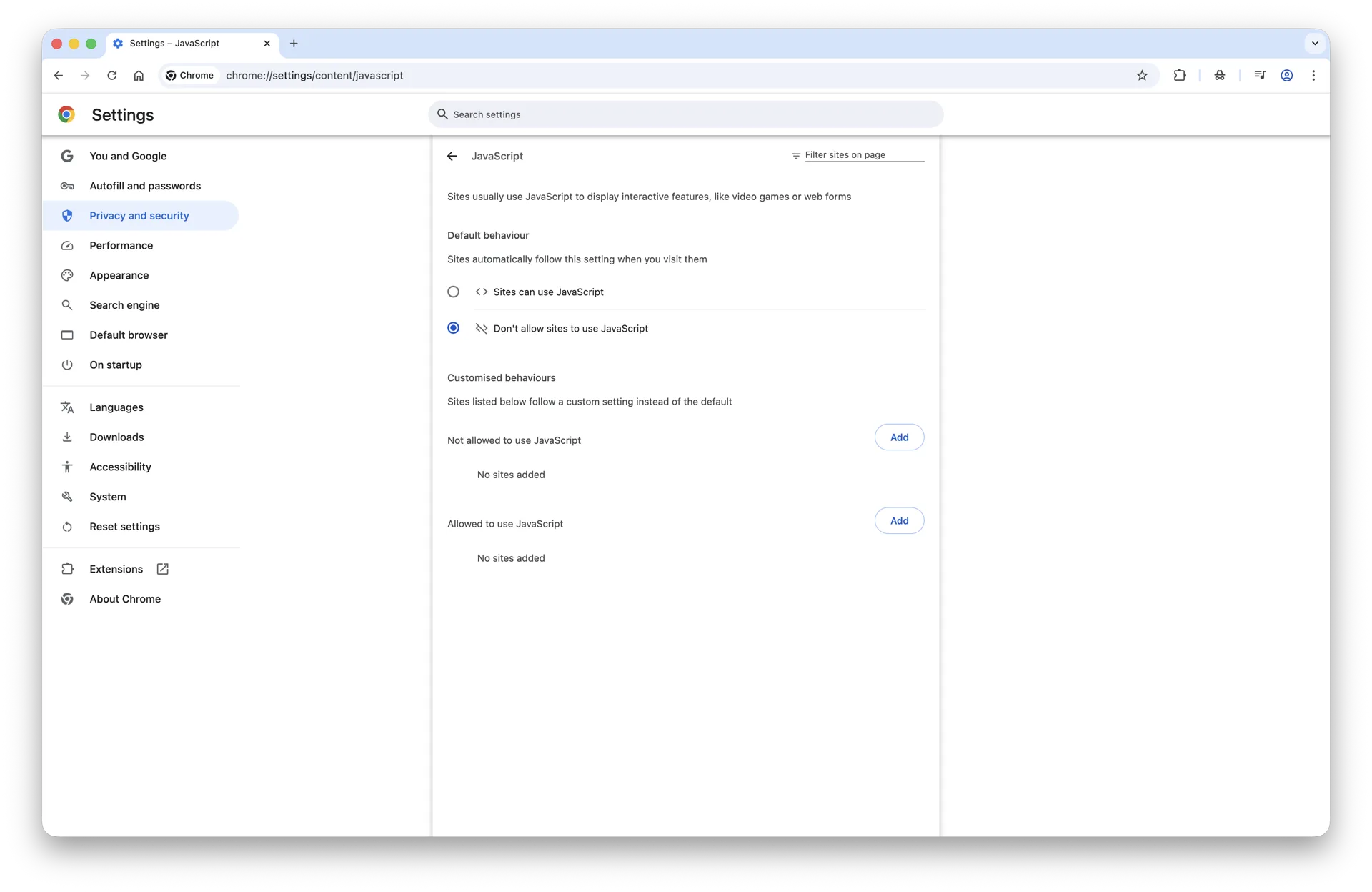
To confirm, reload any interactive site (Gmail, YouTube). If you ever need the opposite, pick Don't allow sites to use JavaScript on the same screen:
The same toggle in the disabled state.
JavaScript is now enabled across every site you visit. Add specific sites to the Not allowed list on the same page if you want to block scripts only on certain pages.
How to Enable JavaScript in Chrome on Mac (macOS Sonoma, Sequoia, and macOS 26)
The macOS version of Chrome - on macOS Sonoma, Sequoia, and macOS 26 - uses the same Settings UI as the Windows build. Follow these six steps:
Step 1: Open Google Chrome
Launch Chrome from your Dock, Launchpad, or Applications folder.
Chrome running on macOS 26.
Step 2: Open the Chrome menu
Click the three-dot menu in the top-right corner of the browser window. (You can also use Chrome → Settings... from the macOS menu bar, or press Cmd+,.)
The Chrome dropdown menu.
Step 3: Go to Privacy and security, then Site settings
Inside Settings, click Privacy and security in the left sidebar, then choose Site settings.
Site settings is where every per-content permission lives.
Step 4: Open the JavaScript permission
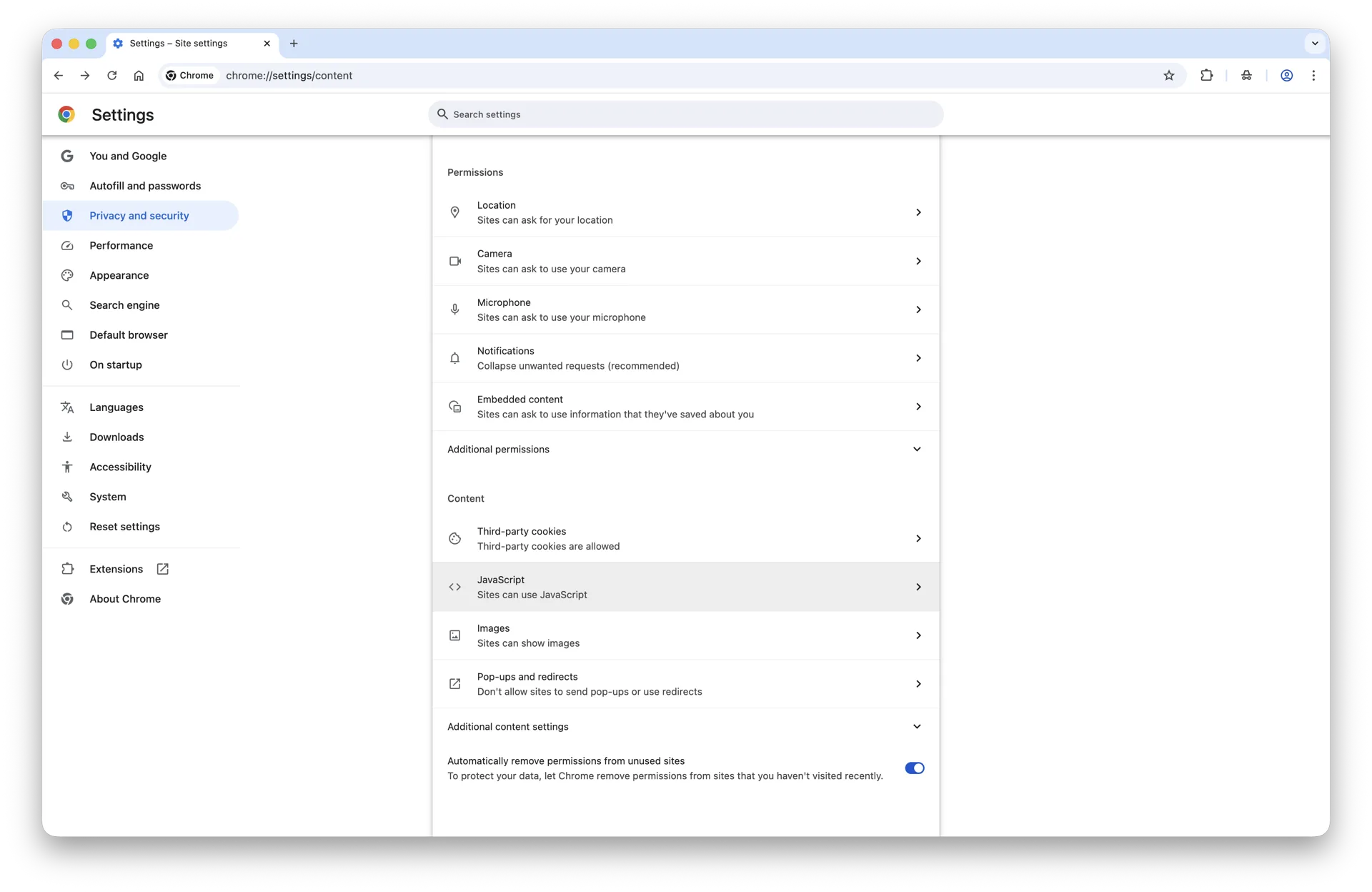
Scroll to the Content section and click JavaScript. The shortcut chrome://settings/content/javascript jumps straight here.
The JavaScript permission page inside Chrome Site settings on macOS.
Step 5: Select Sites can use JavaScript
Under Default behavior, choose Sites can use JavaScript. The change saves immediately.
JavaScript is now enabled by default for every site.
Step 6: How to turn it back off
To disable JavaScript later, return to the same screen and pick Don't allow sites to use JavaScript:
The same toggle in the disabled state.
That's it. Reload any interactive site (Gmail, YouTube, Google Docs) to confirm scripts now run as expected.
How to Enable JavaScript in Chrome on iPhone, iPad, and iOS
On iPhone and iPad, every browser - including Chrome, Edge, Firefox, Brave, and DuckDuckGo - is required by Apple to use the system WebKit engine. That means there is no JavaScript toggle inside the Chrome iOS app itself. The setting that controls JavaScript for Chrome on iOS lives in the system Settings → Apps → Safari → Advanced screen, and it applies to every browser at once.
Step 1: Open the Settings app
Tap the gray gear icon on your home screen or App Library to launch iOS Settings.
Open the Settings app on your iPhone or iPad.
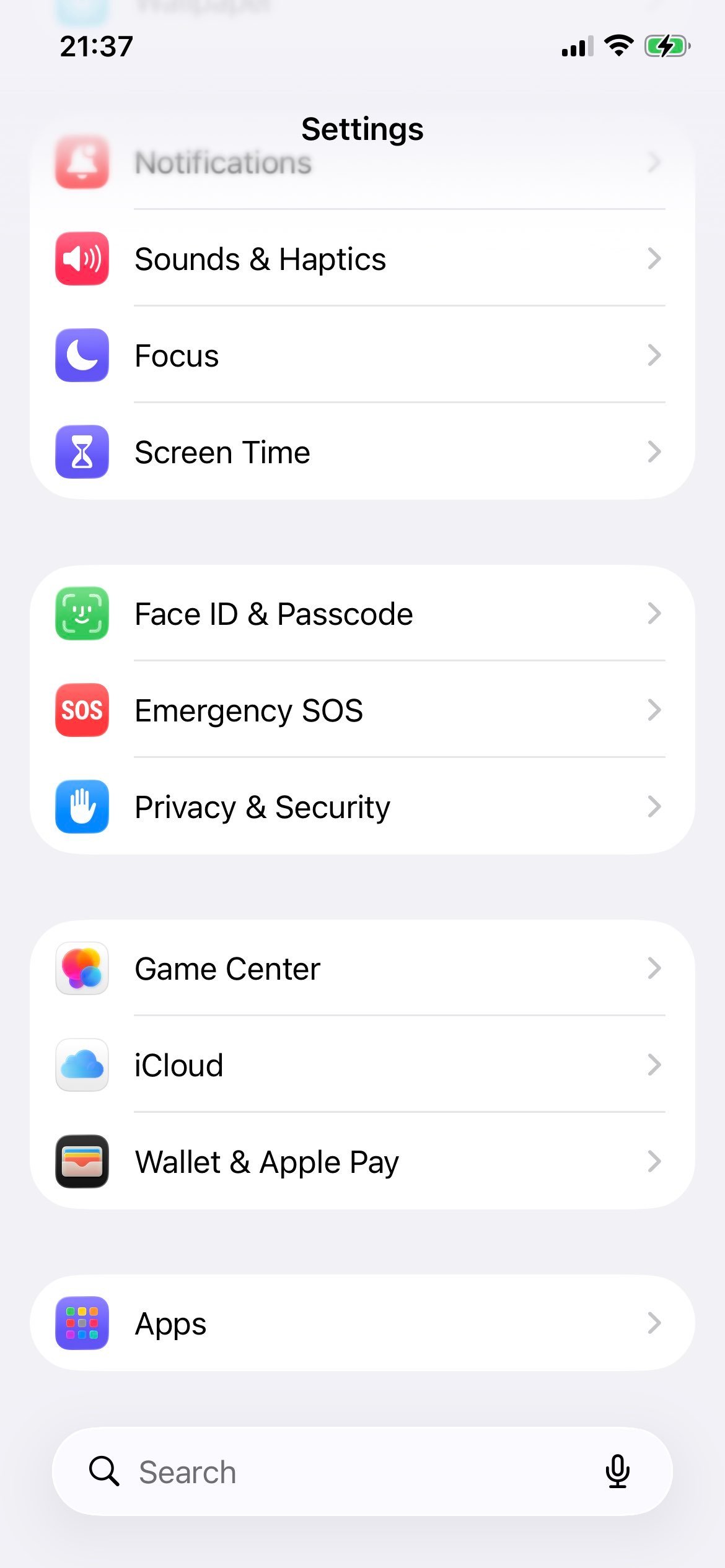
Step 2: Open Apps
Scroll down and tap Apps. (On older iOS versions, Safari appears directly in the main Settings list - tap it instead.)
The Apps section consolidates per-app system settings.
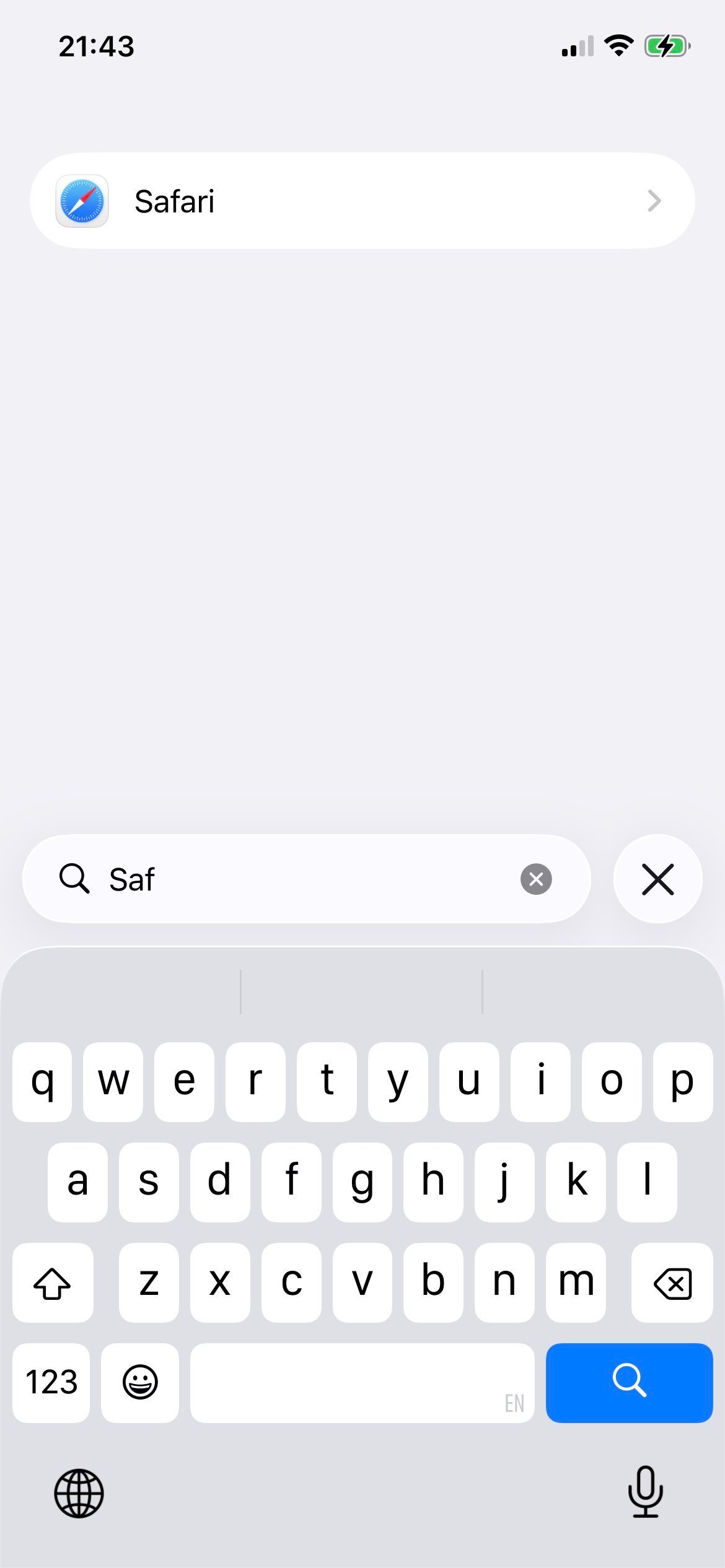
Step 3: Select Safari
Inside Apps, scroll to and tap Safari. This is where iOS controls the WebKit engine that Chrome iOS uses behind the scenes.
Safari is the gateway to JavaScript settings for every iOS browser.
Step 4: Tap Advanced
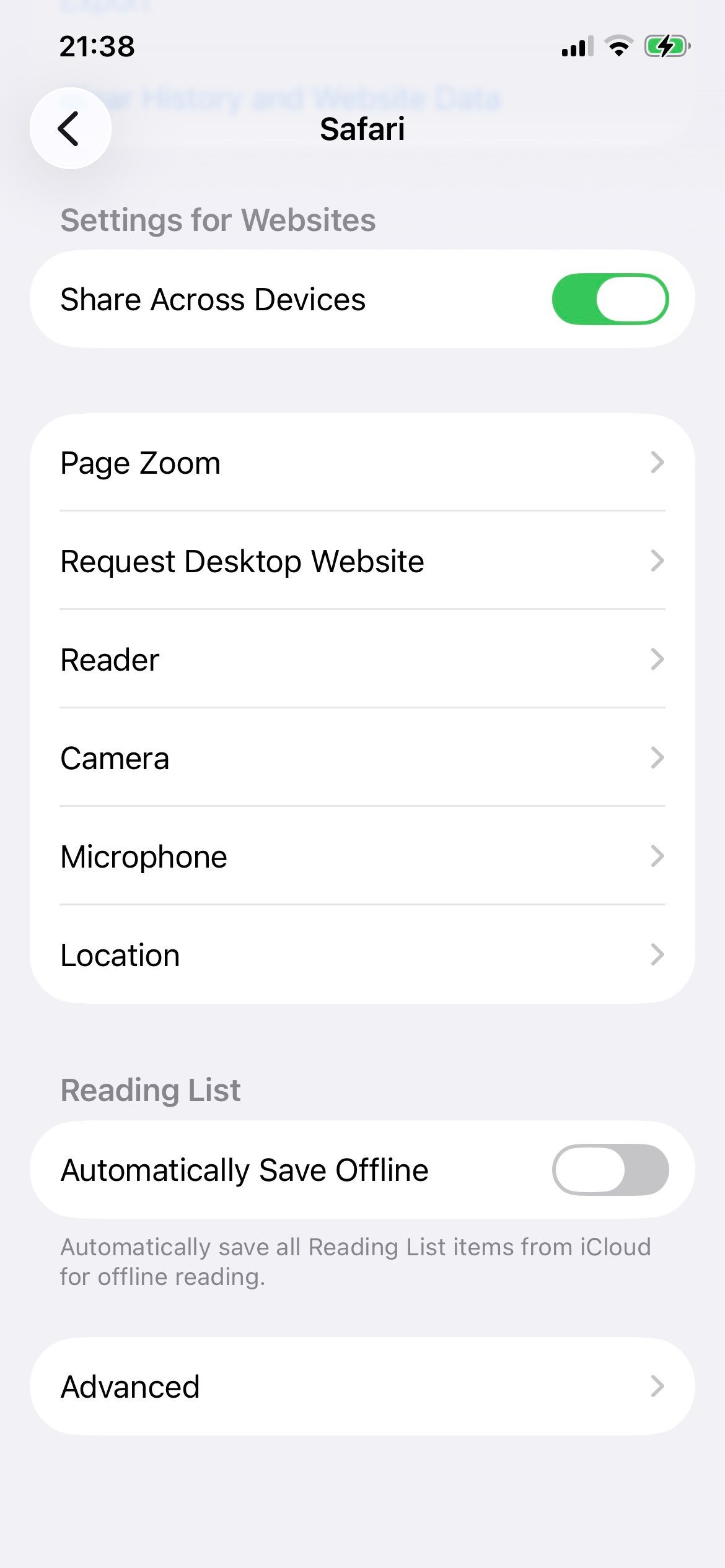
Scroll to the bottom of the Safari settings page and tap Advanced.
The Advanced page contains the JavaScript switch.
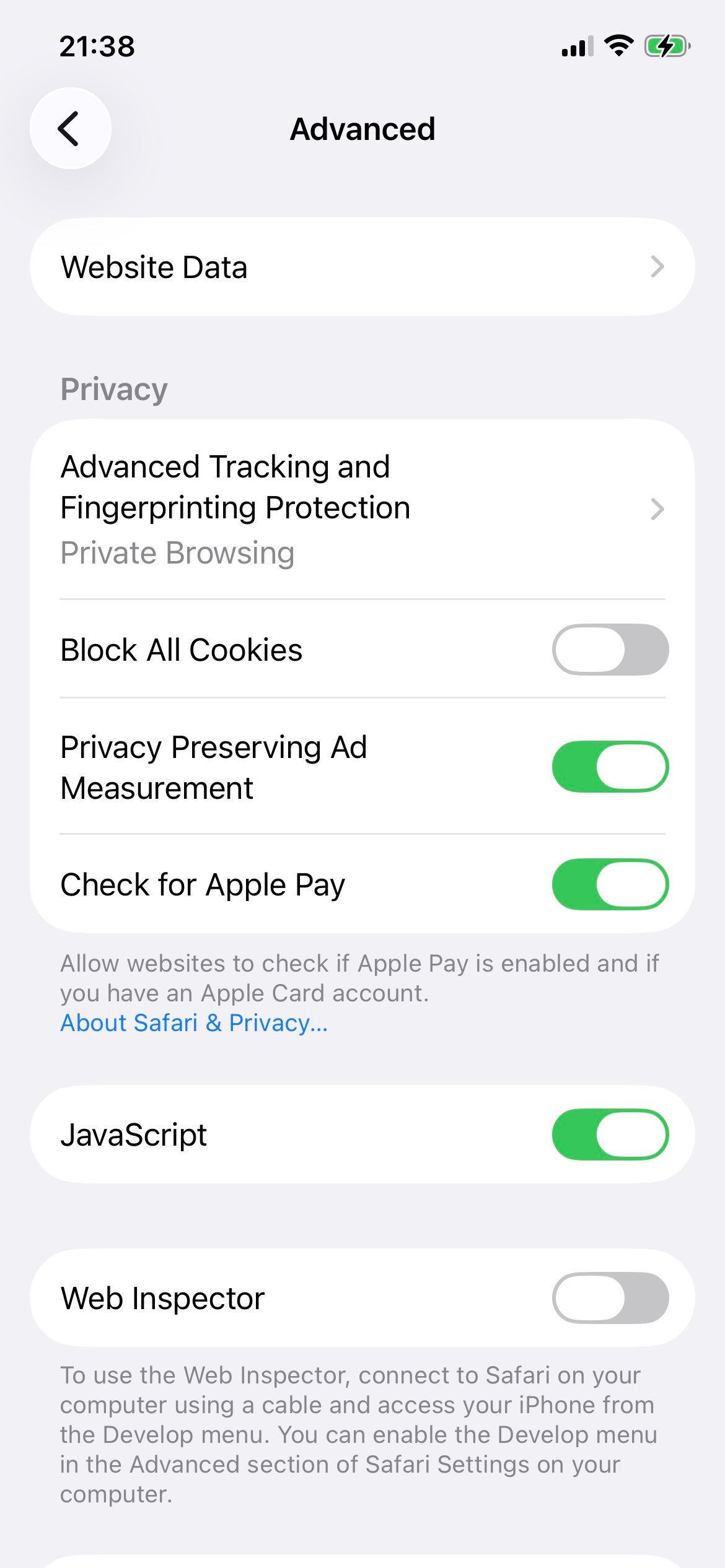
Step 5: Enable JavaScript
Toggle the JavaScript switch on (green). The change applies immediately to Chrome, Safari, and every other iOS browser.
JavaScript enabled for every browser on iOS.
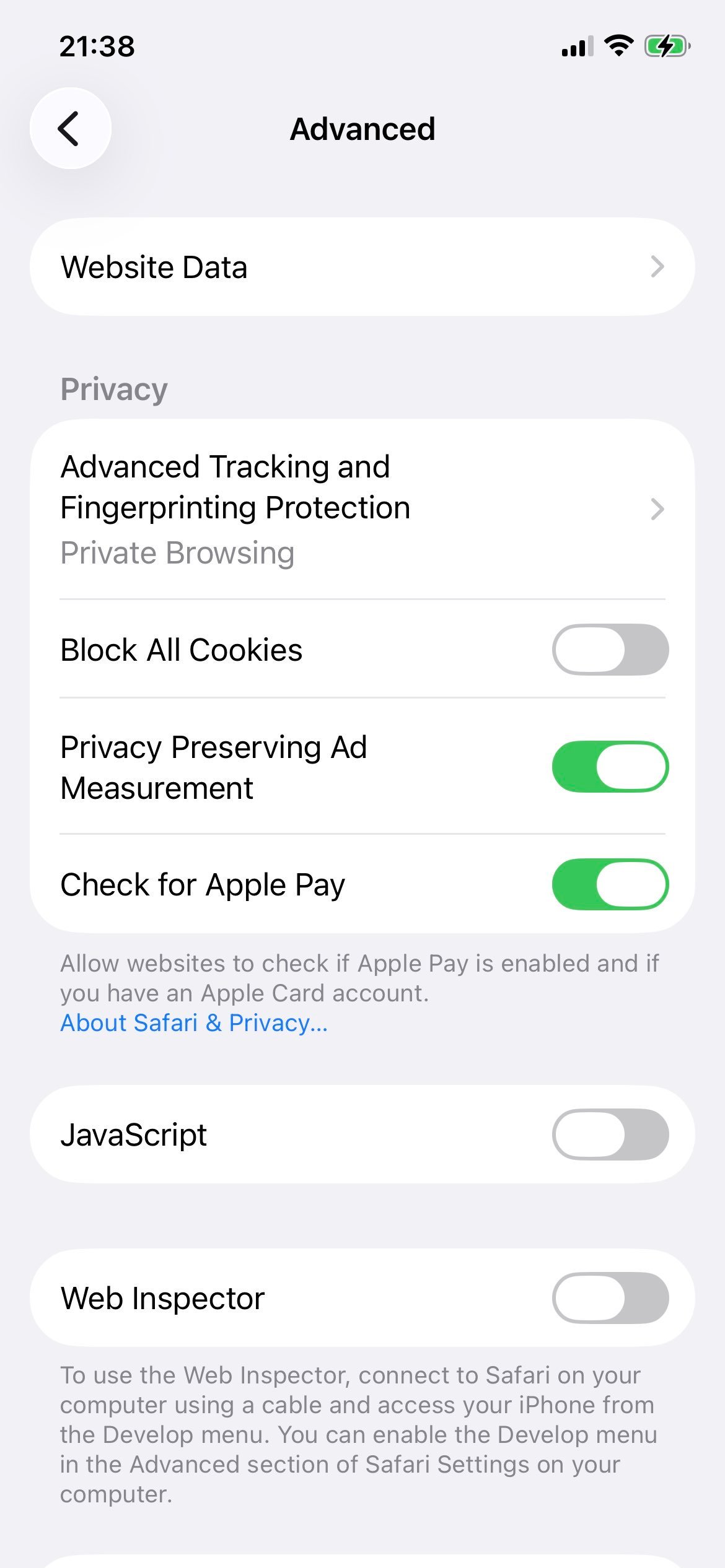
Step 6: How to turn it off again
To disable JavaScript later, flip the same switch off (gray). Note that almost every modern site will break without it.
The same toggle in the disabled state.
Now switch back to Chrome iOS and reload your tab - JavaScript is on (or off) for every browser on the device.
How to Allow JavaScript on a Specific Site in Chrome
If JavaScript is allowed globally but blocked on one site, here's how to unblock just that site:
Click the tune icon (sliders) or lock icon on the left side of the address bar.
Click Site settings.
Find JavaScript in the permissions list and change it from Block to Allow.
Reload the page. JavaScript will now run on this site only.
The 2026 Chrome Settings UI looks like this when you reach the JavaScript permission page directly:
The modern Chrome JavaScript permission page lets you add specific sites to Allow or Block lists.
Windows 8 reached end of life on January 10, 2023. Microsoft no longer ships security updates or technical support, and Google Chrome dropped Windows 8 support in early 2023 as well. Running Chrome on Windows 8 today is not safe for general browsing.
If you are still on Windows 8, the same Chrome Settings UI documented for Windows 10 and 11 above works on the last supported Chrome build for that OS - paste chrome://settings/content/javascript into the address bar and toggle Default behavior to Sites can use JavaScript.
Windows 7 reached end of life on January 14, 2020. Microsoft no longer issues security patches, and Google Chrome stopped supporting Windows 7 with version 110 in February 2023. Continuing to browse the web on Windows 7 is a serious security risk.
If you must use it, the legacy Chrome build for Windows 7 still exposes the same JavaScript toggle - open chrome://settings/content/javascript and choose Sites can use JavaScript.
The right long-term fix is to upgrade to Windows 10 or Windows 11. After upgrading, the modern Windows 10 and 11 walkthrough above covers every step with current screenshots.
F.A.Q
Why do I need JavaScript enabled on Google Chrome?
JavaScript is a popular scripting language that's used to make web pages interactive. From animations to snappy navigations and even web games, it's what gives a web page life. By enabling it on your Google Chrome, you'll enhance your browsing experience and enjoy the interactive elements any JavaScript-based website has to offer.
How do I know if JavaScript is working on Google Chrome?
On Google Chrome, JavaScript is enabled by default, but you can verify if it works through the Settings menu. To reveal the Settings menu, simply click on three tiny black dots at the top-right corner of your Chrome window.
Next, click on the Settings option to access a search box labeled Search settings. Type in the word "Site Settings" into the search box to reveal the "Site Settings" section and then click on it. Once you're in this section, scroll down to find the JavaScript option and then click it. To verify if your JavaScript is working, ensure the toggle button is toggled on.
What happens if I disable JavaScript on Google Chrome?
Using JavaScript on your Chrome browser is virtually indispensable, as it enables the seamless use of popular websites such as YouTube, Gmail, and more. If you disable it, most of the interactive elements that ensure these websites work won't load in your Google Chrome. Some features, such as infographics and payment gateways, may not work, while others may not work at all.
Olumide DamilolaUpdated: 2026-05-03
Olumide is a longtime writer who started his career as a digital marketer before transitioning into a copywriter almost eight years ago.