How to Disable JavaScript on Mozilla Firefox

Most guides on the web tell you to enable JavaScript. This one is the opposite: a step-by-step on how to switch JavaScript off in Mozilla Firefox, why you might want to, and how to verify the change actually took effect. Everything below is current as of Firefox 140+ in 2026.
Unlike Chrome, Edge, or Opera, Firefox does not expose a JavaScript toggle anywhere in the visual Settings UI. The only built-in switch lives on the advanced configuration page about:config, behind the javascript.enabled preference. That single boolean is global - it affects every website, every tab, every window. There is no per-site allow list in stock Firefox; for that you need an extension. We will cover both paths.
Why people disable JavaScript in Firefox
The audience for a "disable JavaScript" guide is real and broader than most people assume. The common reasons:
- Privacy and anti-fingerprinting. JavaScript is the surface area that lets sites read your screen size, installed fonts, GPU, audio fingerprint, battery level, and dozens of other signals that combine into a unique browser fingerprint. Disabling JS shrinks that surface area dramatically. Firefox is also the base for Tor Browser, which goes further on this front.
- Anti-tracking and anti-malware. Most browser-based tracking, cryptojacking, and malicious script delivery happens in JavaScript. Turning it off blocks the entire class of attack.
- Web development and accessibility testing. Front-end and accessibility engineers regularly need to verify that pages still convey meaning when JavaScript is unavailable - testing graceful degradation, server-side rendering fallbacks, and progressive enhancement.
- Performance and battery life. On older laptops, low-end Android tablets running Firefox, or any device under memory pressure, JS-heavy sites are the single biggest CPU and RAM consumer in the browser. Static HTML rendering is dramatically faster.
- Reading without distraction. Sticky headers, autoplaying video, modal popups, infinite scroll, and chat widgets are all JavaScript. Disabling it turns most modern news and blog sites into clean, fast, scrollable text.
- Selective access. Some users want to keep JS off most of the time and turn it on only for specific sites they trust - banking, work apps, email. Firefox needs an extension for that workflow, covered below.
How to disable JavaScript globally in Firefox (about:config)
This is the official, supported way and it takes about 30 seconds. The exact path is the same on every desktop platform - Windows, macOS, and Linux all use the about:config page - but the visible chrome around Firefox differs slightly. Expanded walkthroughs for Windows 11 and macOS Sequoia follow. iOS is a special case because Apple forces every browser on iPhone and iPad to use the WebKit engine, so the toggle moves to system Settings instead; that is also covered below.
The short version, applicable to any desktop platform:
- Open Firefox.
- Click the address bar, type
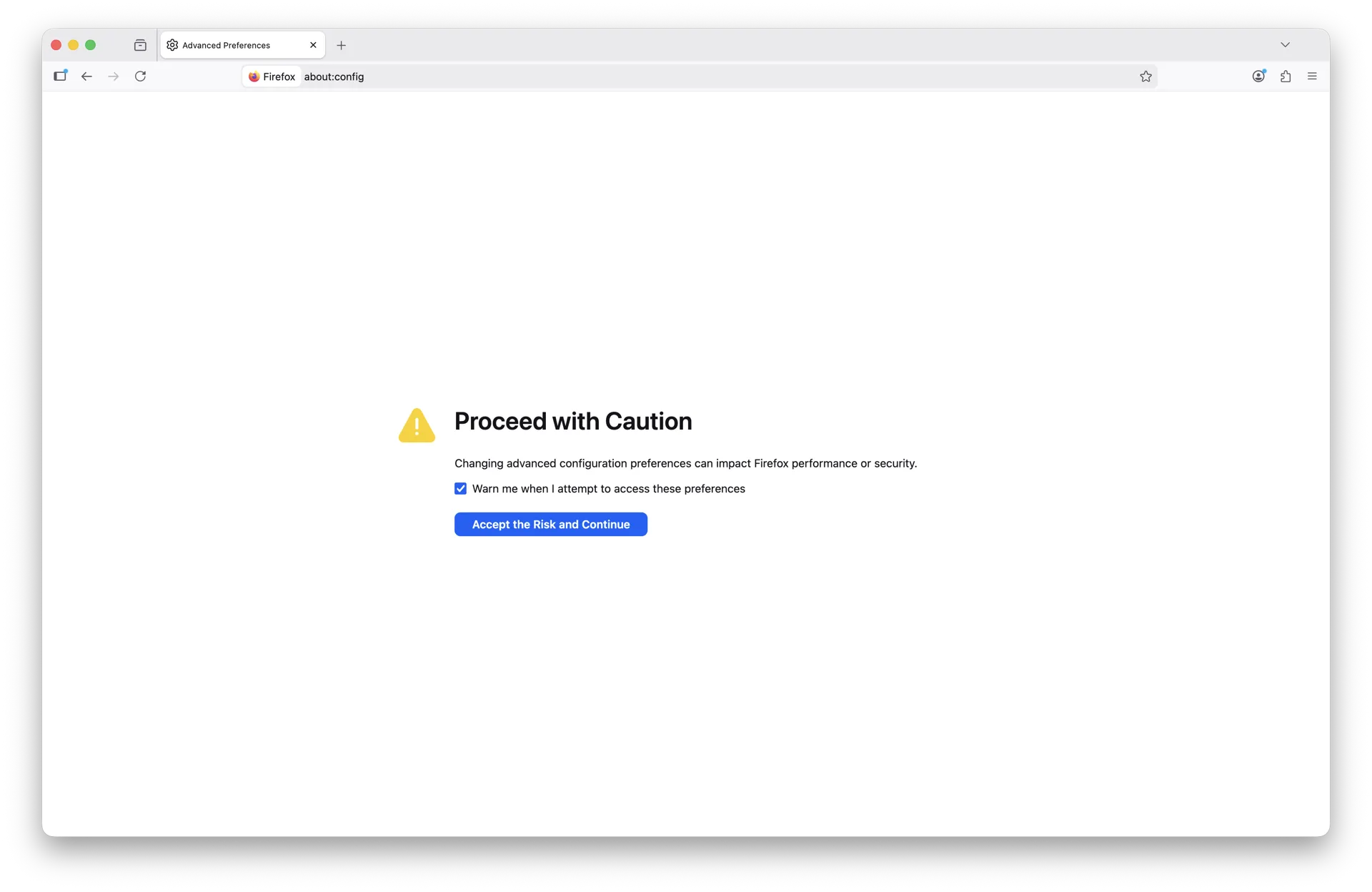
about:config, and press Enter. - Firefox shows a warning page. In current Firefox (140+ as of 2026) the button reads Accept the Risk and Continue. The older "I'll be careful, I promise" wording was retired several versions ago. Click it.
- You are now on the preferences search page. In the search box at the top, type
javascript.enabled. - The matching preference appears with its current value (default:
true). - Click the toggle button at the right end of the row. The value flips to
falseand the row turns bold to indicate it is no longer at the default.
That is it. JavaScript is now off for every site you visit. The change is live immediately - any tab you reload from this point on runs without JavaScript. You do not need to restart Firefox.
Walkthrough: Windows 11
Windows 11 shows the longest version of the flow because the about:config search box starts empty until you type, so you see every intermediate state.
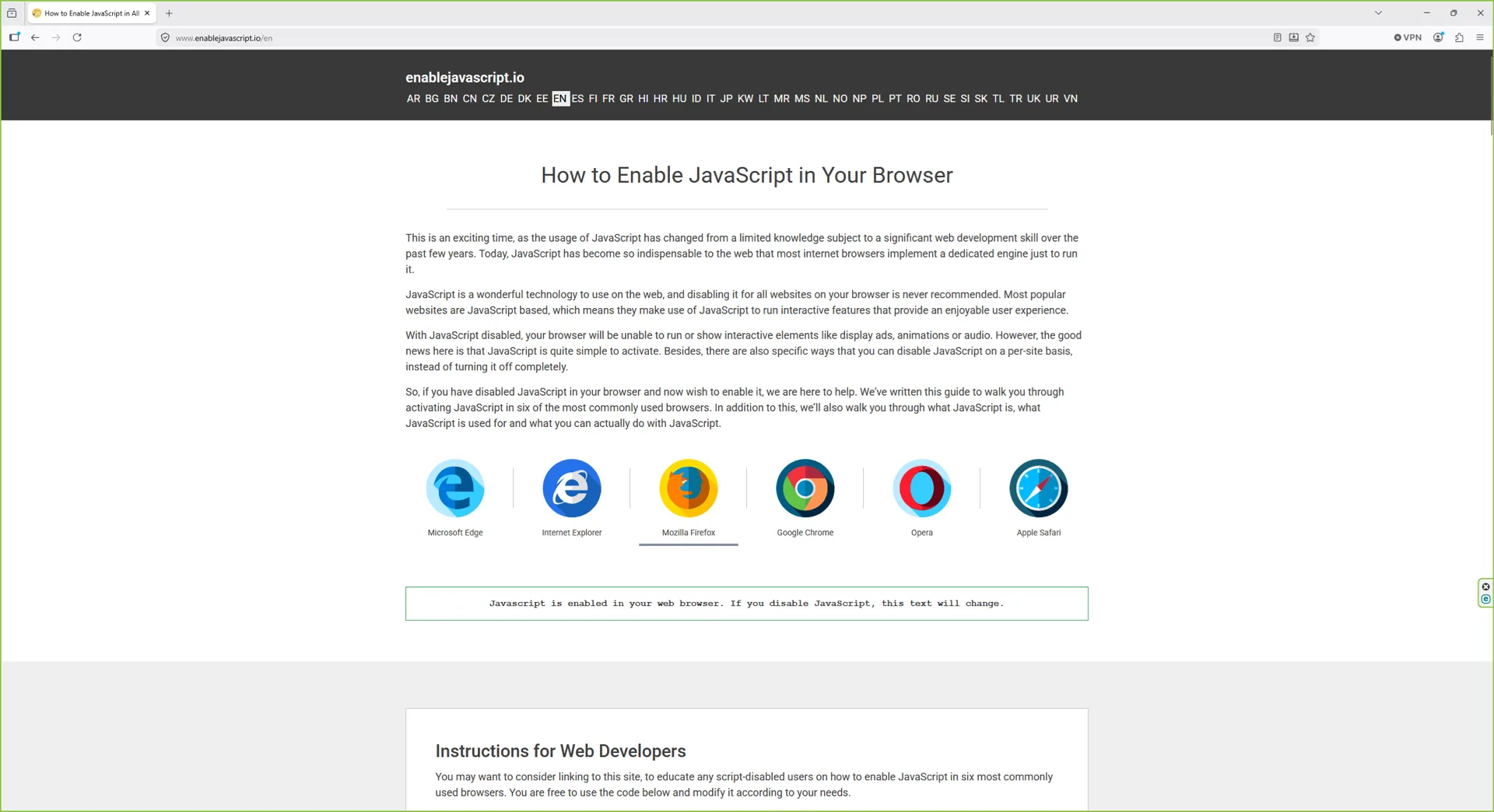
Step 1: Open Firefox
Launch Firefox from the Start menu, taskbar, or desktop shortcut. Any sample page works for this walkthrough.
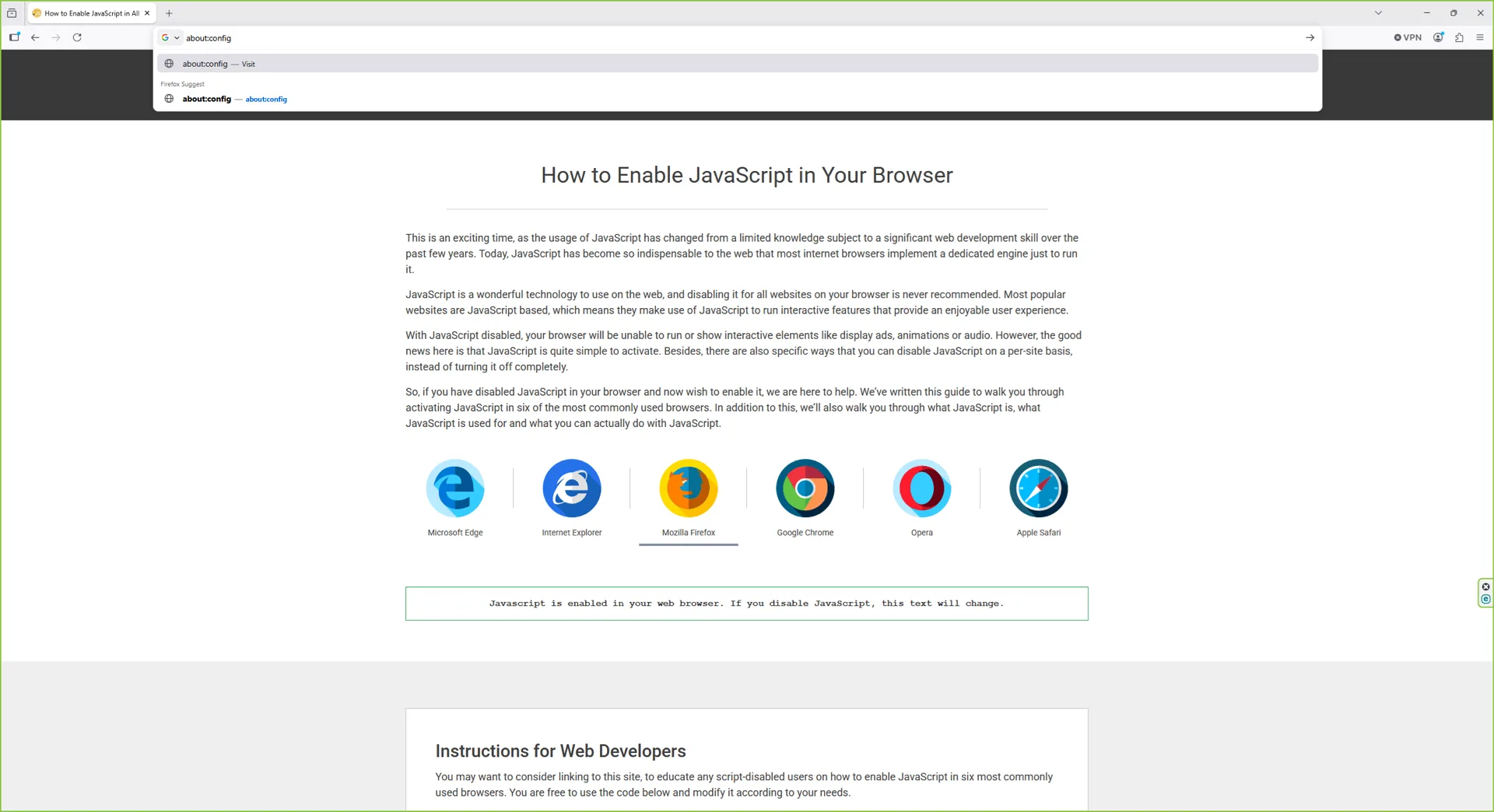
Step 2: Type about:config in the address bar
Click the address bar, type about:config, and press Enter.
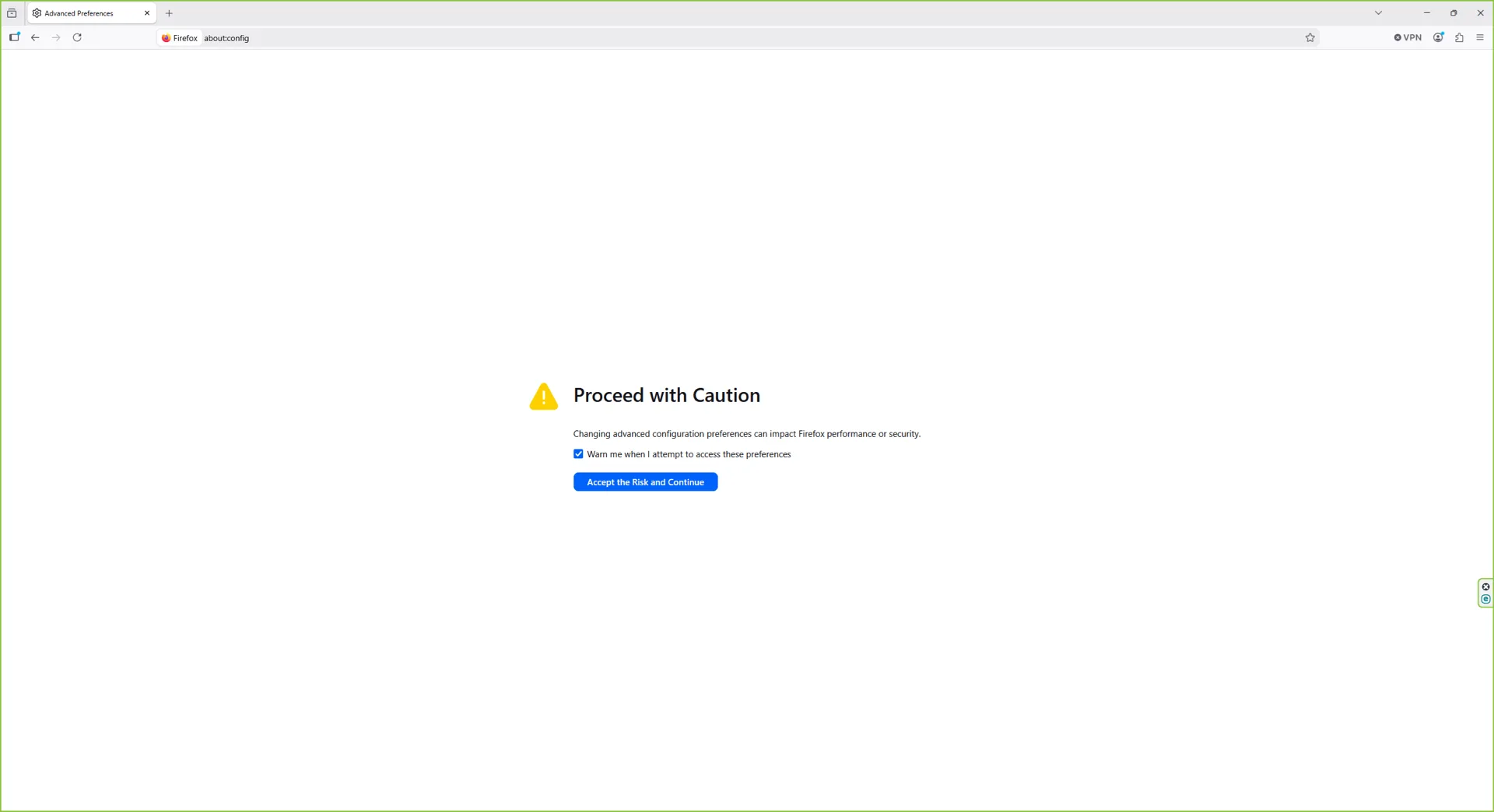
Step 3: Accept the warning
Firefox shows the advanced preferences warning. Click Accept the Risk and Continue.
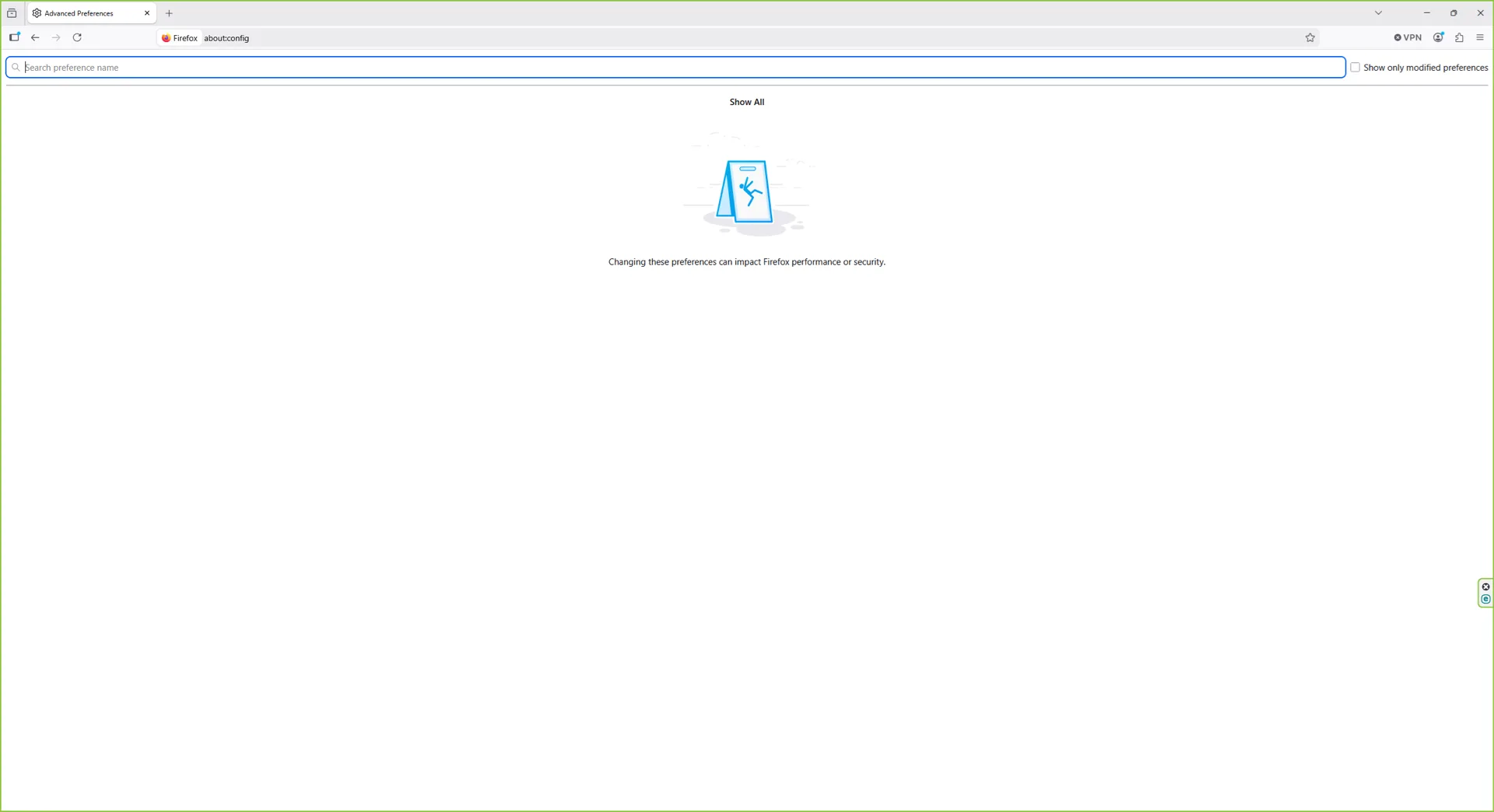
Step 4: Land on the about:config search page
The preferences page loads with an empty search box at the top. Nothing is listed until you start typing.
Step 5: Search for javascript
Type javascript (or the full string javascript.enabled) into the search field. Firefox filters the preference list as you type.
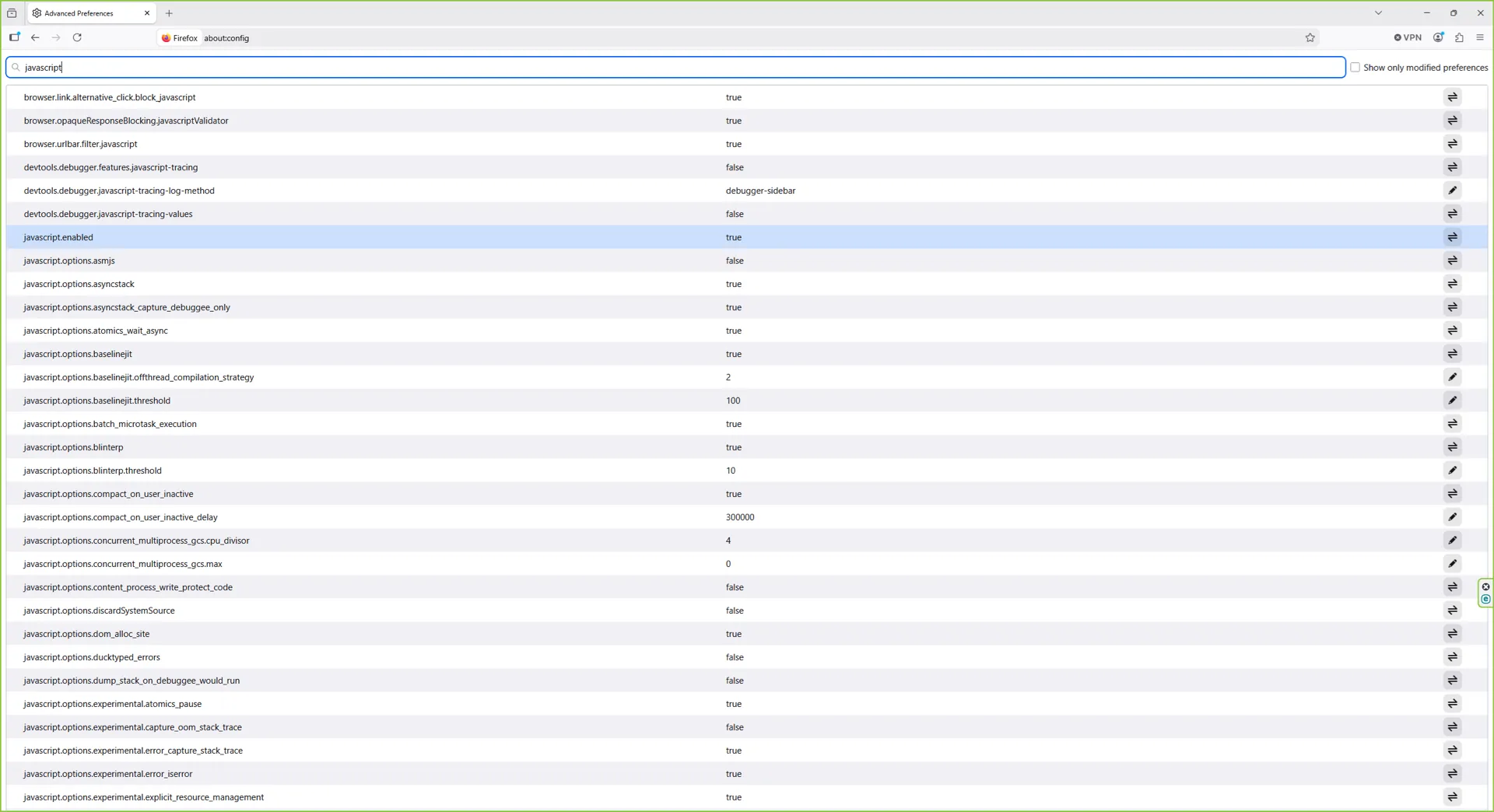
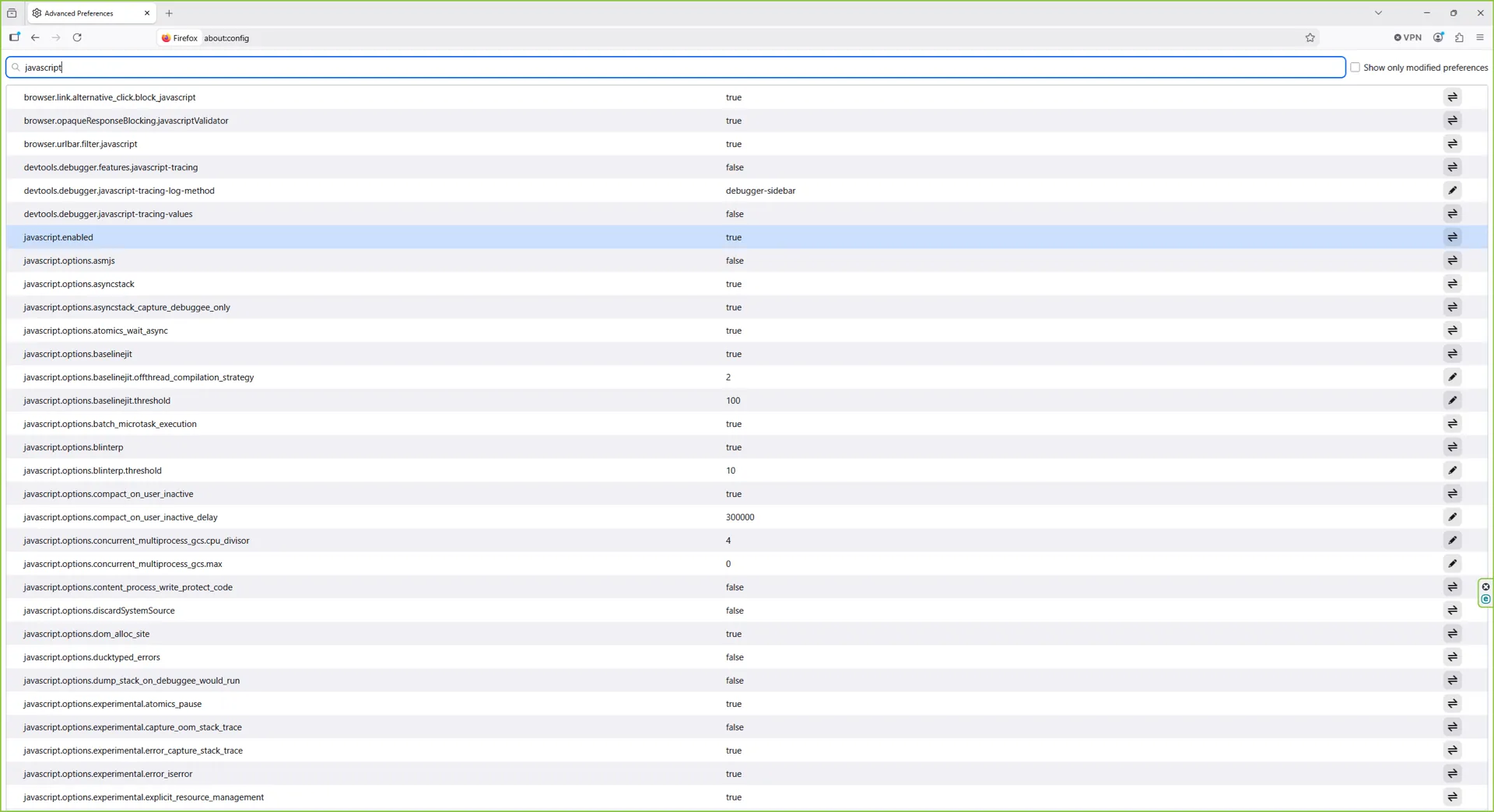
Step 6: Locate javascript.enabled (default: true)
Find the row labelled javascript.enabled. By default it shows the value true in regular weight, meaning JavaScript is currently enabled.
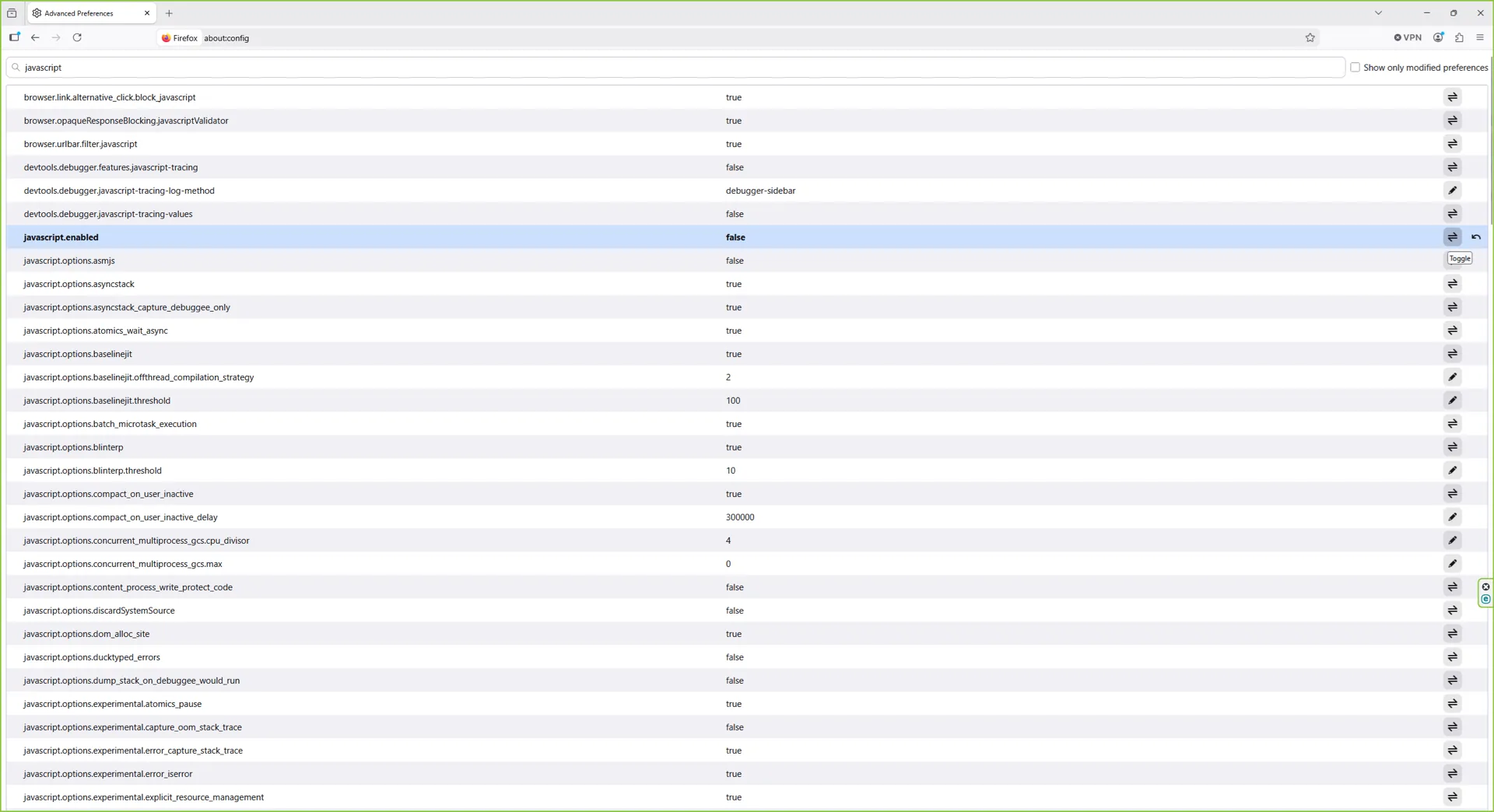
Step 7: Click the toggle to flip to false
Click the toggle icon at the right end of the row. The value flips to false and the row turns bold, indicating a non-default setting. JavaScript is now disabled globally.
Walkthrough: macOS Sequoia
The flow on macOS is the same in concept but visibly shorter, because typing the preference name in step 2 lands you directly on the filtered row without the empty-page or list-filter intermediates.
Step 1: Open Firefox
Launch Firefox from Launchpad, Spotlight, or the Dock.
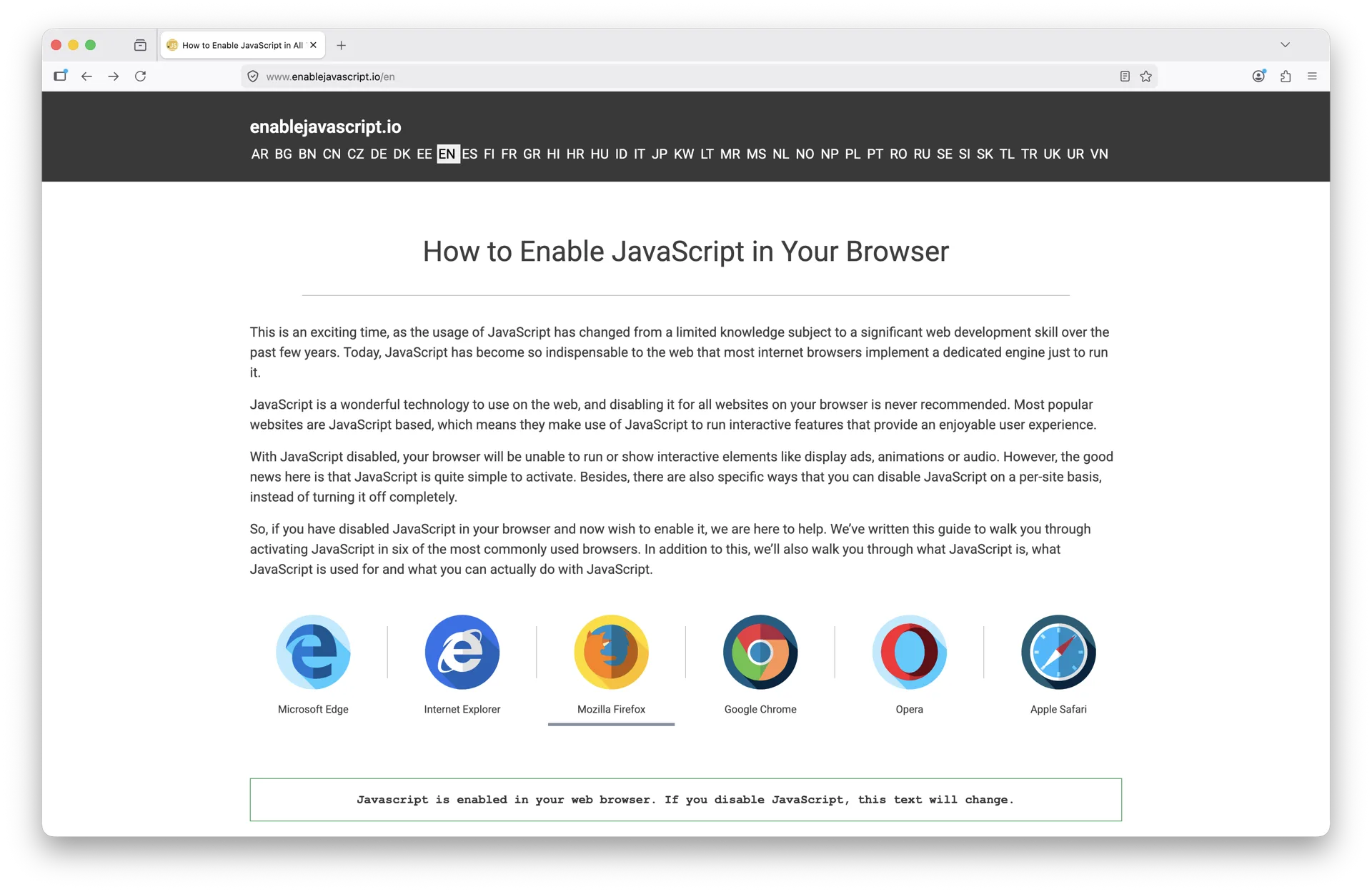
Step 2: Open about:config
Click the address bar, type about:config, and press Return. Accept the warning if prompted; on this device the warning was already dismissed previously.
Step 3: Find javascript.enabled (default: true)
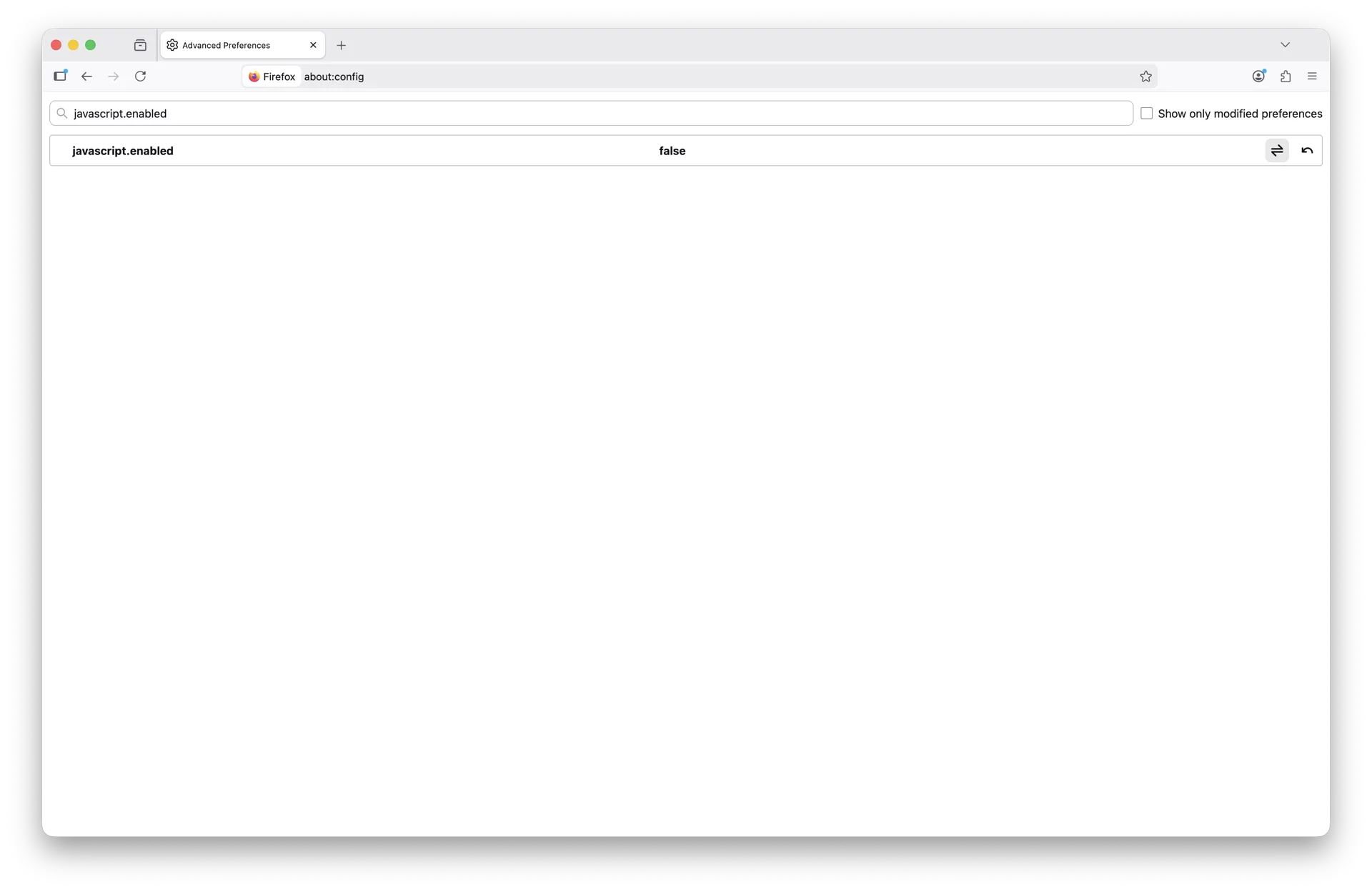
Type javascript.enabled into the search field. The single matching preference surfaces immediately, set to true.

Step 4: Toggle to false
Click the toggle icon at the right end of the row. The value flips to false and the row turns bold. JavaScript is now disabled site-wide in this Firefox profile.
Walkthrough: Firefox on iOS (iPhone and iPad)
Firefox on iOS is a special case. Apple's App Store rules require every browser on iPhone and iPad to use Apple's WebKit engine - the same engine that powers Safari. Firefox iOS is a Mozilla-branded UI on top of WebKit, not the Gecko engine you get on desktop or Android. As a result, Firefox iOS does not have its own about:config and does not have its own JavaScript switch.
To turn JavaScript off in Firefox on iOS, you toggle the system Safari setting. Disabling JavaScript there disables it for every WebKit-based browser on the device, which includes Firefox iOS, Chrome iOS, Edge iOS, and any other "browser" app on iPhone and iPad. Re-enabling it re-enables it everywhere.
Step 1: Open Settings
Open the iOS Settings app from the home screen or App Library.

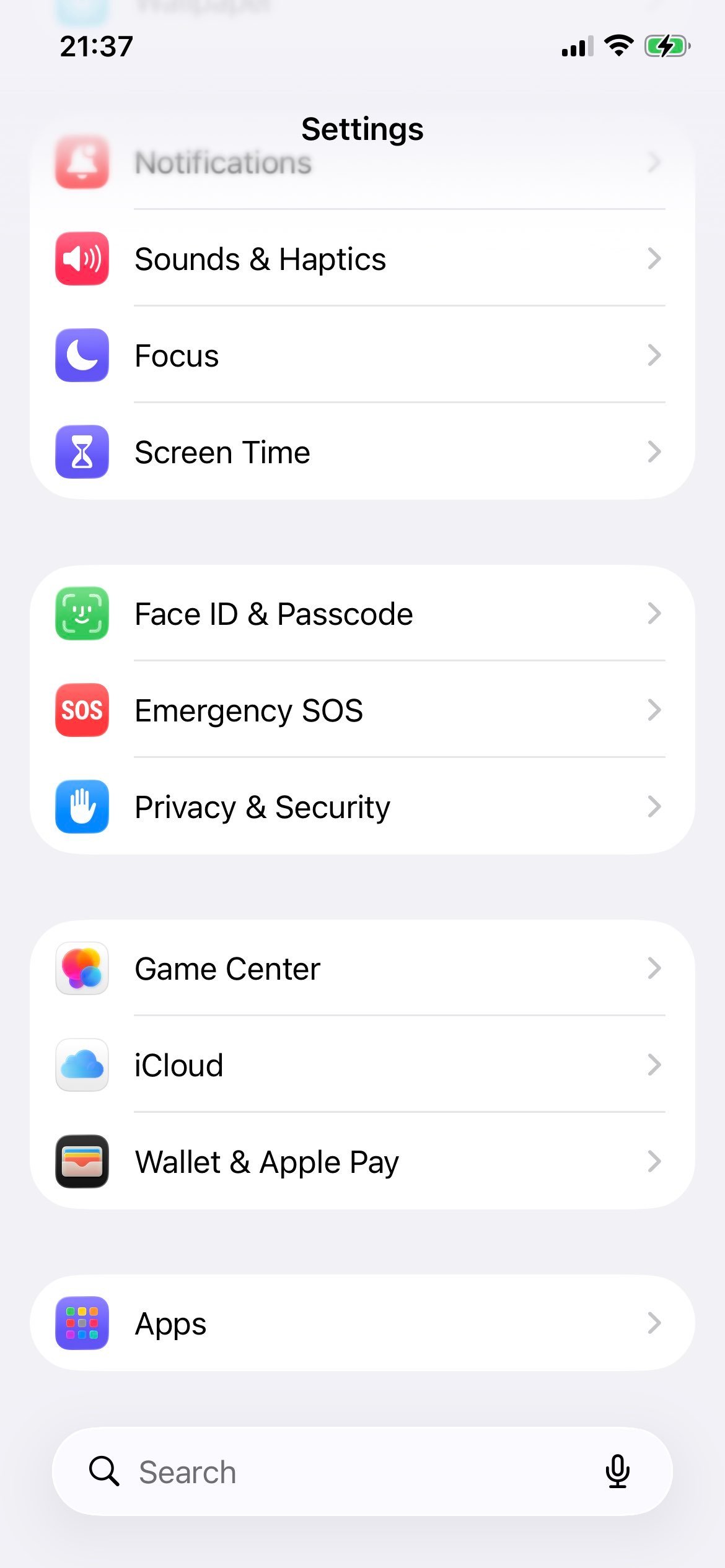
Step 2: Tap Apps
Scroll down inside Settings and tap Apps. (On older iOS releases this entry was simply Safari in the top-level list; on iOS 18 and later it is grouped under Apps.)
Step 3: Tap Safari
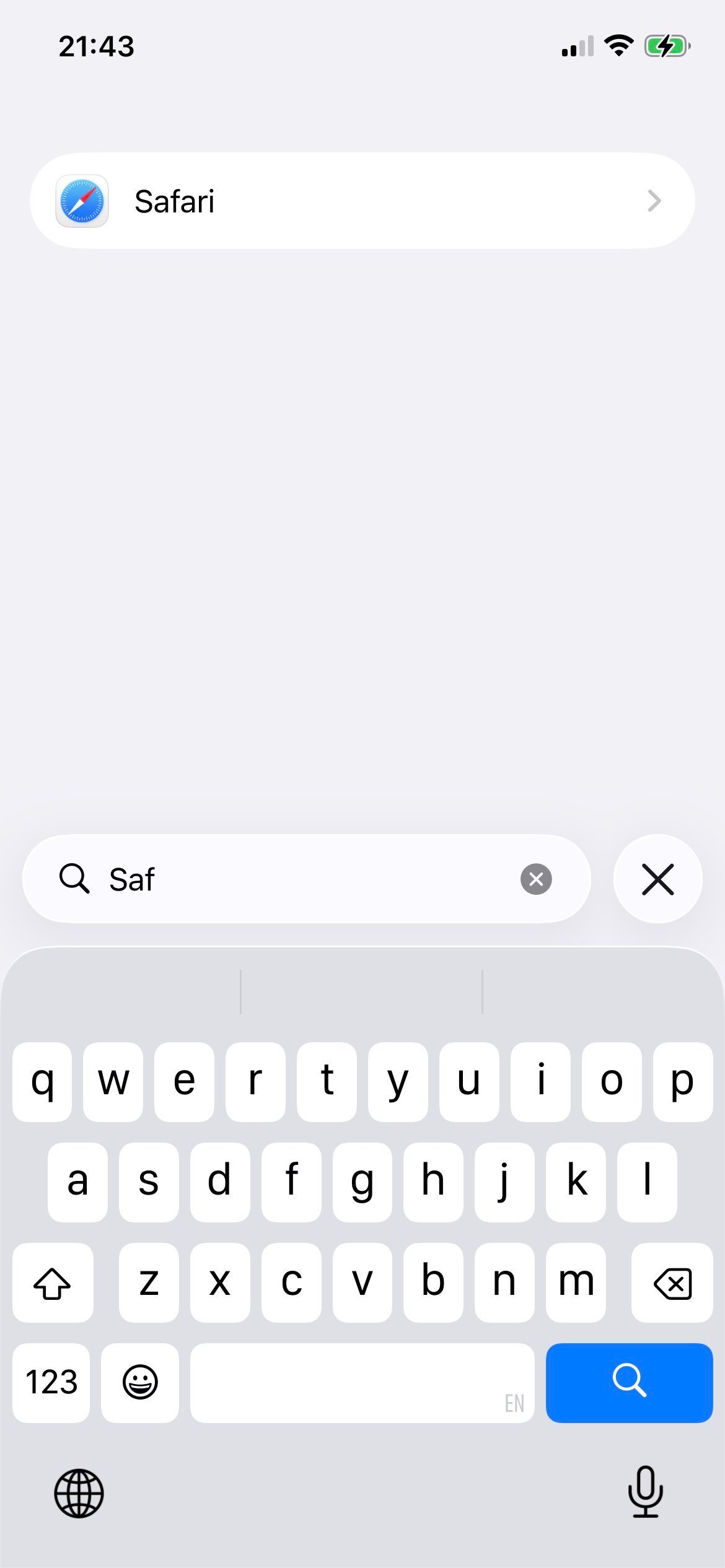
In the Apps list, tap Safari. This is the system entry that controls every WebKit browser on the device.
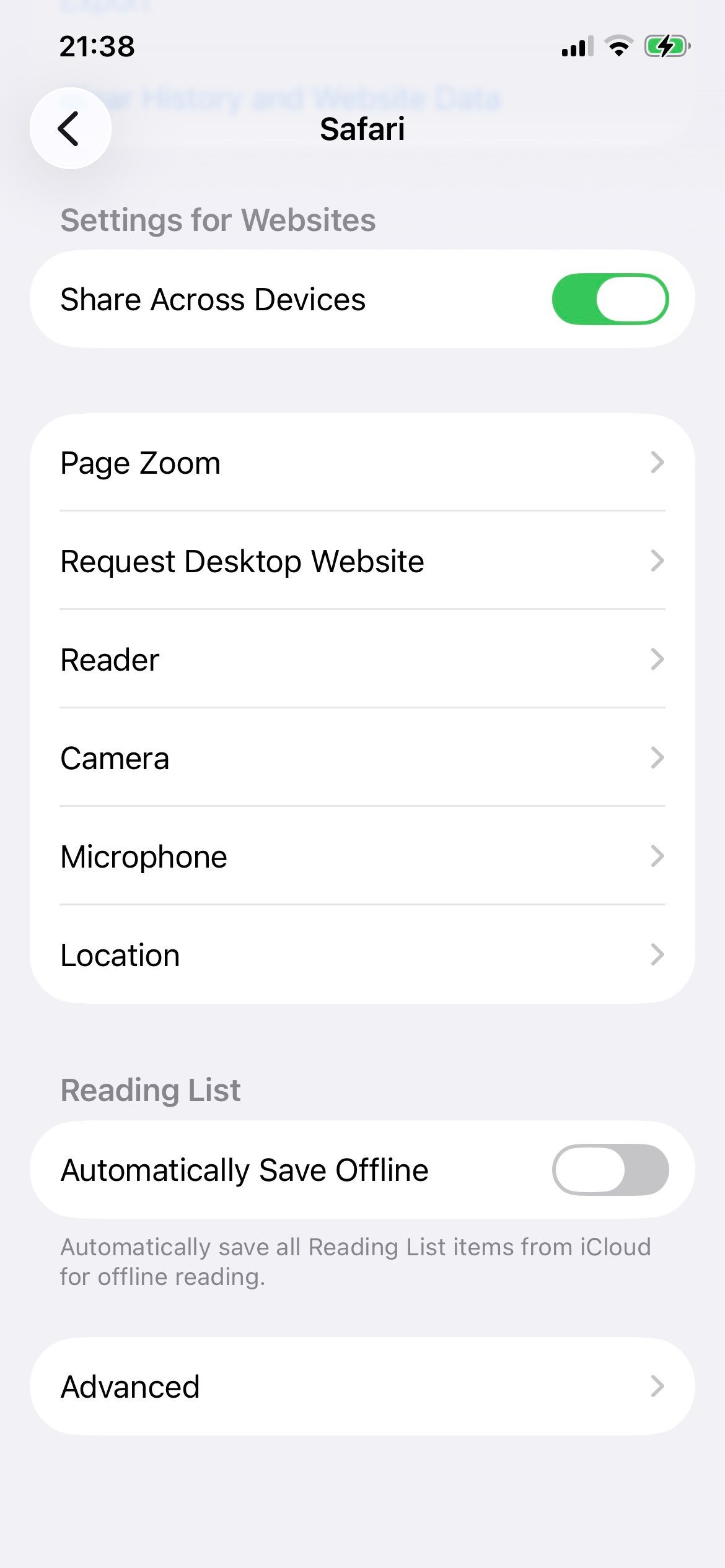
Step 4: Open Advanced
Scroll to the bottom of the Safari settings screen and tap Advanced.
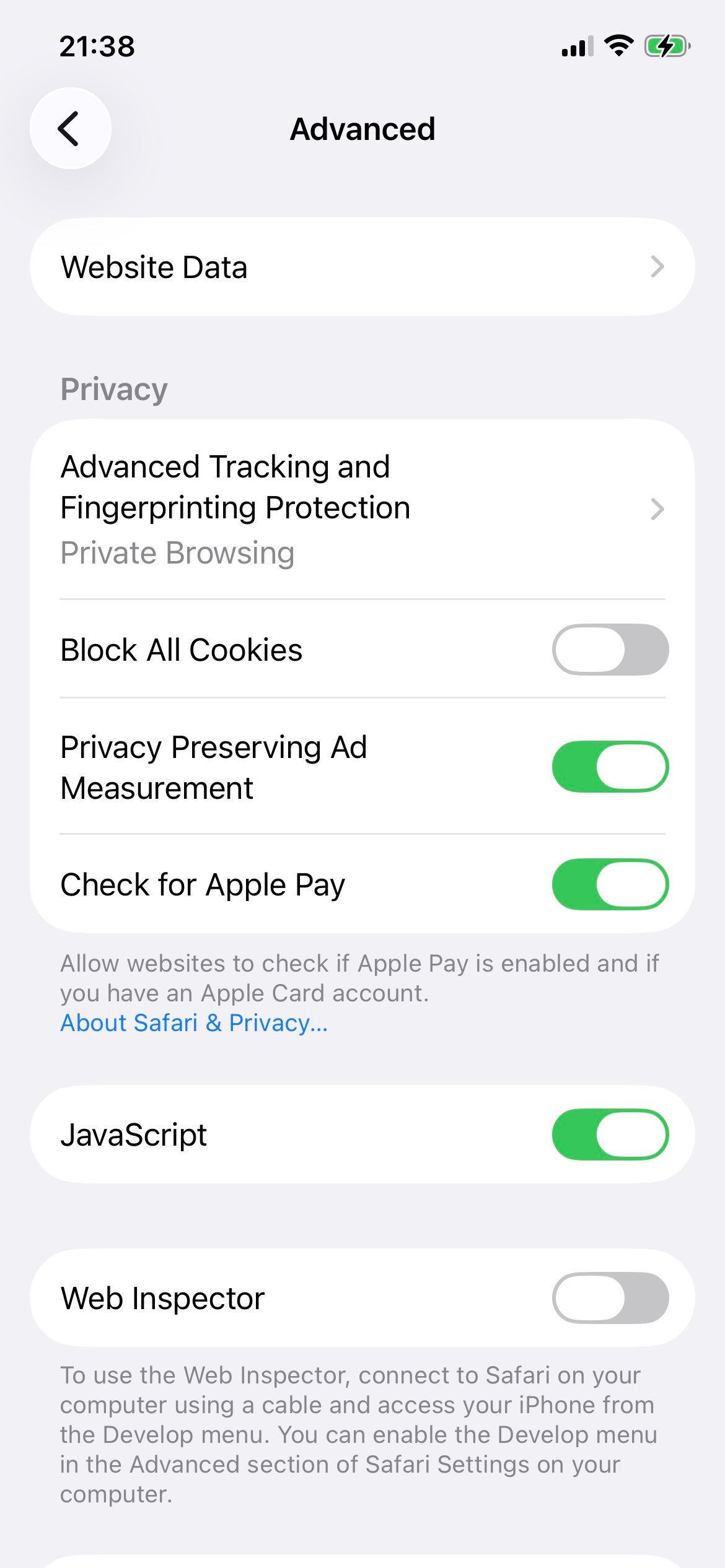
Step 5: Locate the JavaScript toggle (currently on)
The JavaScript switch sits inside Advanced. By default it is on (green).
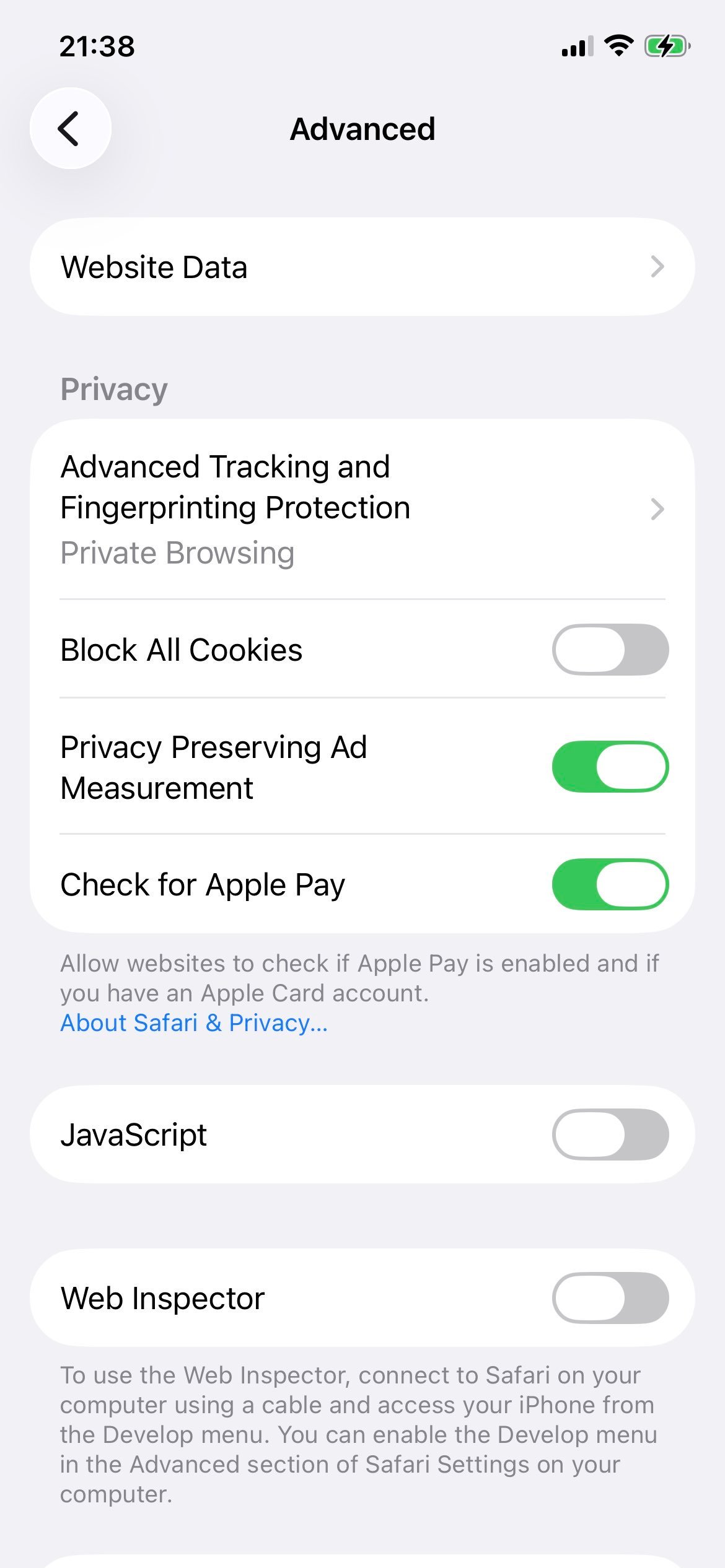
Step 6: Toggle JavaScript off
Tap the switch. It turns grey, and JavaScript is now disabled for Safari, Firefox iOS, and every other WebKit browser on the device.
How to verify JavaScript is actually disabled
Always confirm. The fastest way is to visit any site that explicitly tests JavaScript - this site is built for exactly that purpose, but a quick alternative is to open Firefox's developer console.
- Press F12 (or right-click any page and choose Inspect).
- Click the Console tab.
- Type
1+1and press Enter. - If JavaScript is enabled, the console returns
2. If it is disabled, you get an error or no response.
You can also reload a JavaScript-heavy site (Gmail, YouTube, Twitter/X, Google Maps) and watch what happens. With JS off, Gmail shows a static fallback page, YouTube shows thumbnails but cannot play video, Maps shows nothing useful, and most single-page apps display a blank screen or a "please enable JavaScript" notice.
If you want a quick visual confirmation that the toggle landed, the about:config row itself is the cleanest signal: bold text and the value false is the off state.
How to re-enable JavaScript in Firefox
The exact same path, in reverse:
- Address bar,
about:config, Enter. - Click Accept the Risk and Continue if prompted.
- Search for
javascript.enabled. - Click the toggle button to flip it back to
true.
Reload any open tabs that need JavaScript. You do not need to restart the browser. On iOS, reverse the Settings flow: Settings > Apps > Safari > Advanced > JavaScript back to on.
How to disable JavaScript only for specific sites
Stock Firefox does not offer this in the GUI. The javascript.enabled flag is all-or-nothing. If you want per-site control - JS on for your bank, off for news sites - install one of these extensions:
- NoScript Security Suite. The classic per-site JavaScript control extension. Block by default, click to allow specific domains, granular control over scripts per origin. Steeper learning curve but the most powerful.
- uBlock Origin (in advanced mode). Primarily an ad blocker, but its dynamic filtering panel lets you block JavaScript per-site or per-frame. Less granular than NoScript but easier for most people.
- Privacy Badger. Lighter touch - it learns over time and blocks tracking scripts automatically rather than asking you to make decisions.
Install any of these from addons.mozilla.org. None of them require you to flip javascript.enabled; they hook into Firefox's content blocking system instead.
A note on Tor Browser
If your reason for disabling JavaScript is privacy or anti-fingerprinting and you are willing to use a different browser, Tor Browser - a hardened Firefox fork - has built-in JavaScript security levels accessible from the shield icon. Set the security slider to Safer or Safest and JavaScript is disabled site-wide or restricted to HTTPS-only sites. That is out of scope for this guide, but worth knowing as a one-step alternative.
What stops working when JavaScript is off
Be ready. With JS disabled, you will lose:
- Most single-page applications - Gmail, Google Docs, Slack, Notion, Figma, Trello, Discord web, etc.
- Video players on YouTube, Netflix, Twitch, and most streaming sites.
- Modern checkout flows on a lot of e-commerce sites.
- Online banking dashboards (almost universally JS-dependent).
- Live chat widgets, comment sections, and most social media feeds.
- Map and route services like Google Maps and OpenStreetMap.
What still works fine: most news articles, Wikipedia, blog content, documentation sites, search results pages, RSS feeds, and any site built on server-rendered HTML. You may be surprised how much of the web still works - and how much faster it feels.
Workflow tips for living with JavaScript off
If you are planning to leave JavaScript disabled most of the time, a few practical patterns make it sustainable:
- Set up two profiles. Firefox supports multiple profiles via
about:profiles. Create a "NoJS" profile for browsing and a "Default" profile for banking, work apps, and anything that requires JavaScript. Each profile remembers its ownjavascript.enabledstate, history, bookmarks, and extensions. - Use a launcher shortcut. On the desktop, point a shortcut at
firefox.exe -P NoJS(Windows) or usefirefox -P NoJSon Linux/macOS to open the JS-off profile directly. - Bookmark
about:config?filter=javascript.enabled. The URL pre-filters the preferences search so toggling takes one click instead of three. - Pair with a content blocker. uBlock Origin works whether or not JavaScript is enabled and removes most of the empty placeholders that JS-heavy sites leave behind, making no-JS browsing visually cleaner.
Common issues and troubleshooting
If your toggle does not seem to take effect:
- You changed the setting but the site still works. Reload the tab (Ctrl+R or Cmd+R). The flag applies to new page loads, not to scripts already running.
- Some elements still animate. CSS animations and transitions are not JavaScript - they keep running. Same goes for autoplaying video tags with the
autoplayattribute, which is HTML, not JS. - about:config does not open. If your Firefox is managed by a corporate or school policy,
about:configcan be locked. There is no workaround short of using a personal device. - The toggle keeps flipping back to true. An extension or sync profile may be re-enabling it. Check
about:addonsfor any extension that lists "access browser settings" in its permissions, and checkabout:preferences#syncif you sync settings across devices. - Firefox iOS still runs JavaScript. The desktop about:config trick does not exist on iPhone or iPad. You have to use the iOS Settings > Apps > Safari > Advanced > JavaScript toggle shown above; the change takes effect across all WebKit browsers on the device.
Summary
To disable JavaScript in Firefox on Windows, macOS, or Linux: about:config → accept the warning → search javascript.enabled → toggle to false. To re-enable: same path, toggle back to true. On iPhone or iPad, use Settings > Apps > Safari > Advanced > JavaScript instead, since Firefox iOS runs on Apple's WebKit engine. For per-site control on desktop, install NoScript or uBlock Origin. To verify, use the developer console (F12) or visit a site that detects JavaScript.