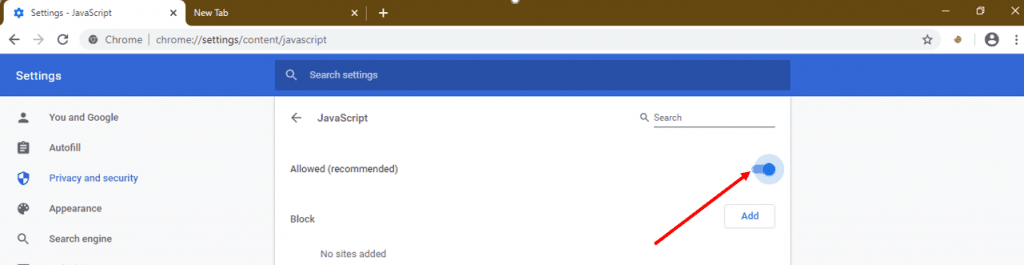
Google Chromeは世界で最も使われているウェブブラウザで、JavaScriptは標準で有効になっています。ページが真っ白になったり「JavaScriptを有効にしてください」というメッセージが表示される場合、設定のどこかでオフになっている可能性があります。プライバシー設定のリセット、プロファイル同期、拡張機能などで切り替わってしまうことがあります。
How to Enable JavaScript in Chrome on iPhone, iPad, and iOS
On iPhone and iPad, every browser - including Chrome, Edge, Firefox, Brave, and DuckDuckGo - is required by Apple to use the system WebKit engine. That means there is no JavaScript toggle inside the Chrome iOS app itself. The setting that controls JavaScript for Chrome on iOS lives in the system Settings → Apps → Safari → Advanced screen, and it applies to every browser at once.
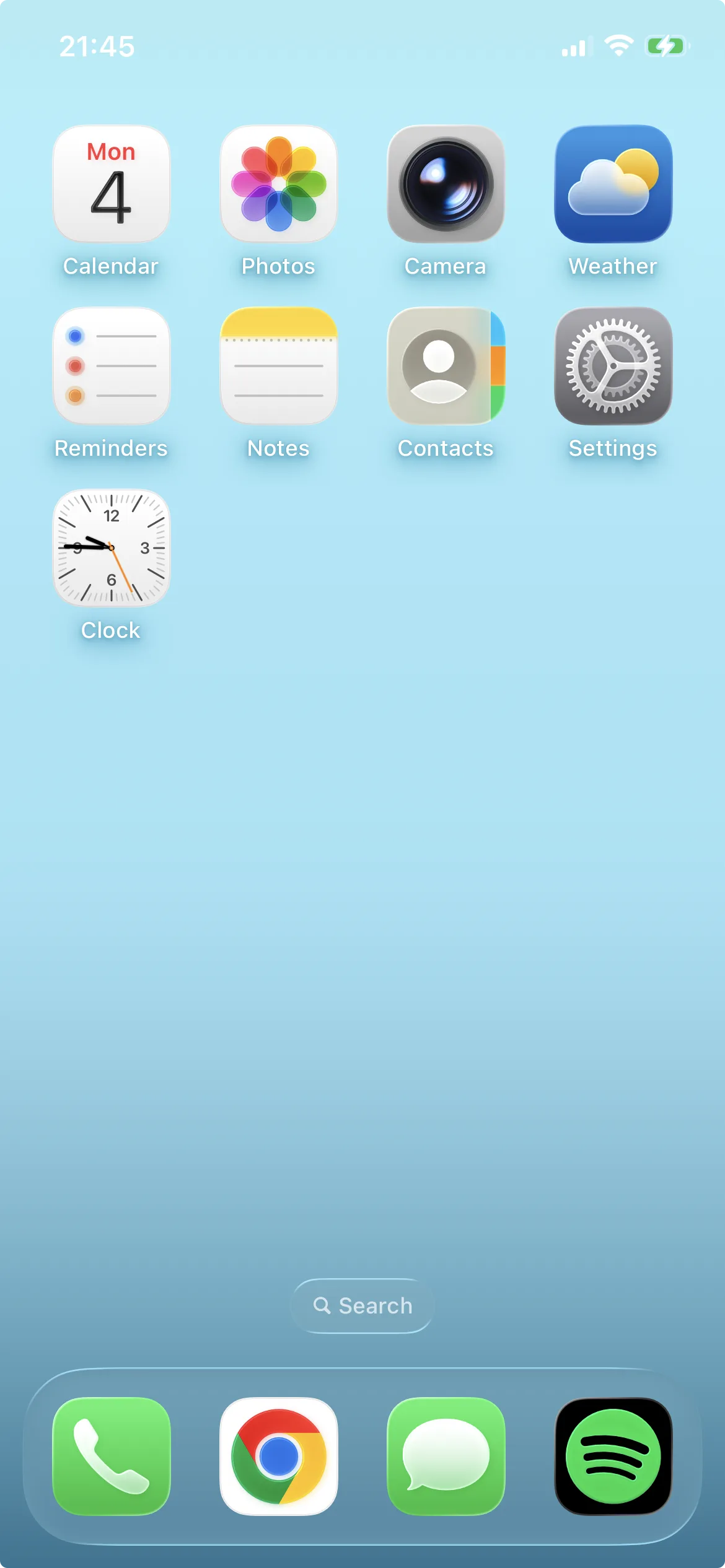
Step 1: Open the Settings app
Tap the gray gear icon on your home screen or App Library to launch iOS Settings.
Open the Settings app on your iPhone or iPad.
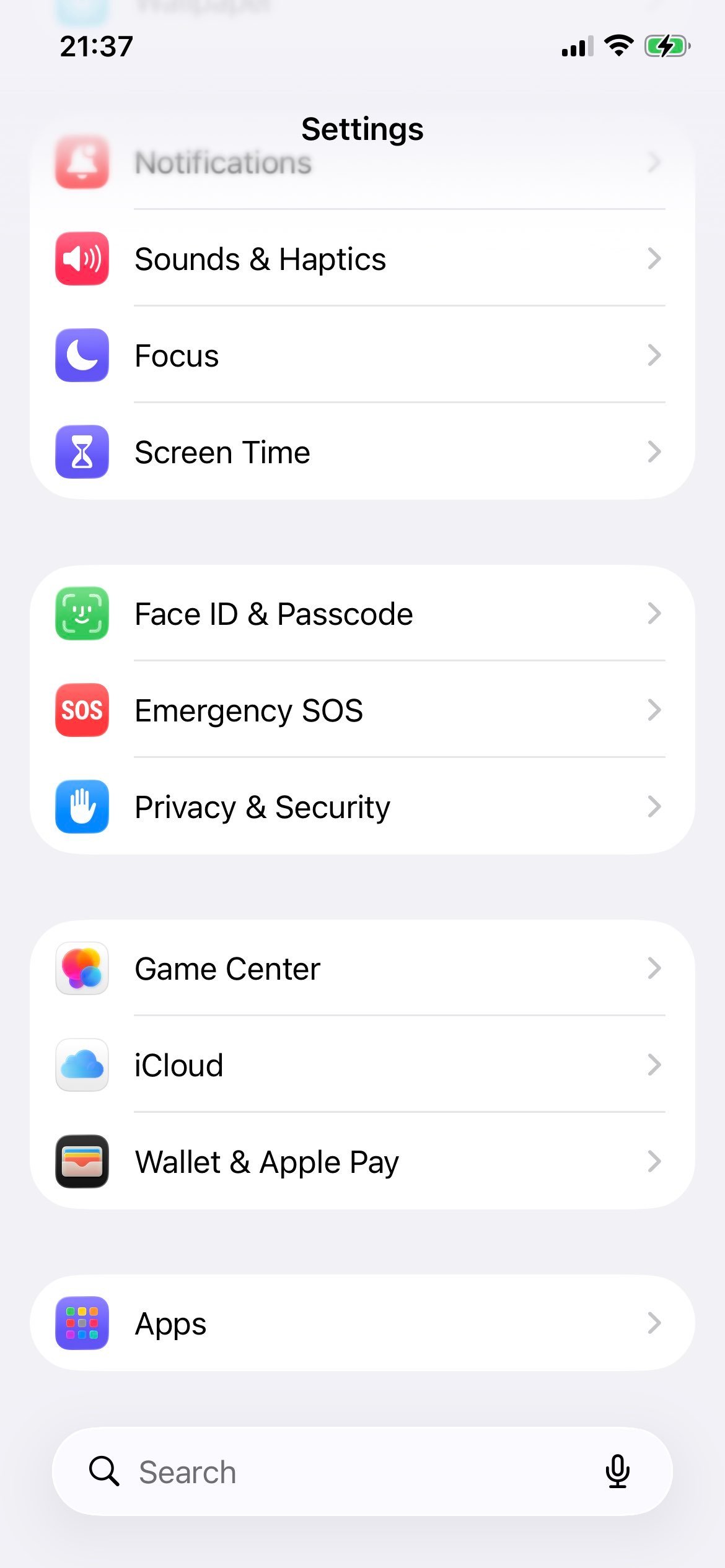
Step 2: Open Apps
Scroll down and tap Apps. (On older iOS versions, Safari appears directly in the main Settings list - tap it instead.)
The Apps section consolidates per-app system settings.
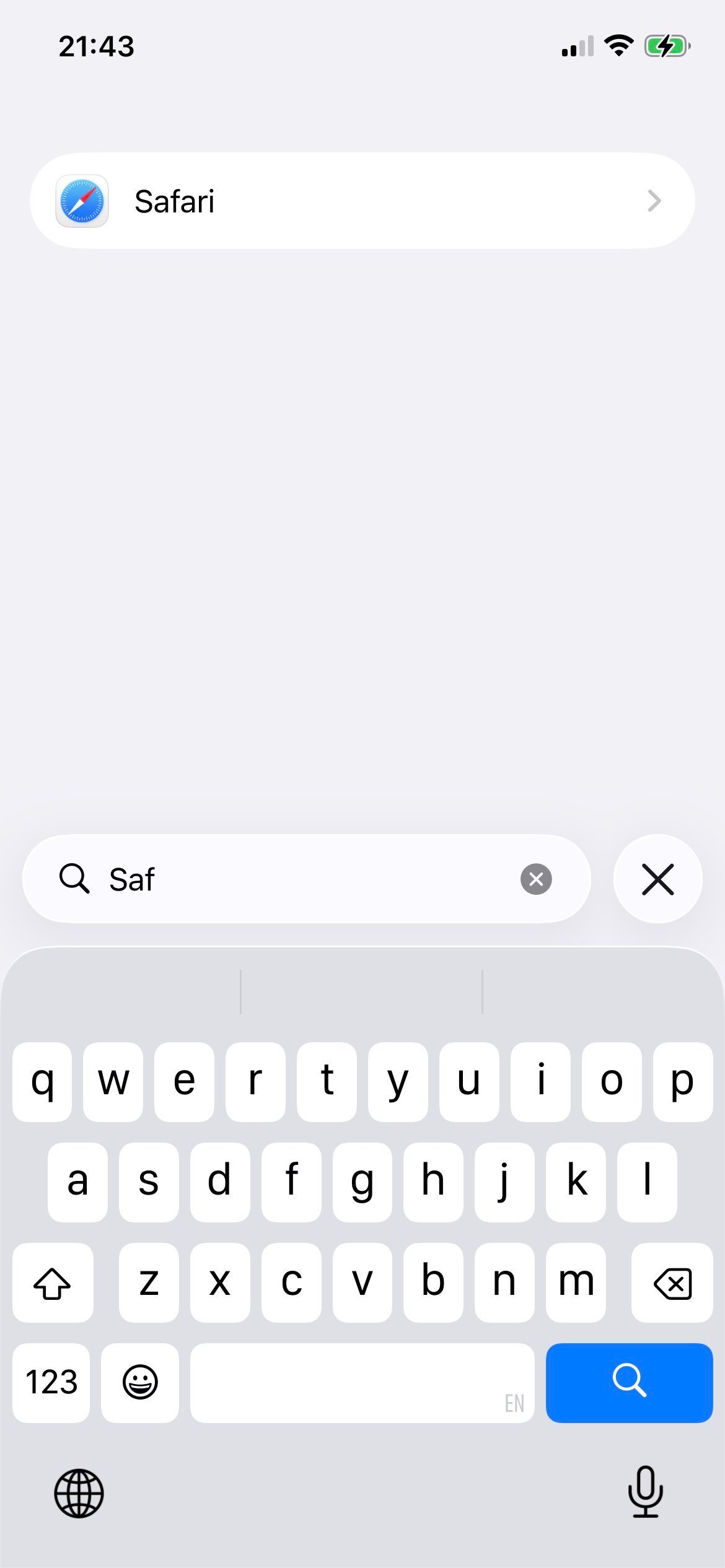
Step 3: Select Safari
Inside Apps, scroll to and tap Safari. This is where iOS controls the WebKit engine that Chrome iOS uses behind the scenes.
Safari is the gateway to JavaScript settings for every iOS browser.
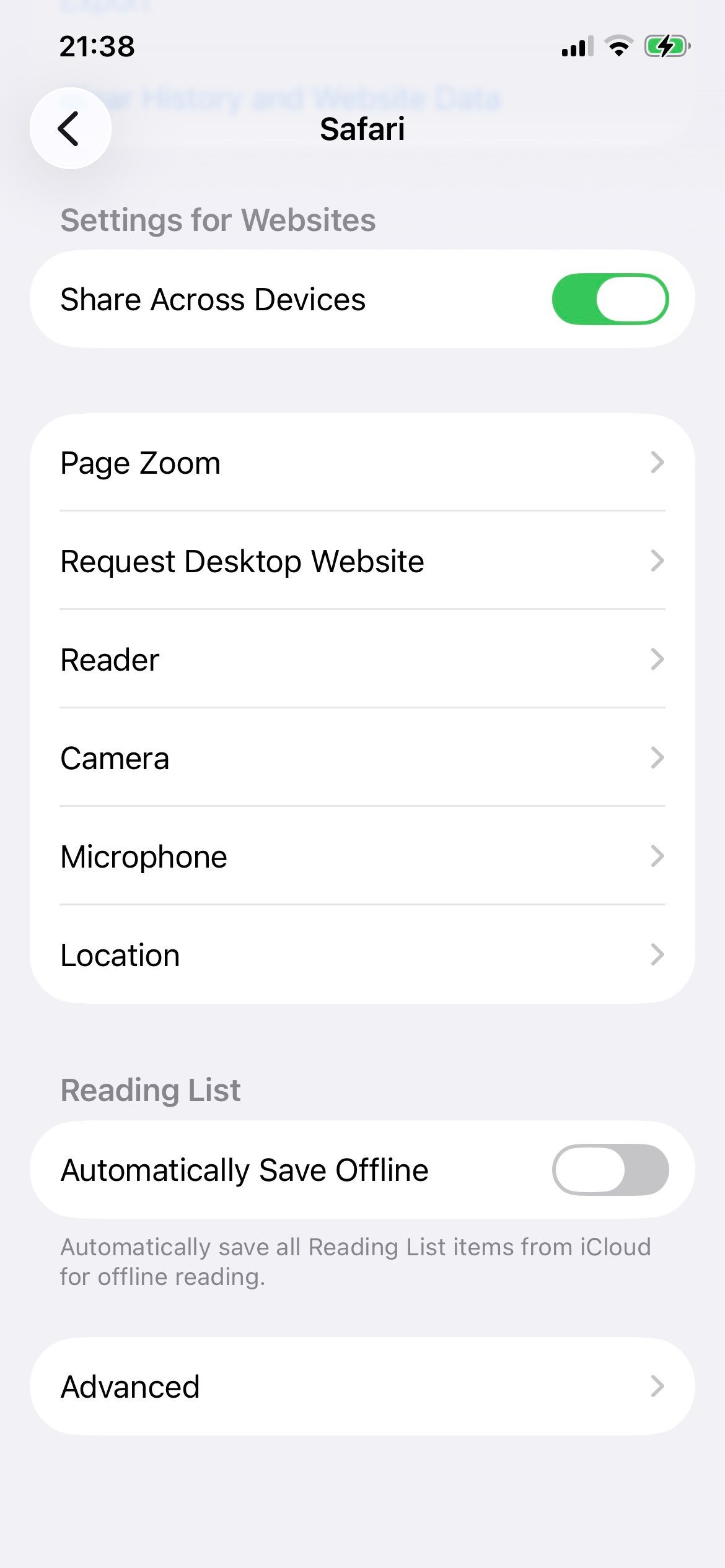
Step 4: Tap Advanced
Scroll to the bottom of the Safari settings page and tap Advanced.
The Advanced page contains the JavaScript switch.
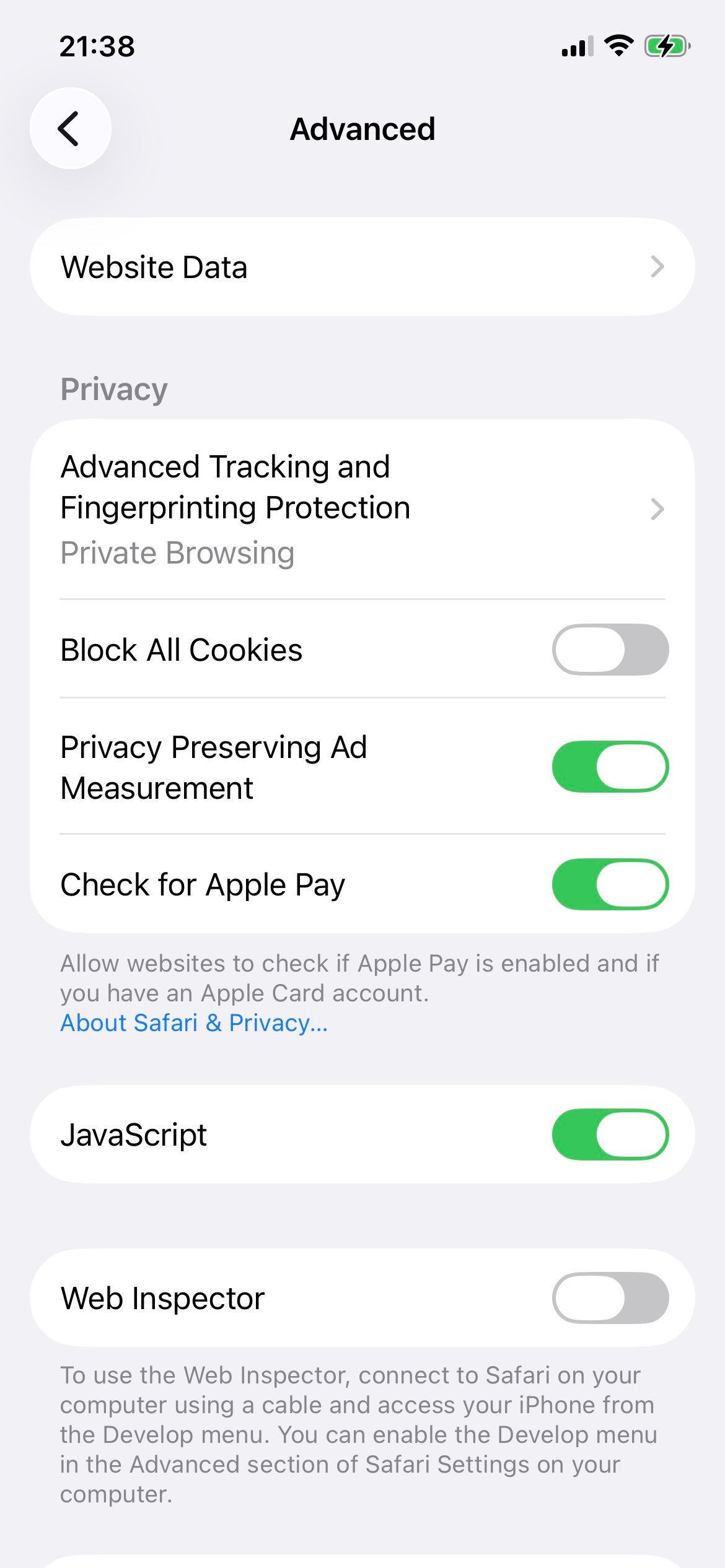
Step 5: Enable JavaScript
Toggle the JavaScript switch on (green). The change applies immediately to Chrome, Safari, and every other iOS browser.
JavaScript enabled for every browser on iOS.
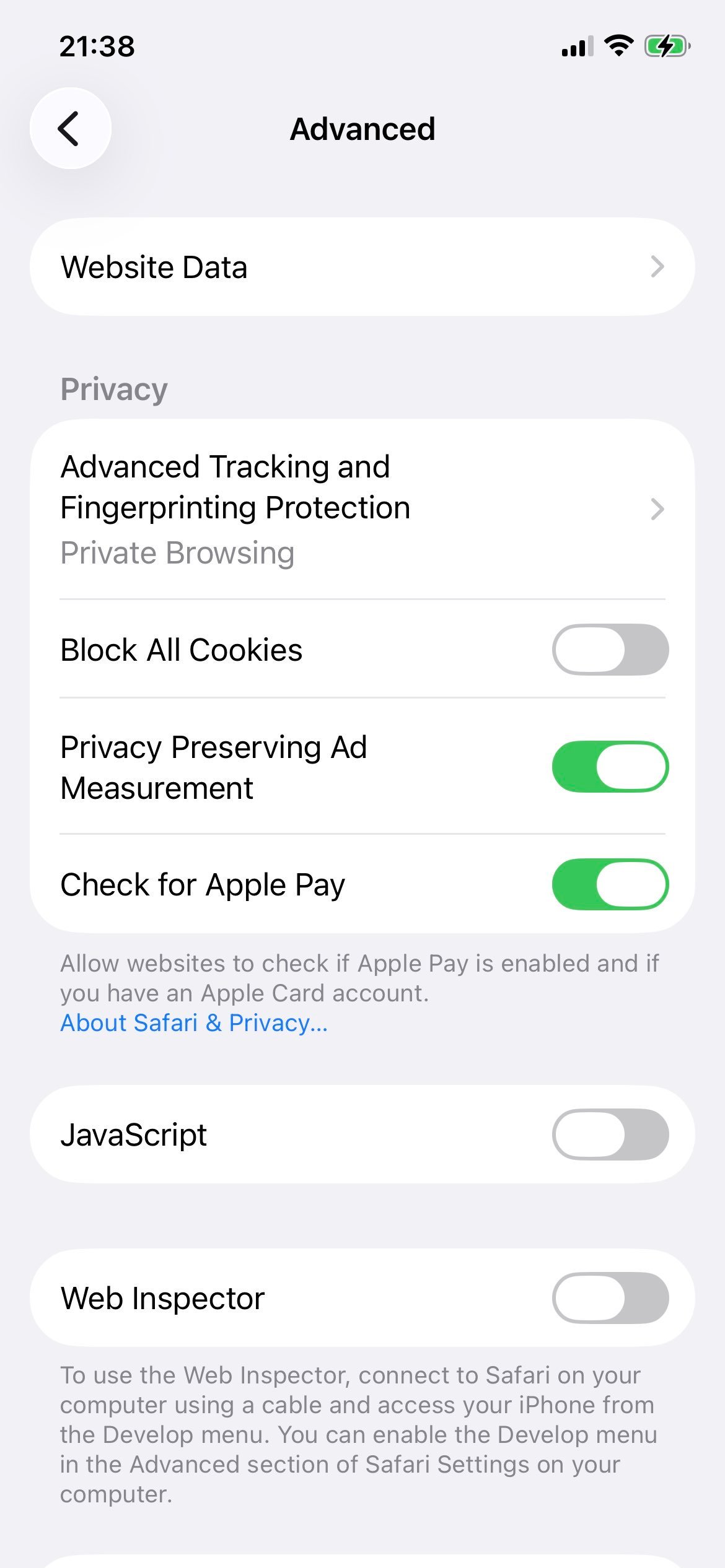
Step 6: How to turn it off again
To disable JavaScript later, flip the same switch off (gray). Note that almost every modern site will break without it.
The same toggle in the disabled state.
Now switch back to Chrome iOS and reload your tab - JavaScript is on (or off) for every browser on the device.