Mozilla FirefoxはJavaScriptの扱いがChromeやEdgeと少し異なります。通常の設定画面にはJavaScriptのトグルがありません。最新のウェブアプリを使うにはJavaScriptが必須なので、Firefoxは「JavaScriptは常にオンであるべき」という前提で作られているからです。設定は about:config という上級者向けの設定ページに置かれています。
How to Enable JavaScript in Firefox on iPhone, iPad, and iOS
Firefox for iOS is a Mozilla-branded shell around Apple's WebKit engine - the same engine that powers Safari. Apple's App Store rules require every iOS browser (Firefox, Chrome, Edge, Brave) to use WebKit, so Firefox on iPhone and iPad does not have its own about:config JavaScript switch. Instead, the JavaScript toggle lives in the system Safari settings and applies to every iOS browser at once.
Step 1: Open the Settings app
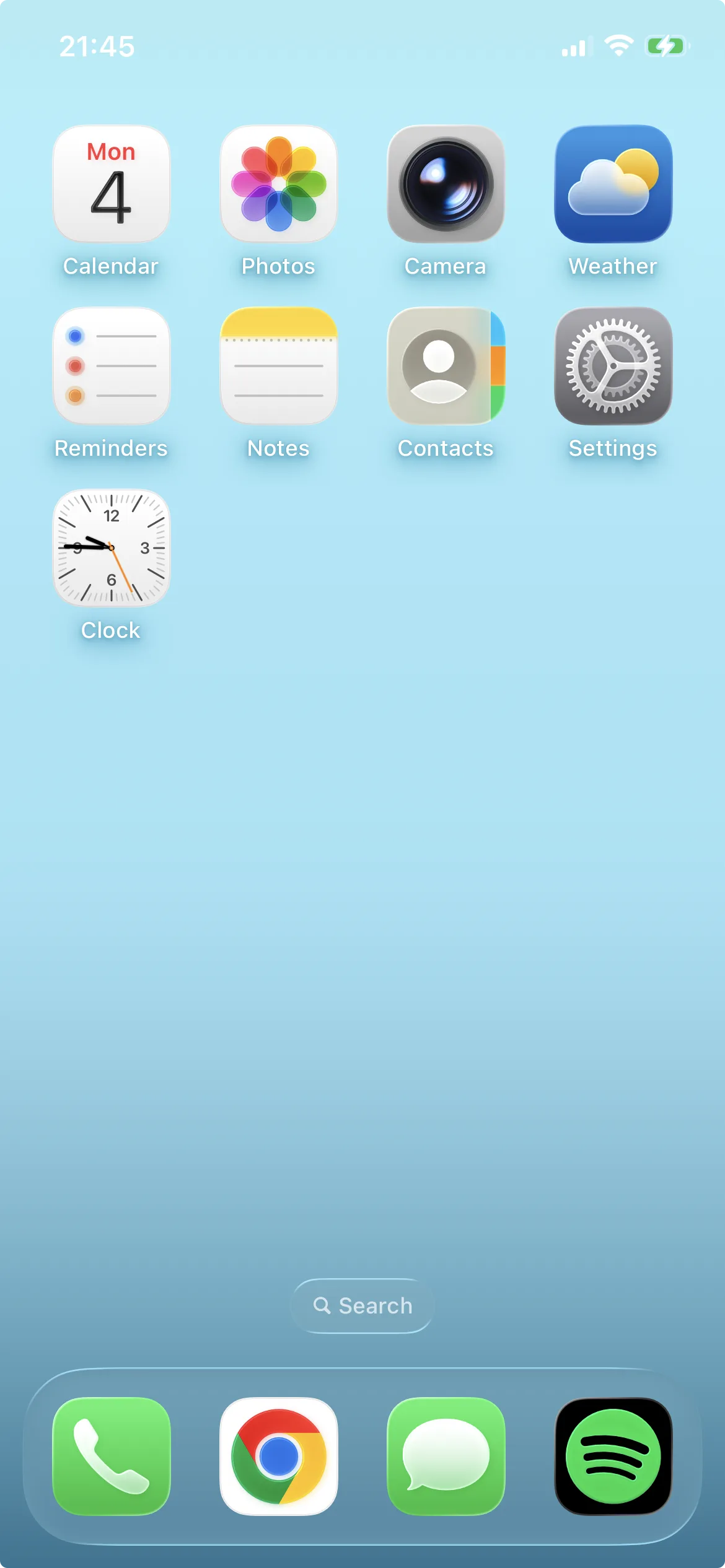
Unlock your iPhone or iPad and tap the Settings app on the Home Screen or in the App Library.
Open the iOS Settings app.
Step 2: Tap Apps
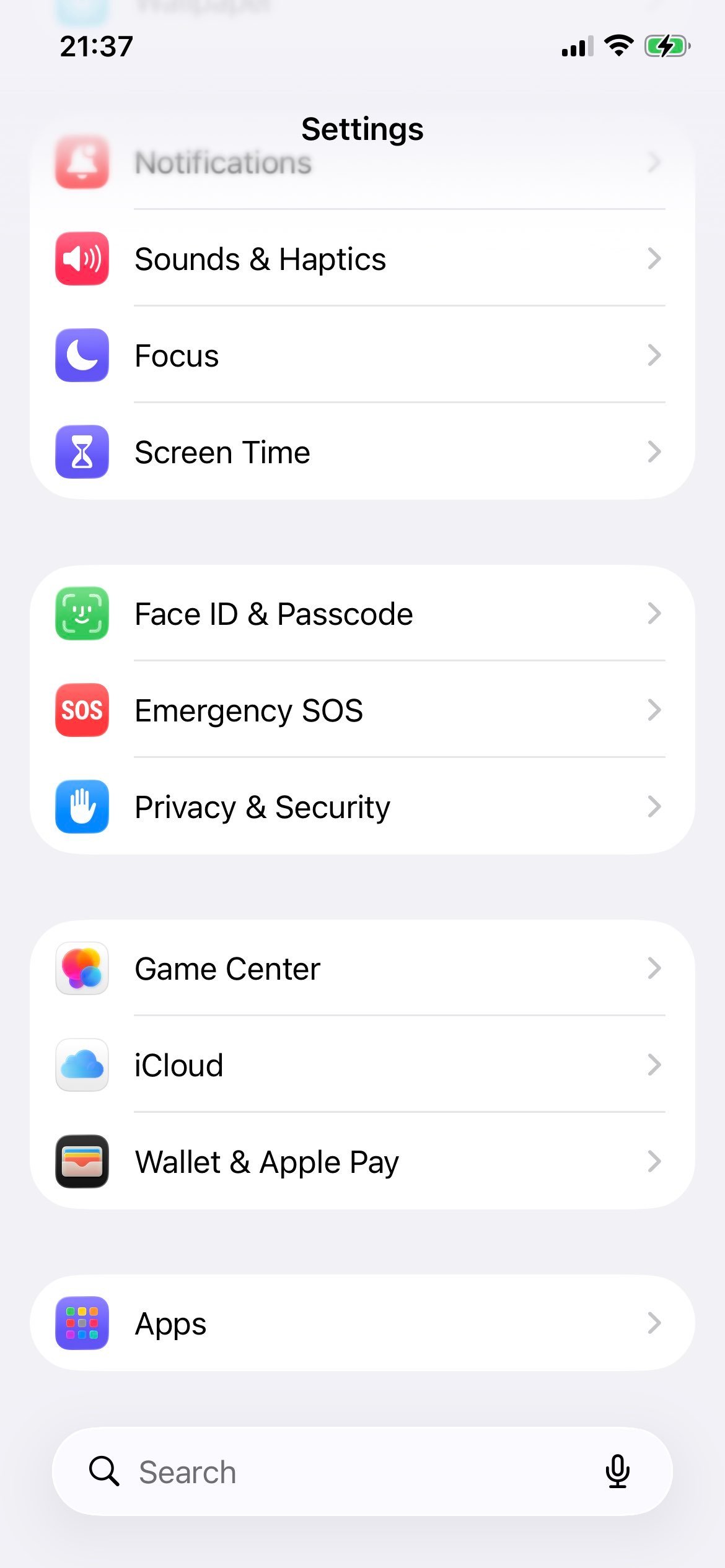
Scroll down and tap Apps. On iOS 18 and later (including iOS 19/26 in 2026) per-app settings live under this menu.
Tap Apps in iOS Settings.
Step 3: Choose Safari
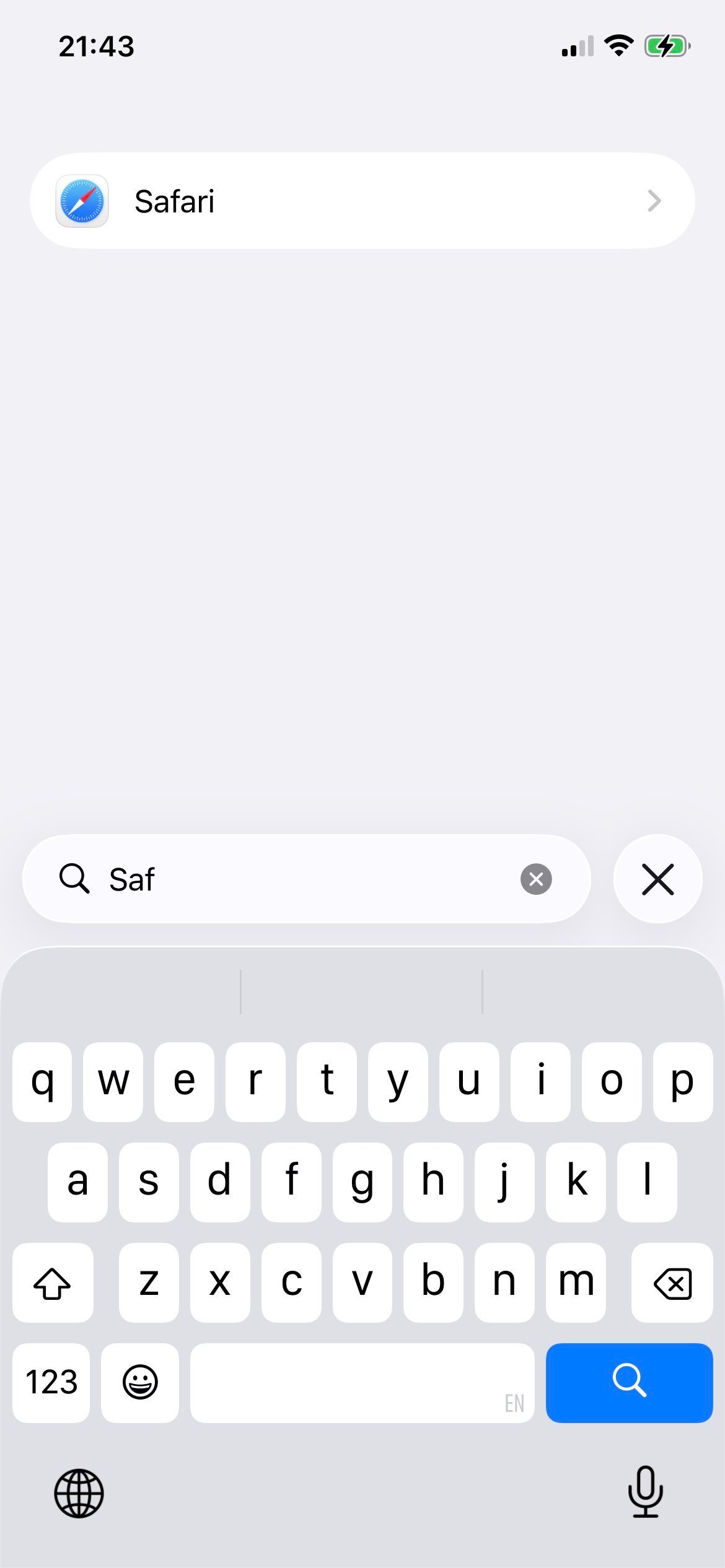
In the Apps list, tap Safari. The JavaScript switch lives here even though you intend to use Firefox - Apple's WebKit policy means every iOS browser obeys this flag.
Open the Safari app settings.
Step 4: Open Advanced
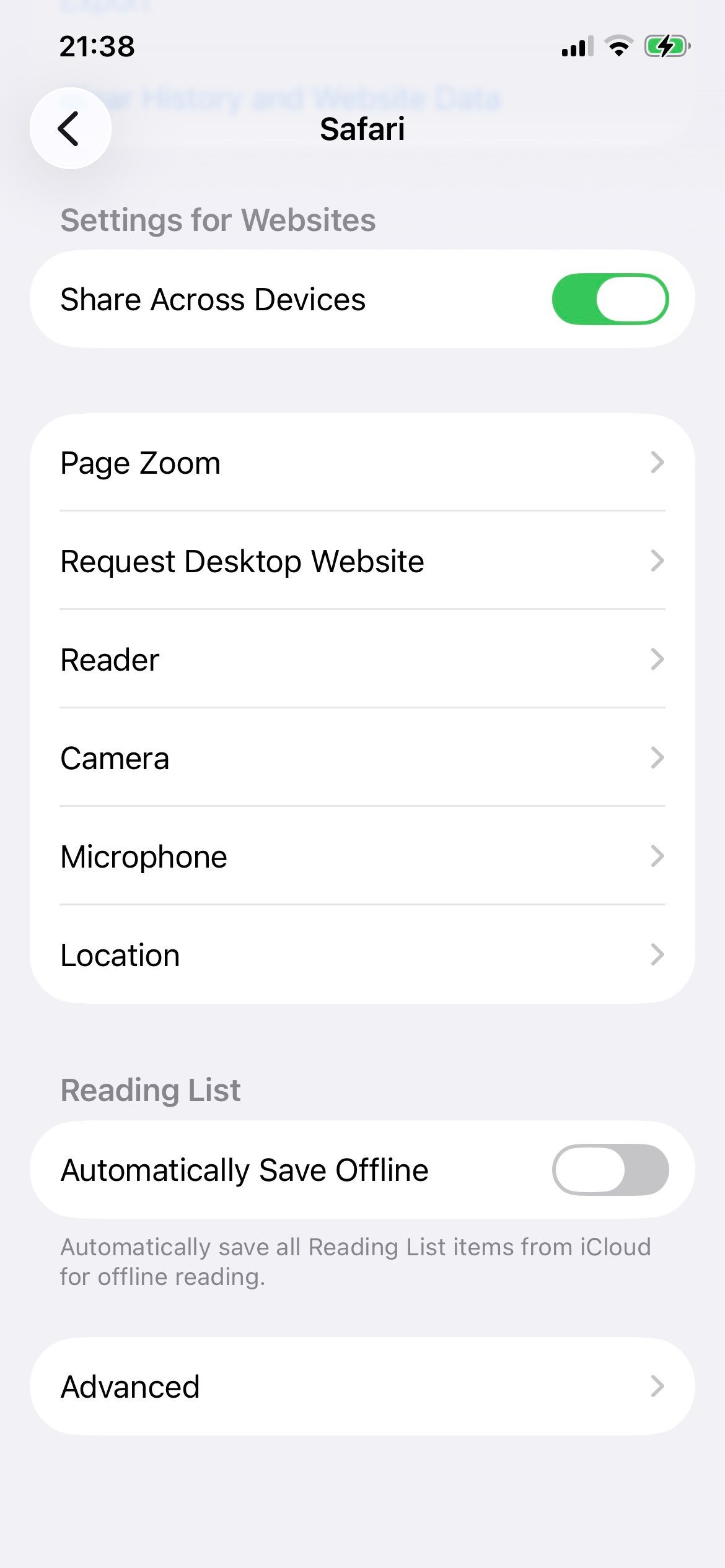
Scroll to the bottom of the Safari settings page and tap Advanced.
Tap Advanced at the bottom of the Safari settings.
Step 5: Turn JavaScript on
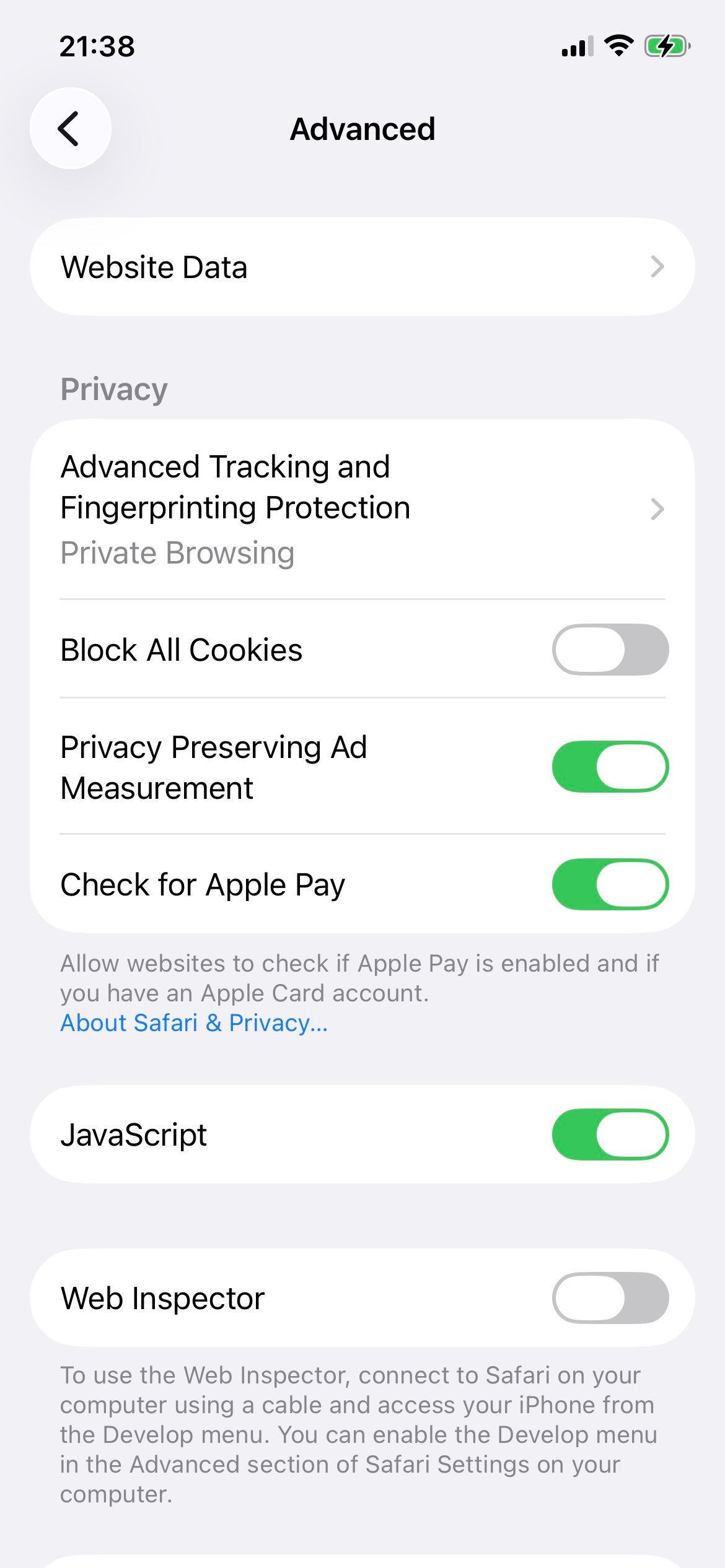
On the Advanced page, find the JavaScript row and toggle the switch to the green/on position. The change applies immediately to Firefox, Chrome, Edge, Safari, and every other iOS browser.
JavaScript is now enabled across every iOS browser, including Firefox.
Step 6: To disable later
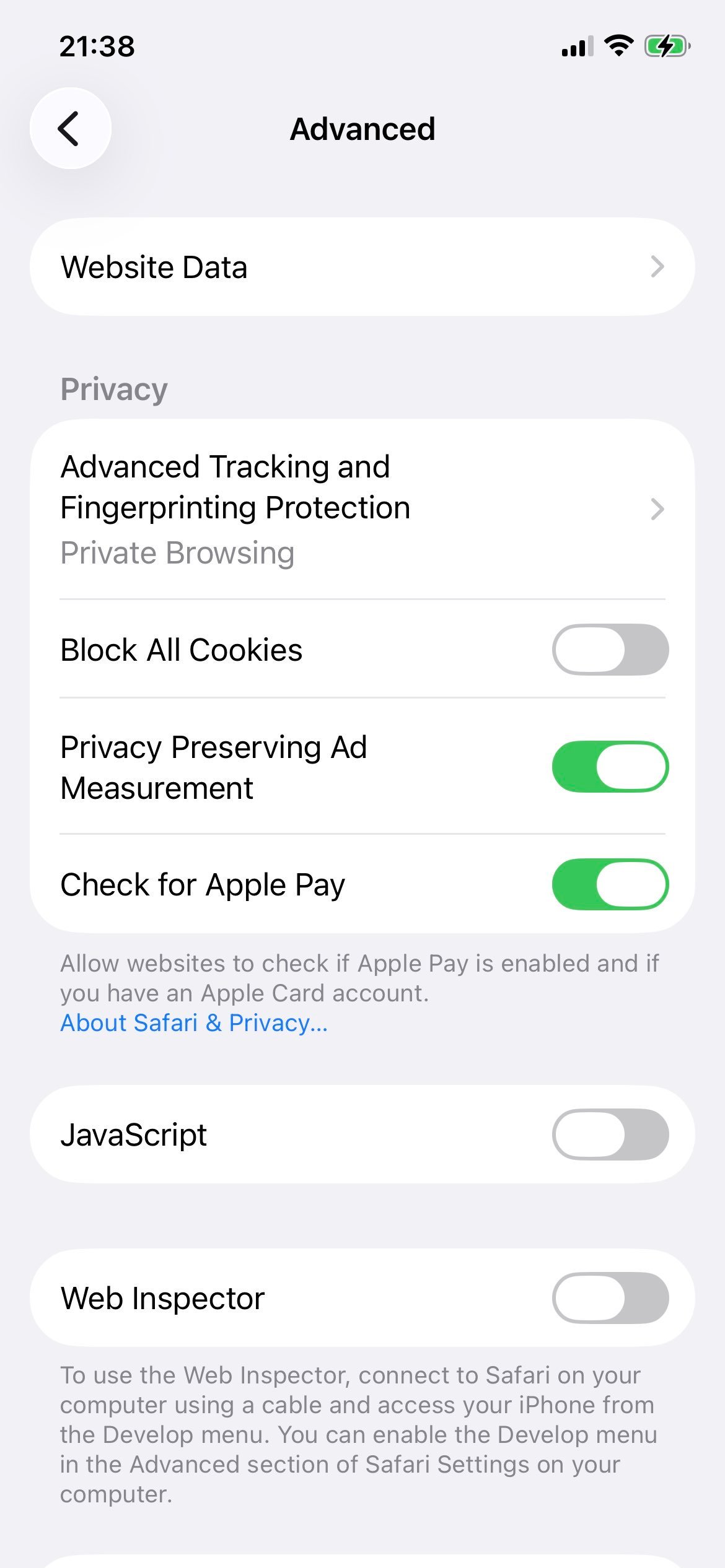
Return to Settings → Apps → Safari → Advanced and toggle JavaScript off when you want to turn it off.
Toggle JavaScript off to disable it in every iOS browser.
Reload any open Firefox iOS tabs to apply the change. Because the JavaScript flag is system-wide on iOS, the same setting also controls Safari, Chrome, Edge, and any other iOS browser you have installed.